VideoAny AI
What is this image to video workbench? Upload still photos you are authorized to use as the first frame or reference image, write a motion prompt, then generate. It is not a text-only prompt box. No still yet? generate a still with text to image. Restyle a frame with a photo restyle before animating. The credit cost appears before you submit. For a dinner-scene remake, open Burning Bridges dinner AI.
 VideoAny
 Veo 3
 Kling AI
 PixVerse
 Vidu AI
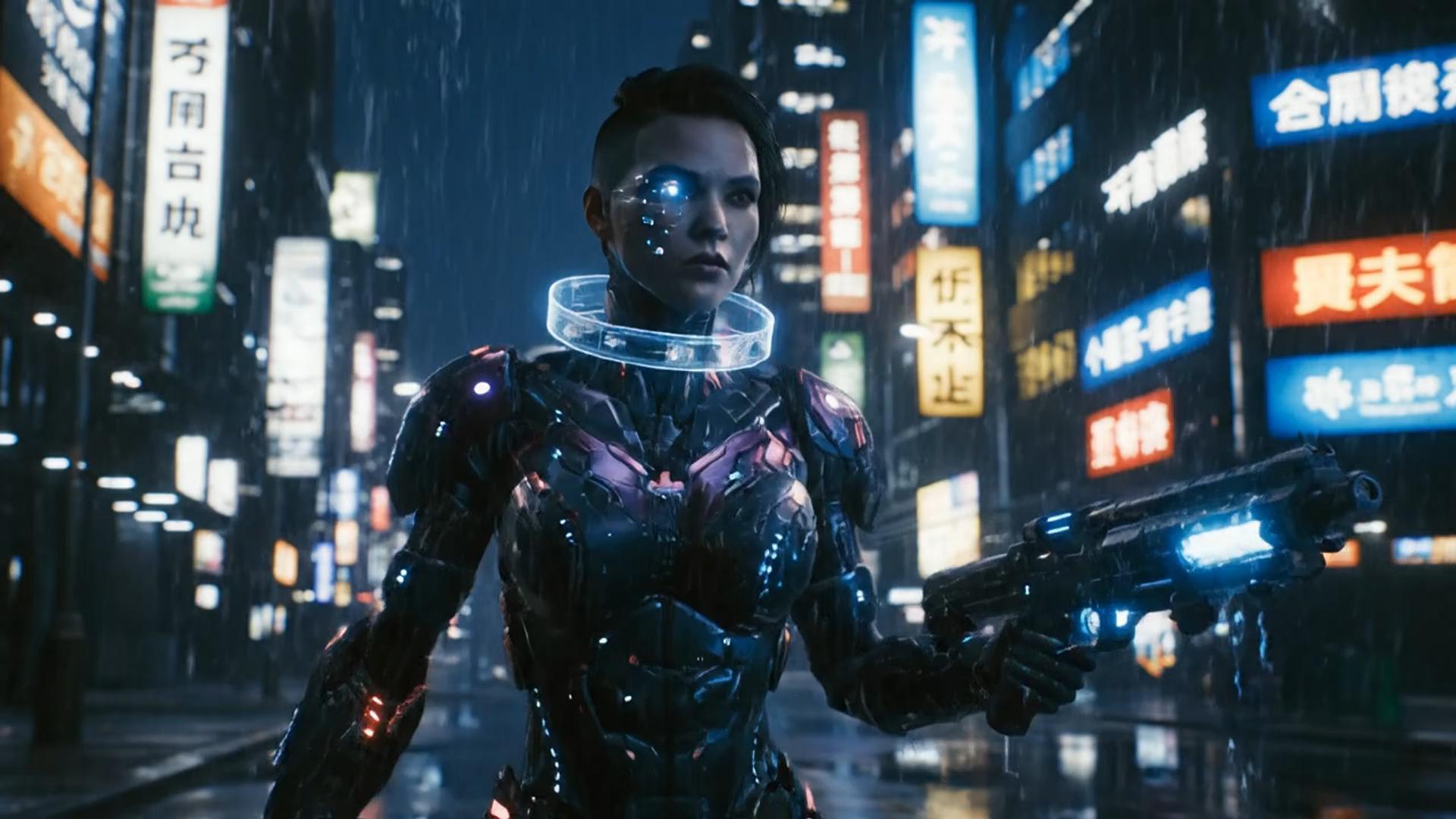
Illustrative city motion
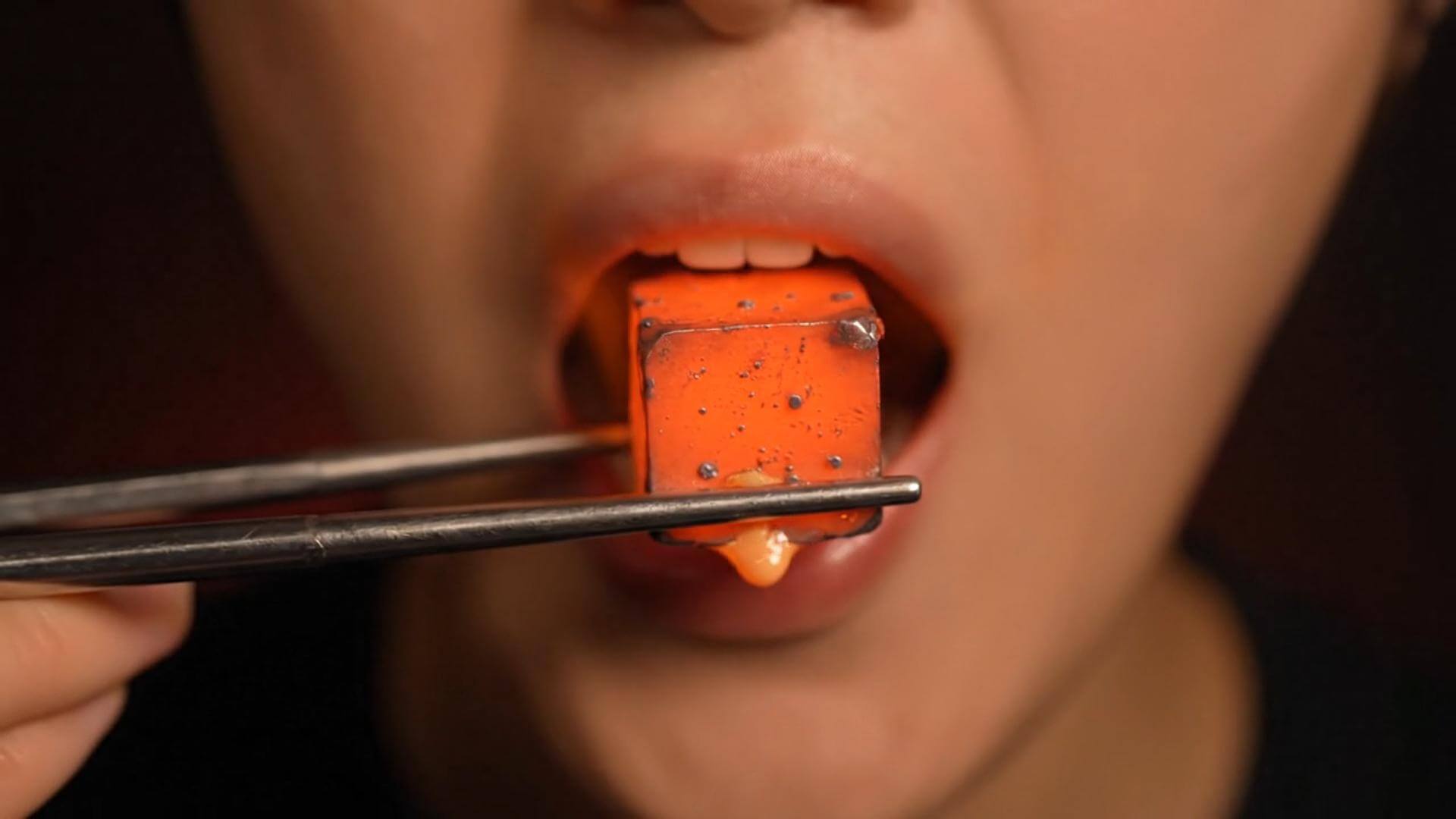
Illustrative close-up texture

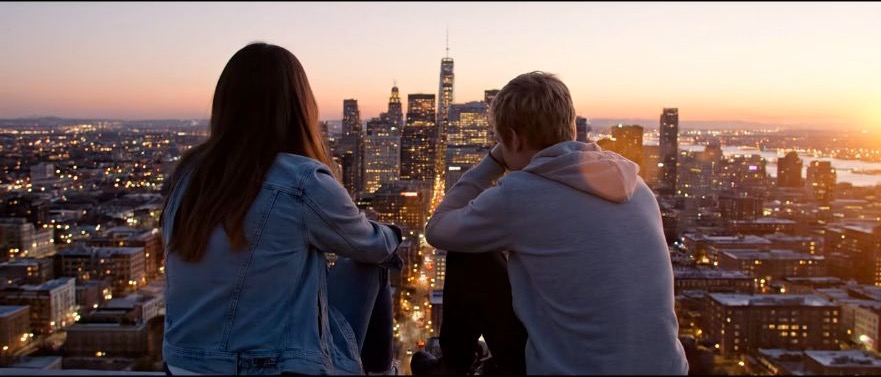
Illustrative character moment
A paragraph alone will not open this image to video path. Start with a still that already holds the subject you want to keep, then generate. The clips below reuse the text-to-video template media; they are illustrative, not verified image to video outputs.
Start from the uploaded still
You do not need a finished storyboard. Keep the subject from the still, describe one camera or motion change, generate a short draft, then change one instruction at a time. Recheck the displayed credit cost after duration or resolution changes.
Keep the uploaded still, the motion prompt, and the duration or resolution choice in one loop. Do not treat this as a blank-page text-to-video generator.
This is not a story typed into an empty box. The still has to already hold the crop, lighting, and subject you want to keep. Prompt the motion, then judge the draft against that upload.
try the look in GPT ImageStay in this image to video workbench from upload to History. Changing length or resolution can change the displayed credit cost. Read that number before you generate again.
compare it on Nano BananaName the camera, the motion, and what must not change. This page does not open a generic text-to-video catalog. Availability follows the workbench selector.
restyle it in FluxNo extra editor install is required. Open this page, upload still photos, write a motion prompt, and manage finished clips in History.
place it on a Qwen stillUse this path when a still already holds the subject you want to animate. It is not a substitute for a generic text-to-video page, and it does not promise every request will run.
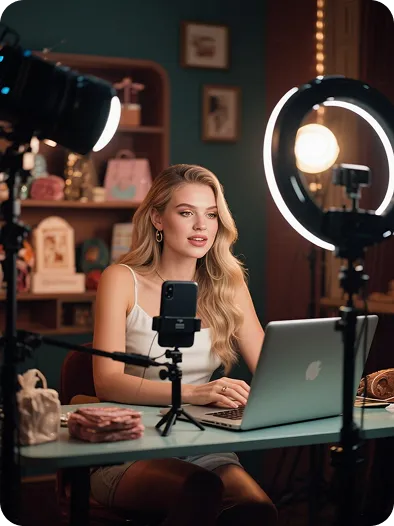
When the subject already exists in a photo, a short motion note is enough to test a social take. A script without a still belongs on another workflow.
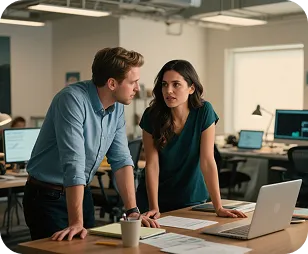
A catalog still can take a small camera move. Compare the silhouette to the upload after every run.
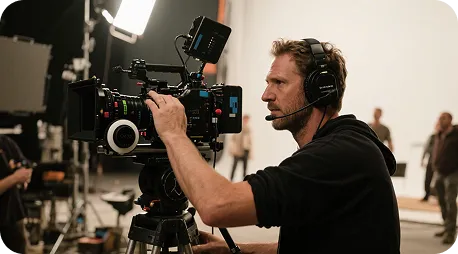
Use a locked still to preview a camera idea before you commit to a longer shoot. The template clips are not dailies from this workbench.

Generate a few image to video versions from the same still, then pick a rhythm. Extra takes still spend the credits shown for that run.
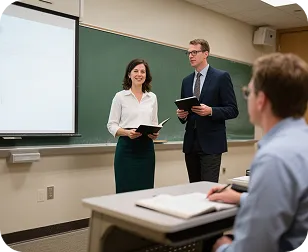
A clear still can take a simple pan or zoom. Keep labels readable, and do not ask the page to invent a lecture from text alone.
Workbench notes
Write the keep-and-move notes first, generate, then use the draft to correct the next prompt. The cards below show common work habits. They are not reviews of named users, and they are not proof of a specific clip.
He Yuxuan
E-commerce advertising operator
“I keep one product still, write a short motion note, generate a few takes, and pick the one whose rhythm fits the listing.”
Gu Zhiyuan
Short-form video creator
“One still gets me to a motion draft faster than starting from a blank timeline, as long as I keep the subject honest.”
Li Peishan
YouTube creator
“I reuse the same still and only change camera language, which makes the next image to video take easier to compare.”
Xu Ruizhe
Student creator
“I test one motion direction at a time from the same still instead of rewriting the whole scene.”
He Zhiyu
Founder
“One still plus a motion note is a faster promo draft than building keyframes by hand.”
Wu Zhiqing
Instructor
“A diagram still can take a simple camera move so a process is easier to show. That is a workflow note, not a classroom result claim.”
Common questions about this image to video workbench path. See adrecast ai ad remake video generator tool, dame hombro photo to video ai tool, photo to dance video ai tool, and kling motion control photo to video tool. See knight cat ai video generator tool, and ramalama ai video generator tool. For another source or editing goal, explore Seedance AI Video Generator, How to Use Seedance 2, ByteDance Seedance 2, Best Free AI Image Enhancer, AI Video Editor Free No Sign Up. See shrimpreel tool, and yyc3 ai family comic drama tool. See coldplay kiss cam ai tool, and zombie hug ai tool. See ghostface ai video generator tool, and cheba man ai dance tool. See bby wow ai video generator tool, and ai baby sway dance tool. See ai 90s yearbook trend tool. See Polaroid trend AI tool for a still-photo motion workflow.
On VideoAny it is a still-to-clip path, not a text-to-video engine. You upload still photos, treat them as the first frame or reference image, write a motion prompt, and generate on the locked i2v workbench. Authorized girlfriend stills can become a girlfriend-style companion clip. A riding pose is cowgirl-style motion. Current model and service rules still apply.
Wait time follows duration, resolution, and the current queue. After you submit, watch History for status, then preview or download when the task finishes.
The still already holds the subject. Keep that identity, name a camera move if you need one, and avoid asking for a pose the upload never held. If the keep list drifted, simplify the next run instead of stacking adjectives.
Three steps from an uploaded still to a clip
Choose by starting material and task: generate motion from a still and a prompt, or arrange existing media in an editing project. A timeline editor's controls, export options, and pricing depend on the product you choose.
| Workflow step | VideoAny image-to-video | Timeline editing |
|---|---|---|
| Starting point | Upload a still, add a motion prompt, and choose an available image-to-video model | Import source clips, stills, or audio and arrange them on a timeline |
| Visual direction | Use the uploaded still and motion notes to guide the generated clip | Work with source material and the visual tools offered by the selected editor |
| Creative controls | Describe subject motion and camera movement alongside the uploaded still | Use the selected editor's timeline and clip controls to shape the sequence |
| Effects and transitions | Describe the desired motion or look in the generation prompt | Available effects and transitions depend on the editor |
| Core workflow | Generate a new clip from a still and a motion prompt | Assemble and edit source media into a sequence |
| Revisions | Change the motion prompt or supported settings, then generate another version | Revise the editing project and export another version |
| Processing time | Generation time varies with the model, settings, and queue | Export time varies with the project, editor, and processing setup |
| Output | Clip duration and resolution follow the selected model's options | Export options depend on the editor and source media |
| Typical task | Explore motion from an existing still | Sequence, cut, or combine media for an edit |
| Review | Preview completed clips and download them from History | Review the editing project or its exported file |
| Pricing model | The workbench displays the credit cost before generation | Licensing and subscription terms vary by editor |
If you need a different source type, open the matching VideoAny workflow. No still yet? generate a still with text to image. Restyle a frame with an ai photo edit before uploading. Short bounce from a still is jiggle-style motion. This page stays on image to video from a still. Have a matching motion clip as well as a character still? Try the Incredible Gassy Viggle AI meme remake or Imma Bite You AI Dog reference transfer on the AI dance generator workflow.
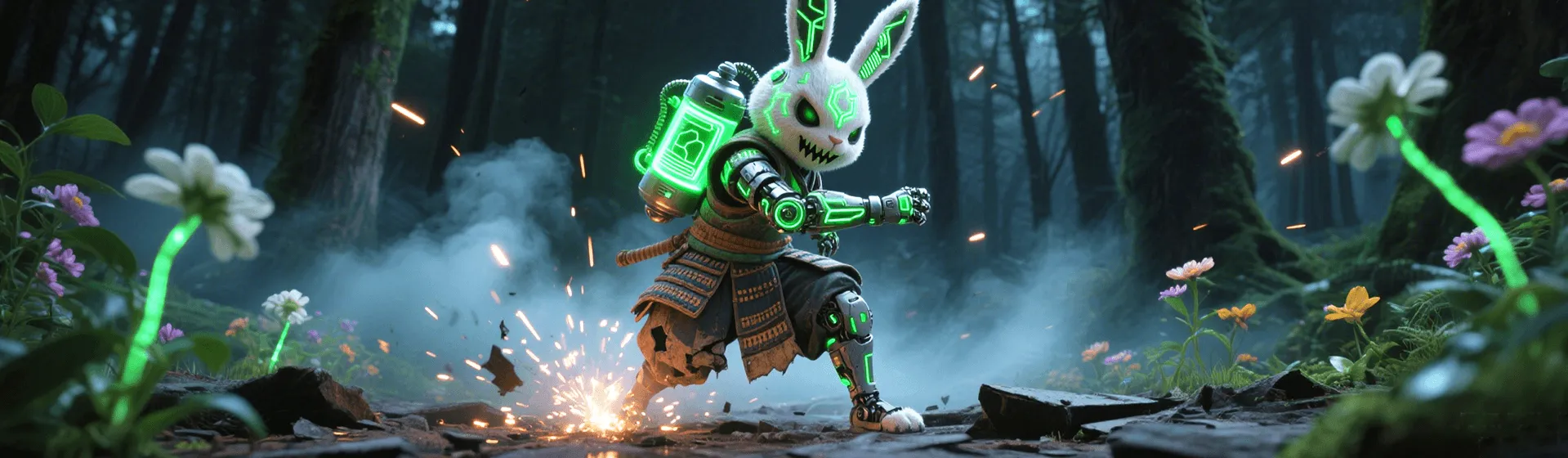
Upload an authorized still as the first frame or reference image, then review the clip in History. Each run spends the credits shown before you submit.
Choose a workflow, then explore related tools, scenes, and model information.
Yes. Keep the same still, change one camera or motion note, and generate again. Compare versions in History. A new still is only needed when the source subject is wrong.
You can open the workbench and inspect the locked i2v tab. Available output follows your account, and the credit cost for this run is shown before you submit.
Check rights to the uploaded still, the selected model terms, and your VideoAny plan before any commercial use. This page does not grant a commercial license.