
• Home
  • For You
  • AI Video
  • AI Image
  • AI 3D Generator
  • Anime / Manga
  • Video Edit
  • Video Extend
  • AI NSFW Image Generator
  • Undress Clothes
  • Undress Video
  • Clothoff
  • Face Swap
  • AI Tools
  • Generate
  • Agent
  • Explore
  • Home
  • For You

Create & chat

  • AI Video
  • AI Image
  • AI 3D Generator
  • Anime / Manga
  • Video Edit
  • Video Extend+5s
  • Generate
  • AgentBeta
  • Explore

Public discovery

  • AI NSFW Image Generator
  • Undress Clothes
  • Undress Video
  • Clothoff
  • Face Swap
  • AI Tools
Upgrade for more
    1. Home
    2. ›AI Tools
    3. ›AI Video Tools
    4. ›Polaroid Trend AI: Photo to Video

    VideoAny AI

    Polaroid Trend: Bring a Still Photo to Life

    The Polaroid trend starts with a still photo: a framed portrait, a travel memory, or an instant-photo-style composition with room for a small movement. Upload an authorized Polaroid-style still, add one motion note, review account credits, then generate a short clip. This page uses VideoAny image-to-video, the same runtime as the AI photo to video generator. Explore an ai video, photo to video, a portrait motion workflow, or image-to-video prompt guidance for related starting points.

    VideoAny
    Veo 3
    Kling AI
    PixVerse
    Vidu AI
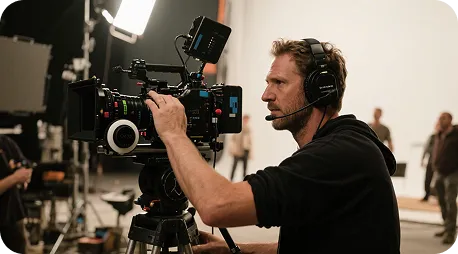
    Shared scene illustration; not a trend-specific result

    Shared scene illustration; not a trend-specific result

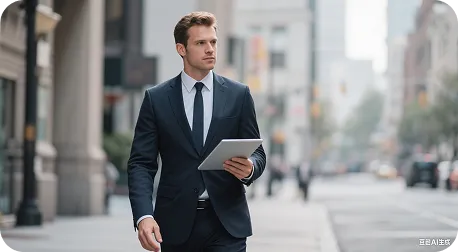
    Shared detail illustration; not a generated Polaroid sample

    Shared detail illustration; not a generated Polaroid sample

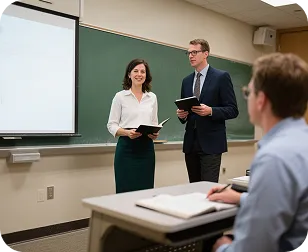
    Shared motion illustration; not a verified page output

    Shared motion illustration; not a verified page output

    Give your Polaroid trend photo one clear movement

    Choose a still with a readable subject and a visible border if that framing matters. Try a slow camera push or a slight head turn as the single motion note. The uploaded image supplies the composition; the note describes how you want it to move. Check the result against the source before keeping a take.

    Illustrative workflow clip; not a Polaroid trend result
    Shared workflow example
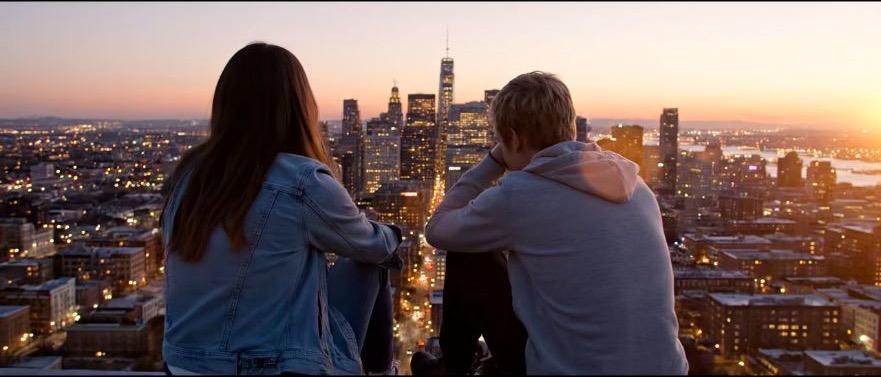
    ✦A cinematic city scene unfolds as the camera follows two friends at sunset...Warm evening light moves across the skyline in a gentle cinematic shot...↗

    Start with the still you want to animate

    Judge the first clip against your source photo

    Keep the source photo beside the preview. Look at faces, hands, border edges, and any writing before judging the motion. If the frame bends or the subject changes, simplify the instruction and compare another take from the same upload. Each new generation has its own displayed credit cost.

    Shape the Polaroid trend around your existing photo

    A quiet portrait and a busy travel snapshot need different motion notes. Choose what should stay recognizable, request one movement, and use the first clip to decide whether the idea suits the image. Model availability and output settings follow the image-to-video selector in this workbench.

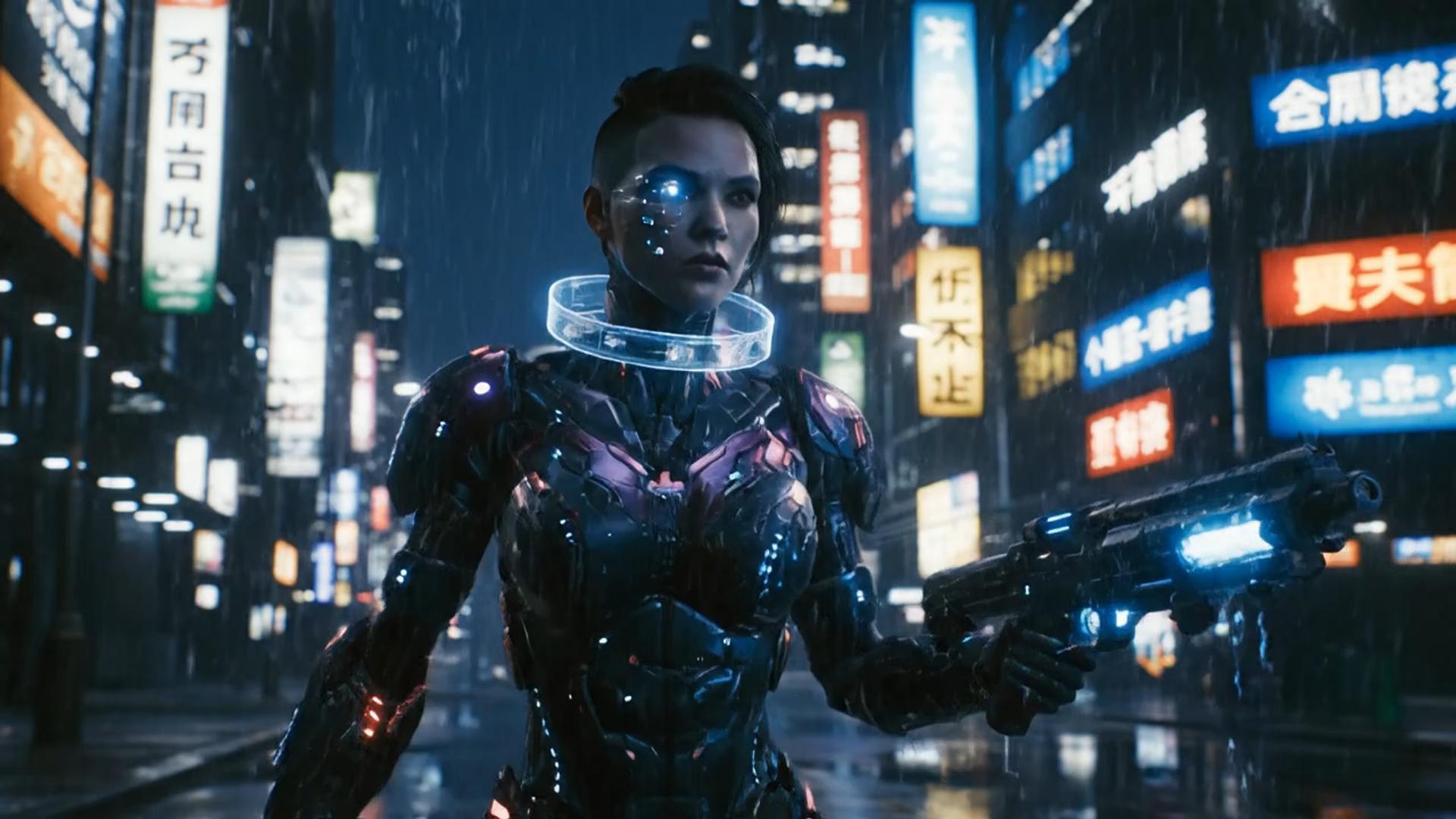
    ✦A cinematic character walks through a neon city in the rain...The camera follows the character as the lights begin to glow...↗
    01

    Give the still a small, readable action

    Upload the photo first, then describe a single movement that suits its composition. For example, request a slow push toward the framed portrait while asking to retain the border. Treat the prompt as a direction to test, then inspect what the model actually produced.

    restyle it in Flux
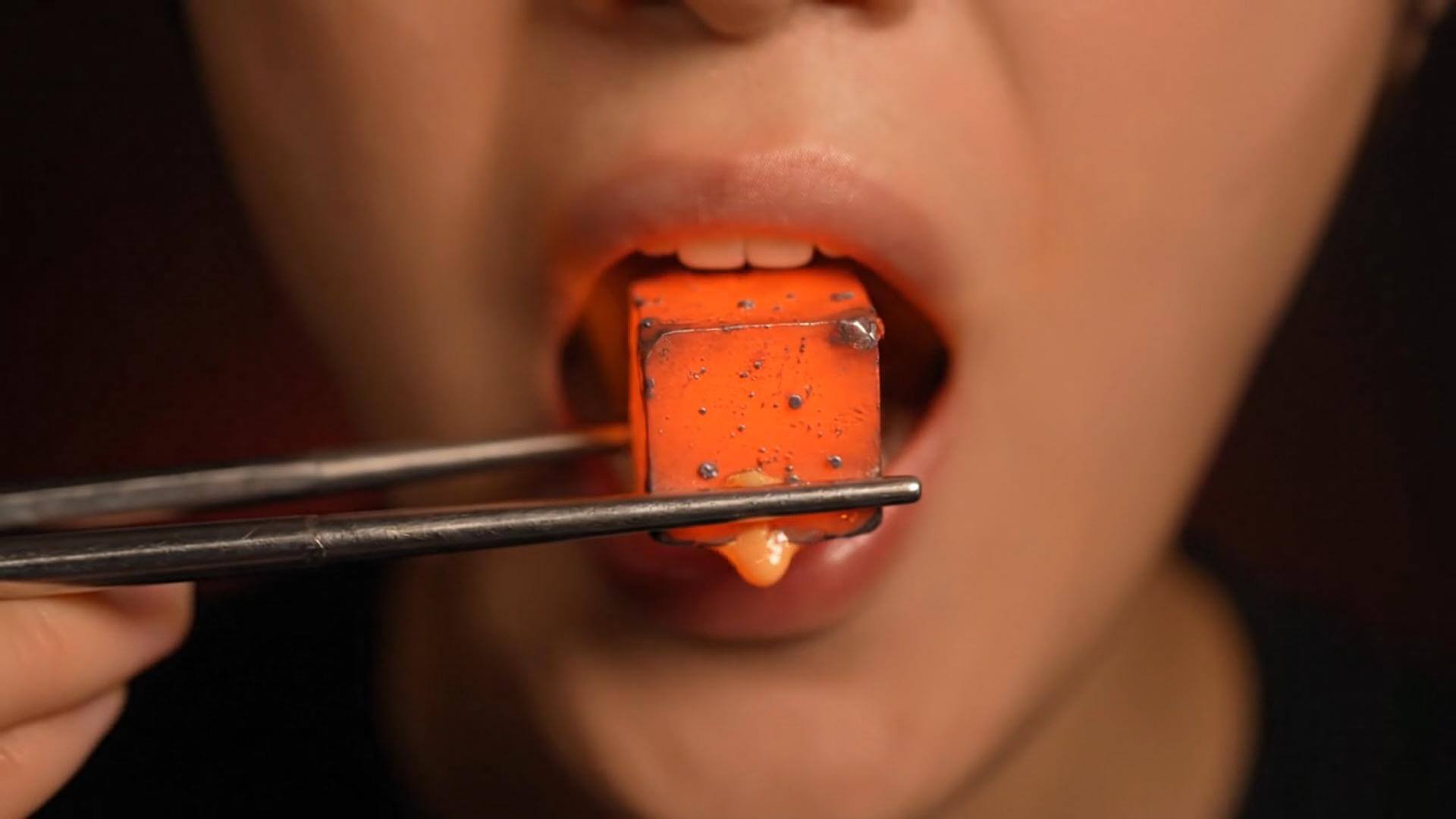
    ✦A baby bird hides under its mother’s wing as rain falls softly...Warm light moves across the feathers in a gentle close-up shot...↗
    02

    Match output settings to your review budget

    Select from the length and resolution options currently available for the chosen model. Read the account credit preview before submitting. Higher output settings do not remove the need to inspect faces, edges, and motion in the finished clip.

    place it on a Qwen still
    ✦The viewer looks up, the character turns toward the camera...A hand-held camera gently pushes in as the scene changes...↗
    03

    Let the uploaded photo carry the visual style

    Prepare the warm tones, grain, border, and layout in your authorized source image. Keep the animation note focused on movement so several competing style instructions do not obscure what you want the first take to demonstrate.

    draft this on Seedream
    ✦Create a polished video from your idea, right in the browser...Review the result, refine the prompt, and generate another version...↗
    04

    Review the photo-to-video attempt in your browser

    Use the workbench to upload the still, enter the motion note, and submit after checking credits. Once the task finishes, preview the result and manage it in History. Account state and the selected model determine the available controls.

    try the look in GPT Image

    Choose a photo that reads clearly in a short clip

    The Polaroid trend can be a starting idea for a personal memory, a product mood board, or an illustrated character vignette. Use media you have permission to animate. Prepare the crop and instant-photo styling in the still so the motion request can stay simple.

    Creators animating a personal memory

    Creators animating a personal memory

    Start the Polaroid trend from an authorized portrait or travel photo with a clear subject. Ask for a restrained movement, then check that the resulting expression and framing still suit the memory you want to share.

    Brands testing an instant-photo-style product shot

    Brands testing an instant-photo-style product shot

    Prepare a product still with the intended border and crop. Test one movement and review packaging, logos, and proportions frame by frame before using a generated take in a campaign.

    Filmmakers exploring a moving photo insert

    Filmmakers exploring a moving photo insert

    Use an authorized still to sketch a brief photo insert. Keep the movement narrow enough to judge whether the idea belongs in your sequence, then compare the generated timing with the surrounding footage in your editor.

    Editors comparing several motion directions

    Editors comparing several motion directions

    Keep the same image while testing a subject movement against a camera movement in separate takes. Compare the results for readability and mood. Each submitted version uses the account credits shown for that attempt.

    Demonstrators explaining still-to-clip animation

    Demonstrators explaining still-to-clip animation

    Choose an authorized example and show the source photo beside the result. Explain which parts were requested, which changed unexpectedly, and why reviewing the actual clip matters more than the motion note alone.

    Photo animation notes

    A repeatable loop from source photo to reviewed take

    Keep one source image and compare one change per attempt. The notes below are illustrative editing habits, not customer testimonials or promises of a particular result. Record the motion instruction and settings alongside the take you prefer so later comparisons remain useful.

    Source selection

    Product photo preparation

    “Choose an authorized product still with clear edges and readable packaging. A small motion test is easier to evaluate when the product already fills a sensible part of the frame.”

    Motion choice

    Social clip planning

    “Pick one action for the short clip: a gentle push toward the photo, a slight subject movement, or a restrained camera drift. Save other ideas for separate takes.”

    Version comparison

    Consistent source review

    “Compare takes from the same still before replacing the upload. With the composition held steady, it is easier to see whether a different motion note improved the result.”

    Border inspection

    Frame and lettering review

    “Watch the frame edges throughout the clip. Check whether handwritten captions, corners, and the subject's outline shift in distracting ways before deciding the take is usable.”

    Credit planning

    Per-attempt cost review

    “Inspect the cost before the first run and again after changing length or resolution. Keep a preferred draft instead of generating several versions without reviewing the earlier result.”

    Input permissions

    Authorized image selection

    “Use a photo you own or have permission to animate. If other people appear, confirm that the planned animation and intended use fit the permissions you have.”

    Polaroid trend photo-to-video questions

    Find answers about uploads, motion notes, and credits below. For neighboring tasks, read how to turn an image into video, explore product video from a photo or ecommerce video from a still, then compare the separate video extension and video editor workflows if you already have footage.

    How does the Polaroid trend work here?+−

    Here, the Polaroid trend means animating an existing instant-photo-style still into a short clip. The runtime is image-to-video: an image is required, and a motion note guides the animation. Prepare the photo styling before uploading. The available models are those shown in the workbench; this page does not add a dedicated branded effect or an official third-party template.

    How long will the photo animation take?+−

    Generation time varies with the model, clip length, resolution, and current queue. Check the task status in History after submitting. Wait for the result before deciding whether to retry, and review the next run's credit cost if you change output settings.

    Why did my photo border or subject change?+−

    A generated clip can alter faces, hands, lettering, or the instant-photo border. Ask for one restrained motion and mention the features you want to retain. If a large camera move distorts the frame, try a smaller movement and compare the next preview. Exact preservation is not guaranteed.

    Can I revise the motion without changing the photo?+−

    Yes. Keep the same upload, change the motion note, and generate another take after reviewing credits. Compare versions in History. If the source crop is the problem, prepare a revised still first; a motion instruction alone may not repair a cramped composition.

    Can I try the Polaroid trend for free?+−

    You can browse the workbench and inspect settings. Generation uses account credits, and the cost for the selected model and output is shown before you submit. Any available trial credits follow your account's current allowance; there is no promise of unlimited free generation. Recheck the displayed cost before each new take.

    Can I use the clip for a brand or product post?+−

    Check the rights to the photo, any depicted people, the selected model's terms, and your VideoAny plan. This page supplies a photo-to-video workflow and does not grant rights to third-party images or branding. Polaroid-style describes the source aesthetic; this is a VideoAny tool, with no claim of third-party sponsorship.

    Polaroid trend photo-to-video walkthrough

    Make a Polaroid trend clip in three steps

    Bring a Polaroid-style still into motion

    Photo animation and timeline editing serve different jobs

    Image-to-video proposes motion inside an uploaded still. A timeline editor arranges existing footage and effects. Pick the workflow that matches your source material, then judge the preview rather than assuming either approach will preserve every border, face, or letter perfectly.

    Photo animation and timeline editing serve different jobs
    Workflow comparisonVideoAny photo-to-video workbenchA manual editing workflow
    Starting materialUpload a still and describe one movementArrange existing footage or animate layers manually
    Motion explorationCompare generated takes from one source photoAdjust keyframes and effects on a timeline
    DirectionUse the image plus a motion note to request a takeSet each movement through editing controls
    Photo framingPrepare the instant-photo frame in the source stillBuild and position border layers in the editor
    Available controlsUse the models and settings currently shownUse the effects installed in your chosen editor
    Revision methodRevise one motion note and generate another takeEdit the timeline or source layers directly
    Processing timeTime varies with model, settings, and queueTime depends on edits, effects, and hardware
    Quality reviewInspect generated faces, lettering, and frame edgesInspect export settings and the edited layers
    Best-fit starting pointA Polaroid trend idea with an existing stillFootage that needs precise cuts or compositing
    Version reviewCompare generated takes in HistoryCompare timeline revisions and exports
    Cost checkReview account credits before every submissionCheck the chosen editor's license and plan

    Continue from a Polaroid trend clip or another source

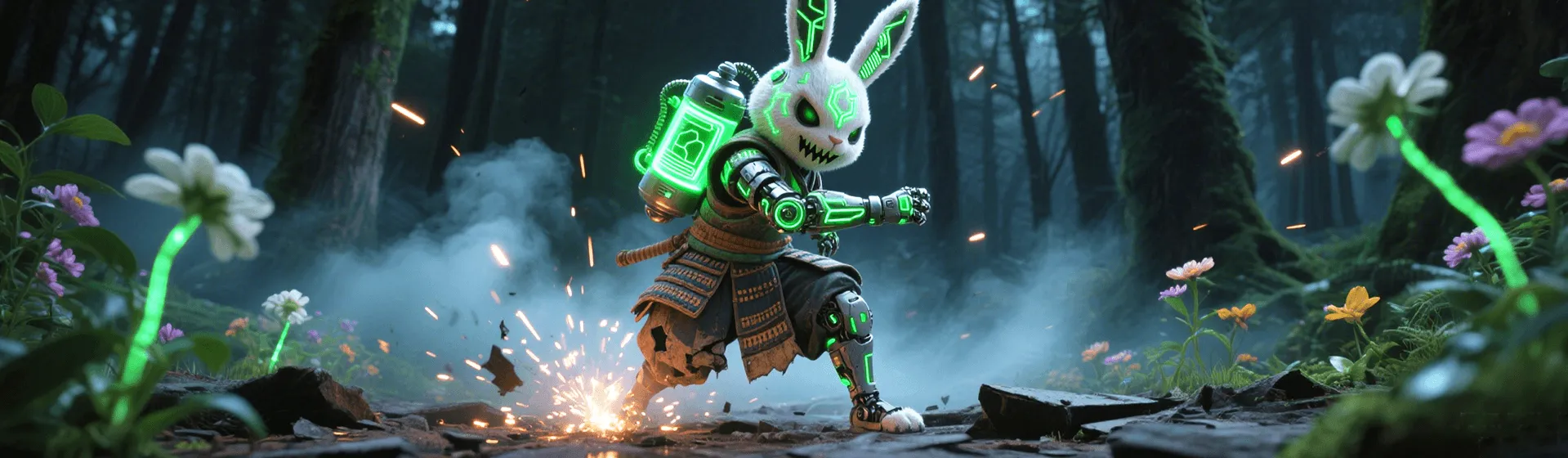
    Choose the next tool by its inputs. Compare AI motion control when you have a movement reference, inspect the Seedance 2.0 page for that model workflow, or explore the knight cat photo animation idea. The reference-image video workflow and UGC product demo workflow cover other ways to start from authorized imagery.

    turn the still into motion
    turn the still into motion→
    Photo to video
    Photo to video→
    AI Photo To Video Generator
    AI Photo To Video Generator→
    VideoAny Polaroid trend workbench
    VideoAny AI

    Upload your still and choose one motion note

    Bring an authorized Polaroid-style photo to the image-to-video workbench above. Check the selected model, output settings, and account credit cost before you generate. Review the finished clip for recognizable subjects and a readable frame, then keep or revise the take.

    View credit plans

    Explore More AI Image Tools

    • Dots video effects
    • GPT Image 2 Generator
    • GPT Image 2.5 Version Guide
    • Image 2.5 Generator
    • image2.5 Name Guide
    • Seedance 3.0 status tracker

    Model & settings

    Duration

    5s
    2s15s

    Resolution

    Repeat

    1
    2STARTER5LITE8PRO10MAXCurrent
    Advanced settings

    On: the video provider rewrites your prompt before it generates (prompt extend). Off: it uses the prompt in the box as you wrote it. The text in the box stays the same.

    Upload reference

    0/1

    Prompt

    Prompt
    0/5000
    Credit cost

    Generate 1 videos · 45 credits total

    Billed for 5s; model max 15s; prompt duration does not change billing.

    Samples are examples. Results follow the prompt and model and will not match the preview. For a closer match, use Image to Image for a still or Video to Video for a clip.

    1 / 2
    VideoAny
    • Home
    • AI Video Tools
      • AI Workflows
        • Text to Video
        • Image to Video
        • Video Editor
        • Video Extend
        • Text to Video
      • Creative Tools

        • NSFW Video
        • Undress Video
        • AI Promo Video Maker
        • AI Video From Photo No Watermark
        • Cheaper Than Runway AI Video
        • Grok Imagine From Photo
        • Moss Image (MOSS-Image) to Video on VideoAny
        • SeeCut Talking-Head Shorts
        • TikTok Video from Photo
        • Instagram Reel from Photo
        • YouTube Shorts from Image
        • Product Video from Photo
      • Templates / Resources

        • Photo to Video
        • Photo to Video
        • Action & Motion
      • View all
    • AI Image Tools
      • AI Workflows
        • Text to Image
        • Image to Image
      • Creative Tools

    • Uncensored AI Tools
      • Uncensored AI Tools
        • Nude Photo Generator
        • AI Nudes Image Generator
        • Uncensored Image Generator
        • NSFW Image to Video
        • Nude Generator
        • Nude Image Generator
    • AI Models
      • AI Models
      • ByteDance

        • Seedance 2.0
        • Seedance 2.5
        • Seedream 5.5
    • Blog & Guides
    • Pricing
    • Rewards
    Settings
    Language
    ThemeAtelier
    NSFW Video GeneratorNSFW Image GeneratorPrivacy policyTerms of serviceRefund policy
    Premium-50%50% off
    Lite

    Premium membership from $19 per month

    Premium benefitsMore benefits
    Fast generationHD outputAll image toolsAll video tools
    VideoAny
    AI Product Spin Video
  1. Turn an Image into a Video
  2. Extend an AI Video
  3. First and Last Video Frames
  4. Image-to-Video Prompt Guide
  5. Wan 2.7 vs Seedance
  6. Wan 2.7 First and Last Frames
  7. Seedance 2.0 API
  8. Save and Reuse Video Settings
  9. Wan vs Seedance Product Video
  10. Make a TikTok Video from a Photo
  11. Vertical 9:16 Video from Photo
  12. Anime Image to Video
  13. Template-Based AI Video
  14. Lindyson AI AI Video
  15. Beef TV Alternative
  16. OmniAILab AI Director
  17. Free Claude AI Video Generator
  18. NIXM AI Video With Sound
  19. Reusable Video Templates
  20. Social Video from Photo
  21. Ecommerce Video from Still
  22. OpenFilm AI Video
  23. Cinematic Video Prompts
  24. AI POV Video Generator
  25. ReelMimic AI Video
  26. FrameFields AI Video
  27. PrintFilm AI Video
  28. Anything2Explainer AI Video
  29. Huashu Motion AI Video
  30. StoryShort AI AI Video
  31. Keyframes to Video
  32. WeftCanvas AI Video
  33. ComfyUI AICG3D Short Drama
  34. AI Video to Video Restyle
  35. MiniMax H3 Higgsfield
  36. Seedance 2.5 API
  37. Wan 3.0 Video API
  38. Multi-Model AI Video Studio
  39. Lemo OpusCar AI Video
  40. MakeMovie AI Video
  41. Motion Control
  42. AI Hug Generator
  43. AI Kiss Generator
  44. AI Dance Generator
  45. AI Dance Generator
  46. AI Dance Generator
  47. AI Dance Generator
  48. AI Dance Generator
  49. Photo to Video
  50. AI Dance Generator
  51. AI Dance Generator
  52. AI Dance Generator
  53. Crazy Frog Seedance
  54. Raindance AI Couple Video
  55. NSFW Image
  56. Undress
  57. Clothoff
  58. Face Swap
  59. AI Outfit Generator
  60. Background Replacer
  61. AI Body Editor
  62. Photo to 4K
  63. View all
  64. Alibaba
    • Wan 3.0
  65. OpenAI

    • GPT Image 2
  66. Black Forest Labs

    • Flux 2 Pro
  67. MiniMax

    • Hailuo 02