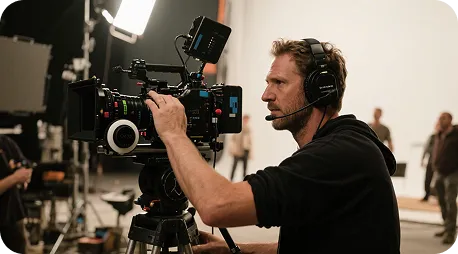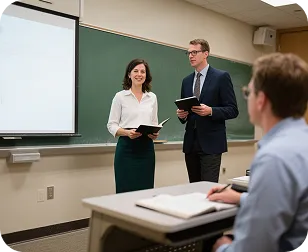

A written scene gives the short video maker a direction
Describe the visible action rather than a broad mood alone. A bottle rotates on a matte pedestal is easier to judge than an entire launch campaign packed into one prompt.
draft this on SeedreamVideoAny AI
This short video maker starts with a written scene. Describe a subject, one action, and a camera move in the text-to-video workbench. Choose the available settings and review the credit cost before you generate.

Illustrative city scene

Illustrative texture close-up

Illustrative character moment
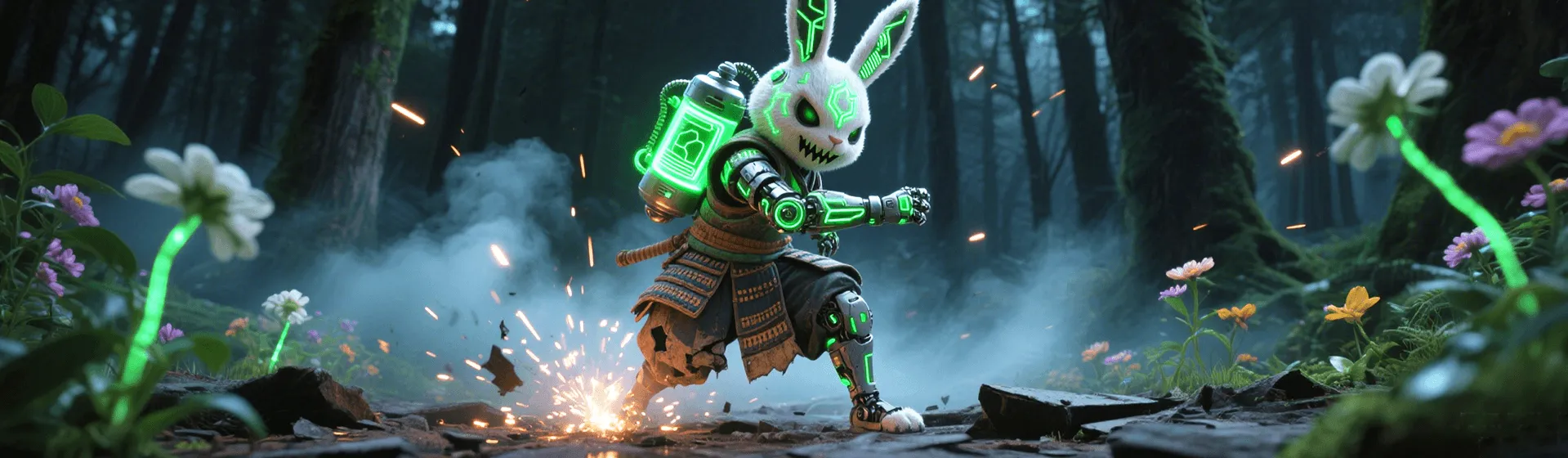
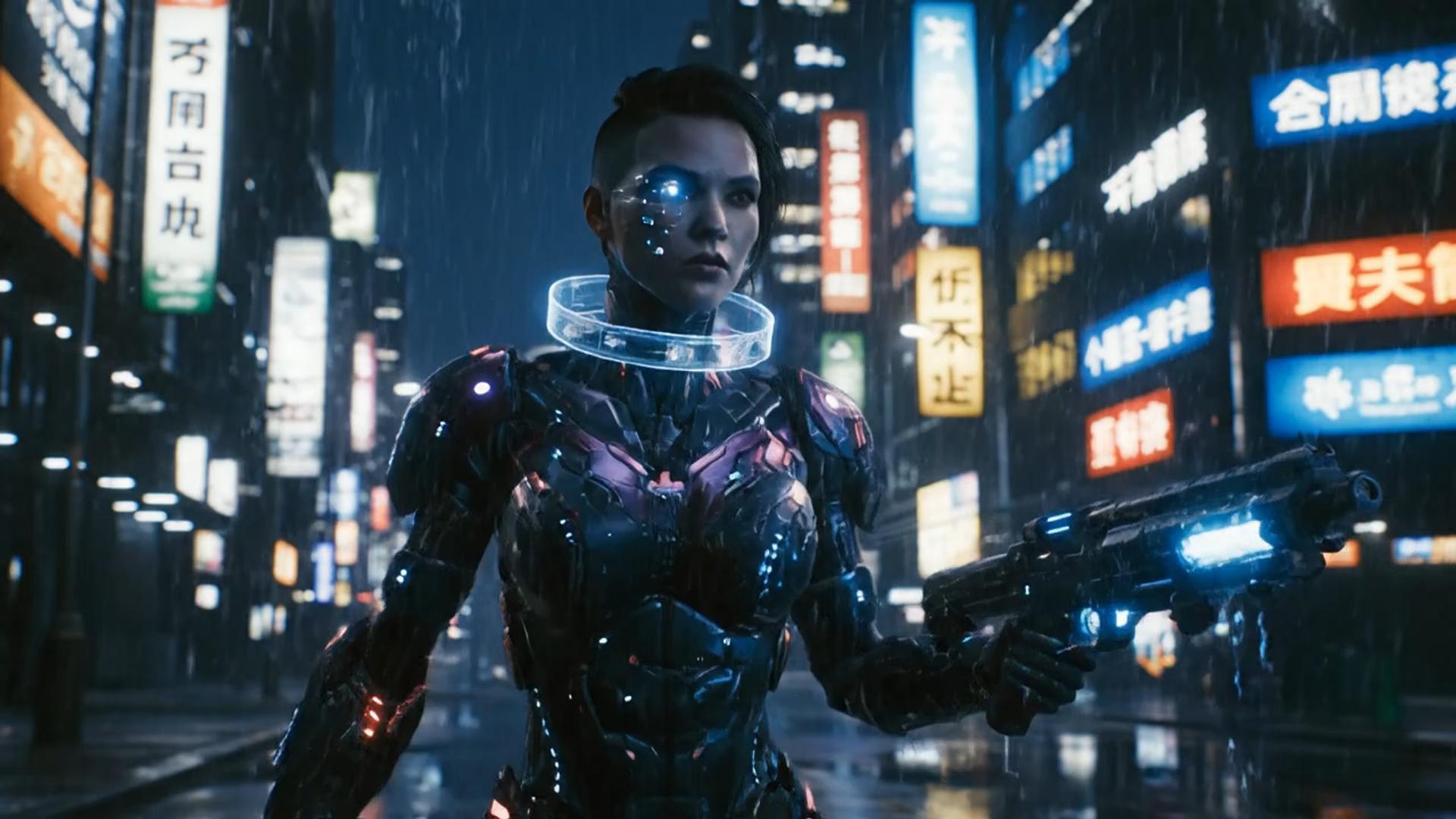
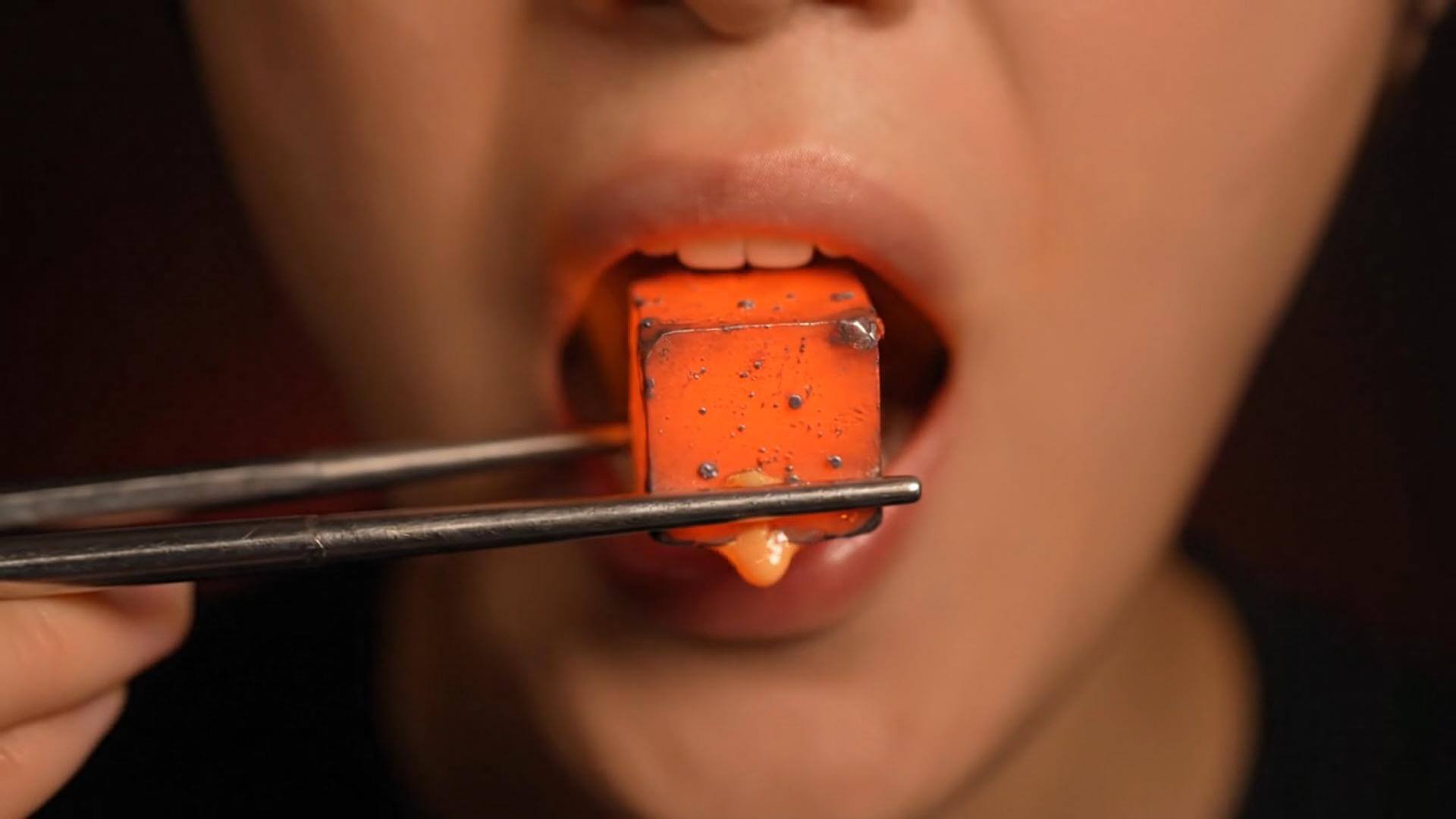
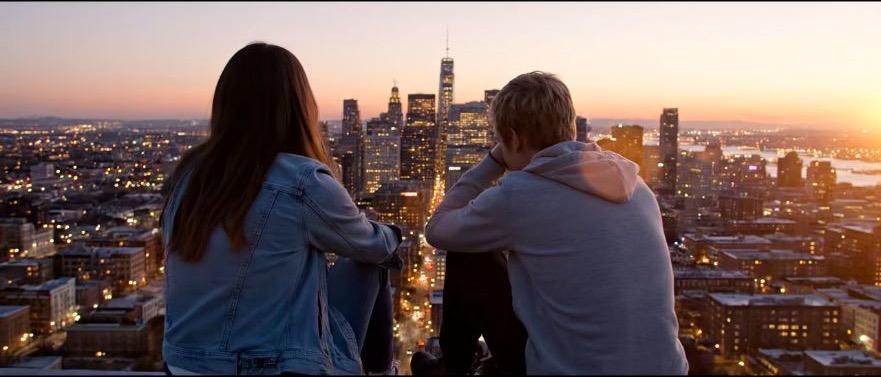
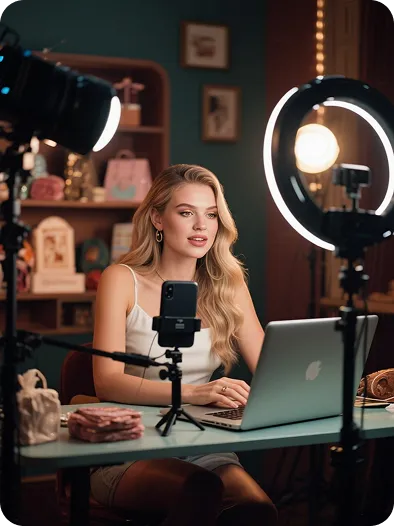
A short clip works best when it carries one clear beat: a cup turning on a counter, a street coming to life, or a character looking toward the camera. If you already have a still, use an ai video or the photo-to-video workflow. The template media here is illustrative.

One scene, one action
For a product shot, try: a ceramic mug turns slowly on a sunlit table while the camera holds still. Decide what must be recognizable, then review the draft for that detail. Change one instruction between takes.
Start on the default text-to-video tab and check the model name shown in the workbench. Duration, resolution, and credit cost follow that selection. For a named model, the Seedance 1.5 Pro workbench has its own model lock.
Describe the visible action rather than a broad mood alone. A bottle rotates on a matte pedestal is easier to judge than an entire launch campaign packed into one prompt.
draft this on SeedreamThe workbench shows a credit estimate for the selected settings. Longer clips or other model choices can change the cost; compare that estimate before you generate another version.
try the look in GPT ImageA slow push can reveal texture, while a fixed camera can make a small movement easier to read. Describe the framing and lighting in the prompt, then use the controls the selected model offers.
compare it on Nano BananaWrite a prompt, choose settings, and return to History to inspect the task. Preview the completed result and download the take that fits your brief.
restyle it in FluxCreators can test an opening shot; a small business can check a product reveal before planning the next scene. For a campaign brief, continue with the AI promo video maker. Review the result against your intended use before sharing.

A short visual can test whether the opening idea reads before you build the rest of a social post.

Focus on one product detail and one movement. Keep pricing, text overlays, and the final campaign edit in your review process.

Use a generated draft to compare framing or a camera move against a written brief before planning the next scene.

Hold the subject and setting steady while changing the motion. Judge the variants against the same brief rather than adding more instructions to every take.

A simple visible action can support an explanation. Check the generated motion for accuracy before using it in teaching material.
Clip planning notes
The cards below are sample working habits, not testimonials or proof of results. Keep the scene brief and change one variable at a time. The Hailuo 02 text-to-video page is another route when you want a specific model.
Product shot planning
Example workflow note
“Keep the product description fixed while testing a single camera move, then compare whether the key detail stays readable.”
Social opening planning
Example workflow note
“Test the first visual beat before spending credits on several variations of the same idea.”
Scene continuity planning
Example workflow note
“Carry the subject description into the next prompt and check continuity manually between the finished clips.”
Aspect ratio planning
Example workflow note
“Choose a listed aspect ratio that suits the intended frame, then inspect how the subject sits inside it.”
Campaign draft planning
Example workflow note
“Use a source shot to judge the product reveal before combining it with copy or other scenes in an editor.”
Process demonstration planning
Example workflow note
“Keep the movement simple enough to read without relying on a caption to explain what happened.”
Choose the right input, understand credit costs, and decide how to revise a draft.
It turns a written scene into a short generated clip. This page starts on text to video; it is useful for a single product shot, a social opening, or a visual idea. It is not a promise to turn a long script into an edited sequence.
Processing time depends on the selected model, clip duration, resolution, and queue. Follow the task status in History, then preview or download when it finishes. No fixed turnaround time is guaranteed.
Two actions or conflicting camera moves can make the brief hard to follow. Try one subject, one movement, and one setting. Check whether the draft kept the detail that matters before adding more instructions.
Yes, through a separate image-to-video workflow. If both the opening and ending composition matter, compare the first-and-last-frame workflow. Available reference controls depend on the selected model.
Each run uses the credits shown before you generate. Membership starts at $19 on VideoAny pricing; included credits and available output follow the plan and workbench. Recheck the estimate after changing settings.
Check the selected model terms, your account plan, and the rights to any input material. Review the generated clip before publishing. This page does not grant a separate commercial license.
Three steps to a short video draft
Generate a source shot here, then use an editor for a longer sequence, captions, or a final assembly. Browse VideoAny tools when the next task needs a different input. This page does not promise an automatic finished campaign.
| Workflow comparison | This short video maker | A timeline editor |
|---|---|---|
| Starting input | One scene written as a text prompt | Existing clips or stills placed on a timeline |
| Visual direction | Describe the subject, setting, and motion | Arrange and adjust the media you already have |
| Camera planning | Prompt one camera move for a generated take | Change framing with editing controls |
| Templates and effects | Prompt-led source clips; check each result | Effects and transitions depend on the editor |
| What the page creates | A short generated motion draft | An edited sequence assembled from source media |
| Revisions | Change the prompt or settings and generate another take | Trim or rearrange existing source media |
| Wait time | Depends on the model, settings, and queue | Depends on the edit, export settings, and hardware |
| Output settings | Use the duration and resolution offered by the chosen model | Export options depend on the editor |
| Best fit | Testing a scene that begins as a written idea | Combining several finished shots into a sequence |
| Review | Compare completed takes in account History | Review an assembled sequence on the timeline |
| Cost | Credits shown before each run; membership from $19 | Costs depend on the editor and its plan |
Stay with text for a new scene, use a photo when the starting composition matters, or open Seedance for an audio-capable clip. Each route has its own available settings.

Write the scene, check the selected model and settings, and read the credits before submitting. Review the finished take in History before deciding whether another version is useful.
OpenAI
Black Forest Labs
MiniMax