
• Home
  • For You
  • AI Video
  • AI Image
  • AI 3D Generator
  • Anime / Manga
  • Video Edit
  • Video Extend
  • AI NSFW Image Generator
  • Undress Clothes
  • Undress Video
  • Clothoff
  • Face Swap
  • AI Tools
  • Generate
  • Agent
  • Explore
  • Home
  • For You

Create & chat

  • AI Video
  • AI Image
  • AI 3D Generator
  • Anime / Manga
  • Video Edit
  • Video Extend+5s
  • Generate
  • AgentBeta
  • Explore

Public discovery

  • AI NSFW Image Generator
  • Undress Clothes
  • Undress Video
  • Clothoff
  • Face Swap
  • AI Tools
Upgrade for more
    1. Home
    2. ›AI Tools
    3. ›AI Video Tools
    4. ›Seedance AI Video Generator

    VideoAny AI

    Seedance AI Video Generator

    Seedance AI Video Generator on VideoAny helps you animate an existing photo with a small subject movement. Upload a reference photo, write one motion instruction, check account credits and the credit cost, then generate and review the first-frame clip. This image-to-video route uses Seedance 2.0 or Seedance 2.0 Fast. Seedance 2.0 supports image-to-video; this page does not submit a later Seedance version.

    Seedance 2.0
    Seedance 2.0 Fast
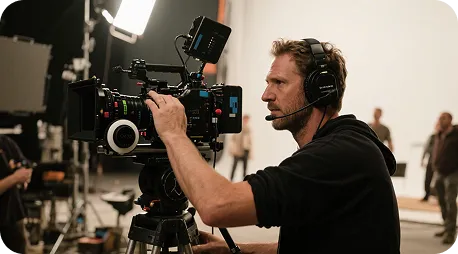
    Illustrative wide scene

    Illustrative wide scene

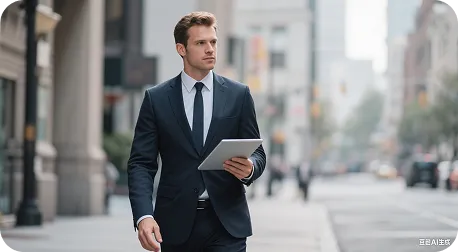
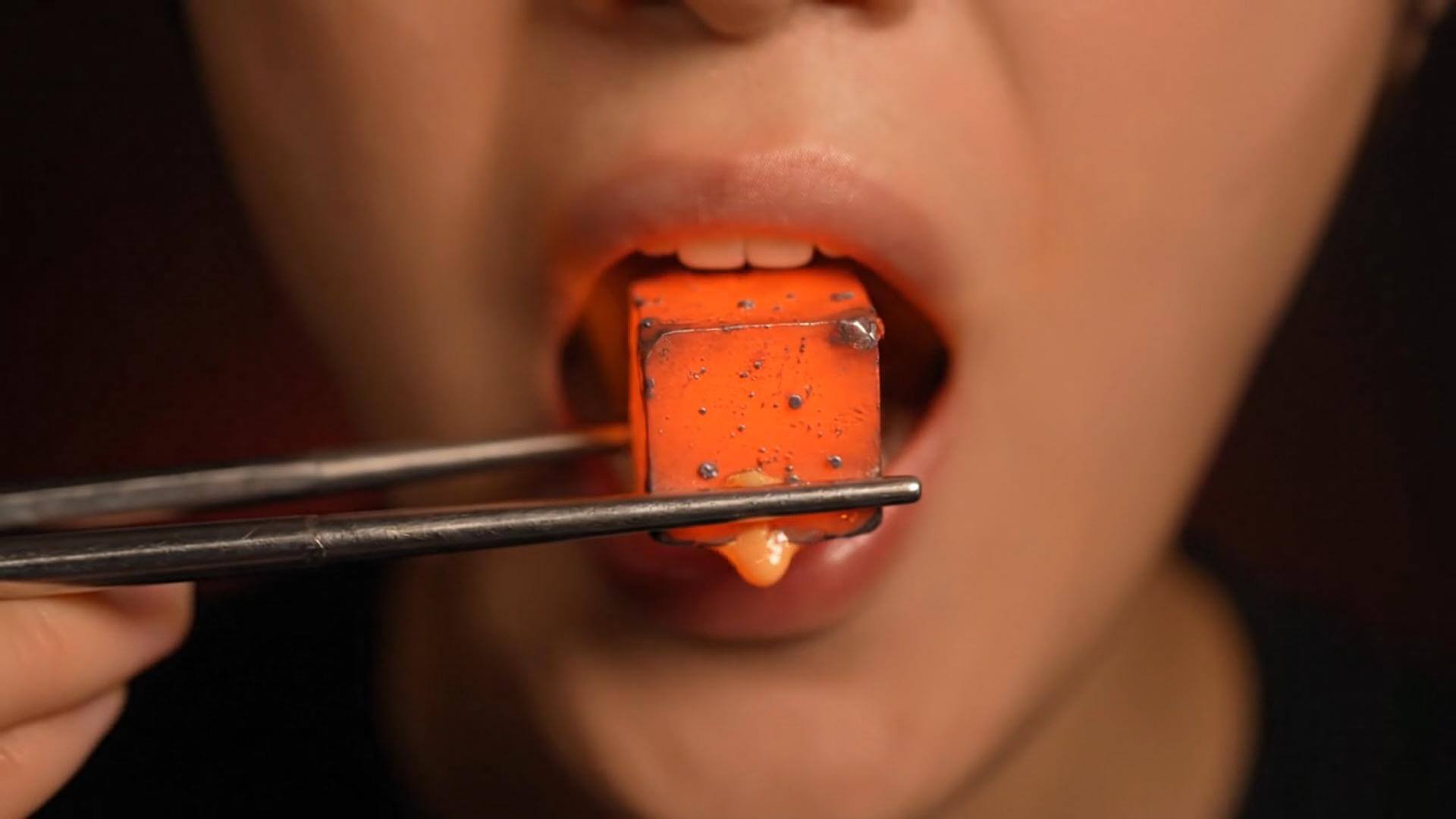
    Illustrative texture study

    Illustrative texture study

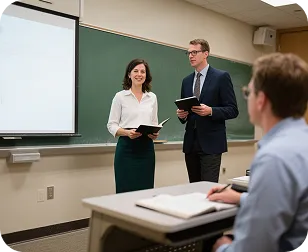
    Illustrative character shot

    Illustrative character shot

    Explore a first-frame clip

    Choose this generator when the photo already establishes your subject and you want a short motion draft. A product shot, portrait, or illustration can supply the first frame. Start with one movement rather than an entire story.

    Illustrative first-frame clip reference, not verified model output
    Illustrative reference clip
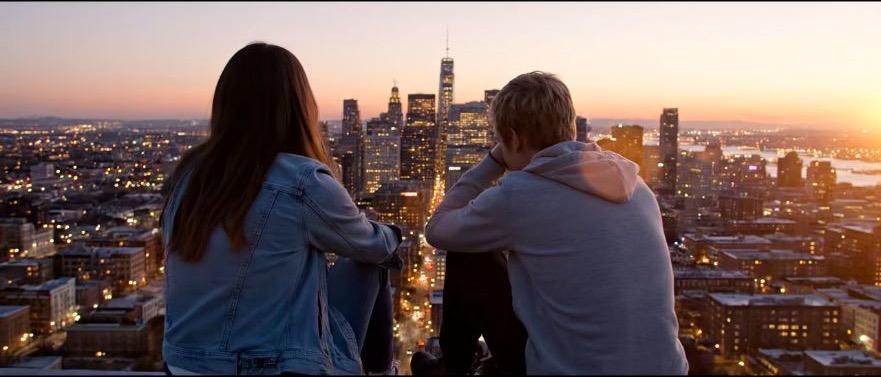
    ✦A cinematic city scene unfolds as the camera follows two friends at sunset...Warm evening light moves across the skyline in a gentle cinematic shot...↗

    Start with your reference photo

    Use a draft to refine the movement

    Keep a copy of the reference photo and the exact instruction. A generated draft shows where the model interpreted the request differently. Revise the movement or edit clause that failed instead of replacing every setting at once.

    What this image-to-video route lets you control

    The goal is to animate an existing photo with a small subject movement. Separate the source, instruction, and output settings so each comparison answers a useful question.

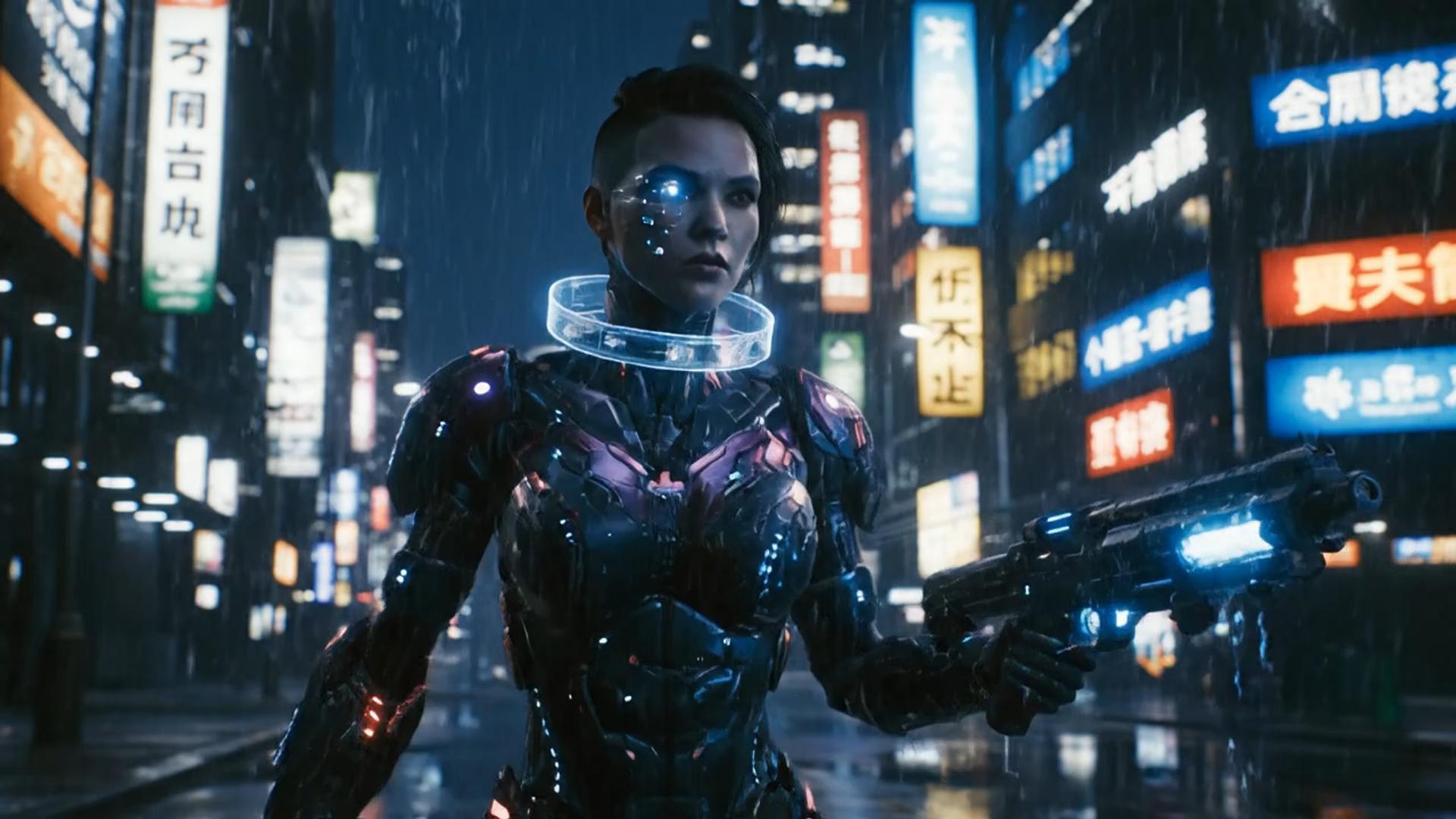
    ✦A cinematic character walks through a neon city in the rain...The camera follows the character as the lights begin to glow...↗
    01

    Keep the source central to the motion

    The workbench starts from your reference photo. Write what must remain recognizable and then name the requested change. A source that contradicts the prompt is harder to use than a source already close to the desired composition.

    compare it on Nano Banana
    ✦A baby bird hides under its mother’s wing as rain falls softly...Warm light moves across the feathers in a gentle close-up shot...↗
    02

    Review settings with the cost visible

    Seedance 2.0 or Seedance 2.0 Fast determines which settings this route offers. Choose among the controls shown in the workbench, then check the updated credit cost. More expensive settings do not guarantee a better creative result.

    restyle it in Flux
    ✦The viewer looks up, the character turns toward the camera...A hand-held camera gently pushes in as the scene changes...↗
    03

    Use the actual Seedance 2.0 or Seedance 2.0 Fast choices

    Seedance 2.0 is preferred; Seedance 2.0 Fast is the alternative. Both belong to this route. Compare them on the same upload. Later-version names in search results do not change the model submitted by this page.

    place it on a Qwen still
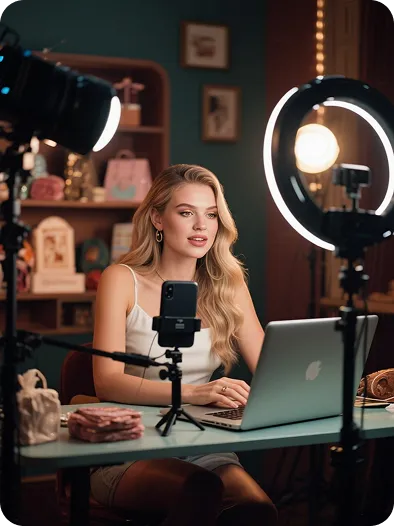
    ✦Create a polished video from your idea, right in the browser...Review the result, refine the prompt, and generate another version...↗
    04

    Work in the browser

    Upload, write the instruction, inspect credits, and review History in VideoAny. You do not need an additional editor installation for this generation step. A separate editor may still be useful for precise cuts or finishing.

    draft this on Seedream

    Choose a source that fits your goal

    Use Seedance 2.0 or Seedance 2.0 Fast for this route. The source determines the starting subject and framing; the instruction sets the requested change. Inspect the result instead of assuming every detail will survive.

    Creators with a prepared source

    Creators with a prepared source

    Use a reference photo to explore a short visual direction. Keep the first test modest so you can judge whether the model retained the subject before adding complexity.

    Product teams comparing a visual

    Product teams comparing a visual

    Keep labels, product shape, and framing in the preservation notes. Compare the first-frame clip with the source and reject attractive takes that distort the product.

    Directors testing one shot

    Directors testing one shot

    Use the source as a composition reference and test one camera or subject direction. The illustrative clips on this page are not production dailies or verified outputs from Seedance 2.0 or Seedance 2.0 Fast.

    Marketers reviewing versions

    Marketers reviewing versions

    Generate one variation, inspect the whole result, and decide on the next change. Keep settings recorded so a later comparison reflects a deliberate difference.

    Teams explaining a visual idea

    Teams explaining a visual idea

    A clear source can help communicate an idea before a longer production. Check text and geometry carefully; a generated first-frame clip can alter small details that matter to an explanation.

    Workflow observations

    Review habits for an first-frame clip

    These cards describe possible workflows, not user testimonials or performance claims. Keep the reference photo fixed while comparing a single change.

    Source review

    Input preparation

    “Choose a reference photo that already contains the subject and framing. Keep the original for comparison with the first-frame clip.”

    Instruction review

    Prompt preparation

    “The objective is to animate an existing photo with a small subject movement. Write that as one visible change before adding extra camera or style instructions.”

    Camera review

    Composition preparation

    “Keep the product shape and label fixed; rotate the camera gently to the right. A simple camera instruction is easier to evaluate than several conflicting movements in one run.”

    Version review

    Comparison preparation

    “Keep model and settings fixed for a first comparison. Save the useful instruction with the reference photo rather than relying on memory.”

    Budget review

    Credit preparation

    “Check the displayed cost for Seedance 2.0 or Seedance 2.0 Fast before submitting another attempt. A different duration or resolution can change the credit estimate.”

    Result review

    Output preparation

    “Watch the entire first-frame clip. Inspect the beginning, middle, and end for subject drift, unstable edges, and motion that ignores the source.”

    Questions before generating

    Check the source requirements, sign-in, credits, and result limits for Seedance AI Video Generator. For another source or editing goal, explore photo to video, a clip from the still, flux2 pro image generator, video editor, video extend, hailuo 02, ai dance generator, ai hug generator, image to kissing video, photo to 4k.

    What does seedance ai video generator mean here?+−

    It means using Seedance 2.0 or Seedance 2.0 Fast to animate an existing photo with a small subject movement. Upload a still that already contains the subject, then describe motion. This route requires a reference image rather than a text-only brief.

    When will the result be ready?+−

    Processing depends on the selected settings, source, and provider queue. Follow the task in History and preview it when complete. This page does not promise an instant first-frame clip or a fixed completion time.

    Why can the result drift from my source?+−

    A model interprets both source and instruction. Start with a clear reference photo, name the details to preserve, and request one change. Keep the product shape and label fixed; rotate the camera gently to the right. If the source has blur or occlusion, the model may invent missing detail.

    How should I revise the first attempt?+−

    Keep the source and selected model fixed, then change one instruction. Compare the new first-frame clip with the first result and the original. Each new generation uses credits, so decide what failed before rerunning.

    What does free mean, and must I sign in?+−

    Free means using available account credits, including any trial credits currently offered to eligible accounts. Sign in and confirm sufficient credits before generating. Opening this page does not provide an unlimited guest allowance. The displayed cost follows Seedance 2.0 or Seedance 2.0 Fast and the selected settings.

    What should I check before using a clip commercially?+−

    Check permission to use the reference photo, the selected model terms, and your account plan. Inspect the output for errors and unsuitable details. A generated draft is not evidence that all third-party rights have been cleared.

    Seedance AI Video Generator: workflow overview

    Three steps to an first-frame clip

    Illustrative first-frame clip walkthrough

    Seedance AI Video Generator: workflow choices

    Compare input needs and review steps rather than assuming a generated clip replaces every function of a timeline editor.

    Seedance AI Video Generator: workflow choices
    Workflow comparisonThis photo-to-video workbenchA separate timeline workflow
    Starting pointA reference photo plus a written changeAn existing clip and manual timeline decisions
    Visual directionSource-led variations within Seedance 2.0 or Seedance 2.0 FastManual arrangement of available footage
    Instruction handlingInterprets a keep-and-change prompt against your reference photoEdits follow manual choices and tool controls
    Effects approachDescribe a visible change in the promptApply effects supported by the chosen editor
    Scope on this pageSeedance 2.0 or Seedance 2.0 Fast for this image-to-video taskCapabilities vary by the separate editor
    Revision methodAdjust one instruction and submit another credited generationAdjust timeline operations and export again
    Wait timeProvider queue and selected settings affect completionExport depends on the editor and source footage
    Output reviewInspect the full first-frame clip for source fidelityInspect the exported edit against the brief
    Use caseAn attempt to animate an existing photo with a small subject movementA task needing exact manual cuts or arrangement
    Version handlingReview completed tasks in account HistoryVersion handling depends on the other editor
    Credit accessSign in and check available credits before submittingReview the other editor access and pricing terms

    Related VideoAny workflows

    Choose the next route by input type. Keep the original reference photo so you can use a different workflow without building from an already altered result.

    Photo to video
    Photo to video→
    AI video editor
    AI video editor→
    turn the still into motion
    turn the still into motion→
    VideoAny: Seedance AI Video Generator
    VideoAny AI

    Prepare one reference photo

    Keep the product shape and label fixed; rotate the camera gently to the right. Check the credits before submitting, then review the resulting first-frame clip against the source.

    Review credit options

    Explore More AI Image Tools

    • Dots video effects
    • GPT Image 2 Generator
    • GPT Image 2.5 Version Guide
    • Image 2.5 Generator
    • image2.5 Name Guide
    • Seedance 3.0 status tracker

    Model & settings

    Aspect Ratio

    Duration

    5s
    4s15s

    Resolution

    Repeat

    1
    2STARTER5LITE8PRO10MAXCurrent
    Advanced settings

    This number is sent with the video. When the model, prompt, and references stay the same, the same seed can come close to the last result. The provider may still differ. Leave it unlocked and each run gets a new seed, so the next video is not identical.

    Upload reference

    0/1

    Prompt

    Prompt
    0/5000
    Credit cost

    Generate 1 videos · 70 credits total

    Billed for 5s; model max 15s; prompt duration does not change billing.

    Samples are examples. Results follow the prompt and model and will not match the preview. For a closer match, use Image to Image for a still or Video to Video for a clip.

    1 / 2
    VideoAny
    • Home
    • AI Video Tools
      • AI Workflows
        • Text to Video
        • Image to Video
        • Video Editor
        • Video Extend
        • Text to Video
      • Creative Tools

        • NSFW Video
        • Undress Video
        • AI Promo Video Maker
        • AI Video From Photo No Watermark
        • Cheaper Than Runway AI Video
        • Grok Imagine From Photo
        • Moss Image (MOSS-Image) to Video on VideoAny
        • SeeCut Talking-Head Shorts
        • TikTok Video from Photo
        • Instagram Reel from Photo
        • YouTube Shorts from Image
        • Product Video from Photo
      • Templates / Resources

        • Photo to Video
        • Photo to Video
        • Action & Motion
      • View all
    • AI Image Tools
      • AI Workflows
        • Text to Image
        • Image to Image
      • Creative Tools

    • Uncensored AI Tools
      • Uncensored AI Tools
        • Nude Photo Generator
        • AI Nudes Image Generator
        • Uncensored Image Generator
        • NSFW Image to Video
        • Nude Generator
        • Nude Image Generator
    • AI Models
      • AI Models
      • ByteDance

        • Seedance 2.0
        • Seedance 2.5
        • Seedream 5.5
    • Blog & Guides
    • Pricing
    • Rewards
    Settings
    Language
    ThemeAtelier
    NSFW Video GeneratorNSFW Image GeneratorPrivacy policyTerms of serviceRefund policy
    Premium-50%50% off
    Lite

    Premium membership from $19 per month

    Premium benefitsMore benefits
    Fast generationHD outputAll image toolsAll video tools
    VideoAny
    AI Product Spin Video
  1. Turn an Image into a Video
  2. Extend an AI Video
  3. First and Last Video Frames
  4. Image-to-Video Prompt Guide
  5. Wan 2.7 vs Seedance
  6. Wan 2.7 First and Last Frames
  7. Seedance 2.0 API
  8. Save and Reuse Video Settings
  9. Wan vs Seedance Product Video
  10. Make a TikTok Video from a Photo
  11. Vertical 9:16 Video from Photo
  12. Anime Image to Video
  13. Template-Based AI Video
  14. Lindyson AI AI Video
  15. Beef TV Alternative
  16. OmniAILab AI Director
  17. Free Claude AI Video Generator
  18. NIXM AI Video With Sound
  19. Reusable Video Templates
  20. Social Video from Photo
  21. Ecommerce Video from Still
  22. OpenFilm AI Video
  23. Cinematic Video Prompts
  24. AI POV Video Generator
  25. ReelMimic AI Video
  26. FrameFields AI Video
  27. PrintFilm AI Video
  28. Anything2Explainer AI Video
  29. Huashu Motion AI Video
  30. StoryShort AI AI Video
  31. Keyframes to Video
  32. WeftCanvas AI Video
  33. ComfyUI AICG3D Short Drama
  34. AI Video to Video Restyle
  35. MiniMax H3 Higgsfield
  36. Seedance 2.5 API
  37. Wan 3.0 Video API
  38. Multi-Model AI Video Studio
  39. Lemo OpusCar AI Video
  40. MakeMovie AI Video
  41. Motion Control
  42. AI Hug Generator
  43. AI Kiss Generator
  44. AI Dance Generator
  45. Crazy Frog Seedance
  46. Raindance AI Couple Video
  47. NSFW Image
  48. Undress
  49. Clothoff
  50. Face Swap
  51. AI Outfit Generator
  52. Background Replacer
  53. AI Body Editor
  54. Photo to 4K
  55. View all
  56. Alibaba
    • Wan 3.0
  57. OpenAI

    • GPT Image 2
  58. Black Forest Labs

    • Flux 2 Pro
  59. MiniMax

    • Hailuo 02