VideoAny AI
NSFW photo editor for authorized adult portraits
This NSFW photo editor is a prompt-led image-to-image workbench. Upload an authorized adult still, write what must stay in the person and what may change in clothes, scene, or light, then generate. A garment-only clothing remover edit or a dedicated clothes remover tool can follow the same upload. A breast expansion tool pass can follow too. Underwear on the same still can add lingerie to the photo. It is not text-to-image, not a video desk, and not a brush or mask editor. The default image model is Seedream 5.0, shown as Seedream 5 Pro. The selector follows the current default image list, not the logo strip. Z-Image is in that default picker and is marked for adult use. Qwen Image 2 is hidden from the default picker and is not an adult-pool model on this route. The credit cost for the selected model and options appears before you submit.

Which model and crop choices keep an NSFW photo editor pass honest to the upload?
This route is a prompt-led image-to-image workbench. Seedream 5.0, shown as Seedream 5 Pro, is the global default image model. You still choose aspect ratio and, when the model shows it, resolution. Those choices sit beside the uploaded still and the keep-and-change notes. The model shortcuts below are drawn from the default picker; open the selector for the full list and current options.
01
Start from Seedream 5 Pro in the live default picker
A photographic adult portrait usually wants a model that stays in a photographic family. This NSFW photo editor starts on Seedream 5.0, shown as Seedream 5 Pro, so the upload remains the source of face, pose, and crop. Z-Image is in the default picker and is marked for adult use. Qwen Image 2 is not in this default picker. Switching models can change how much of the person survives, and it can change the displayed credit cost. Read both before you generate.
02
Match aspect ratio to the uploaded portrait, not to a later crop
If you need the same full-length or three-quarter frame as the photo, match that ratio so the generator is not forced to invent floor, limbs, or extra space around the person. If the destination is a story frame or a banner, say so and accept that the figure will be reframed. A mismatch can stretch a stance or crop a hem. A ratio setting is not a substitute for an upload, and it is not a video export.
03
Treat resolution as a review choice, not a portrait-fidelity guarantee
When the selected model offers resolution, pick the size you need to inspect face, clothes, hands, and light. A larger still makes errors easier to see; it does not lock the source pixel for pixel. Recheck the displayed credit cost after you change this option. Higher output is a review and budget decision, not a claim that the original portrait will be preserved exactly.
What can an NSFW photo editor change when you upload an adult still?
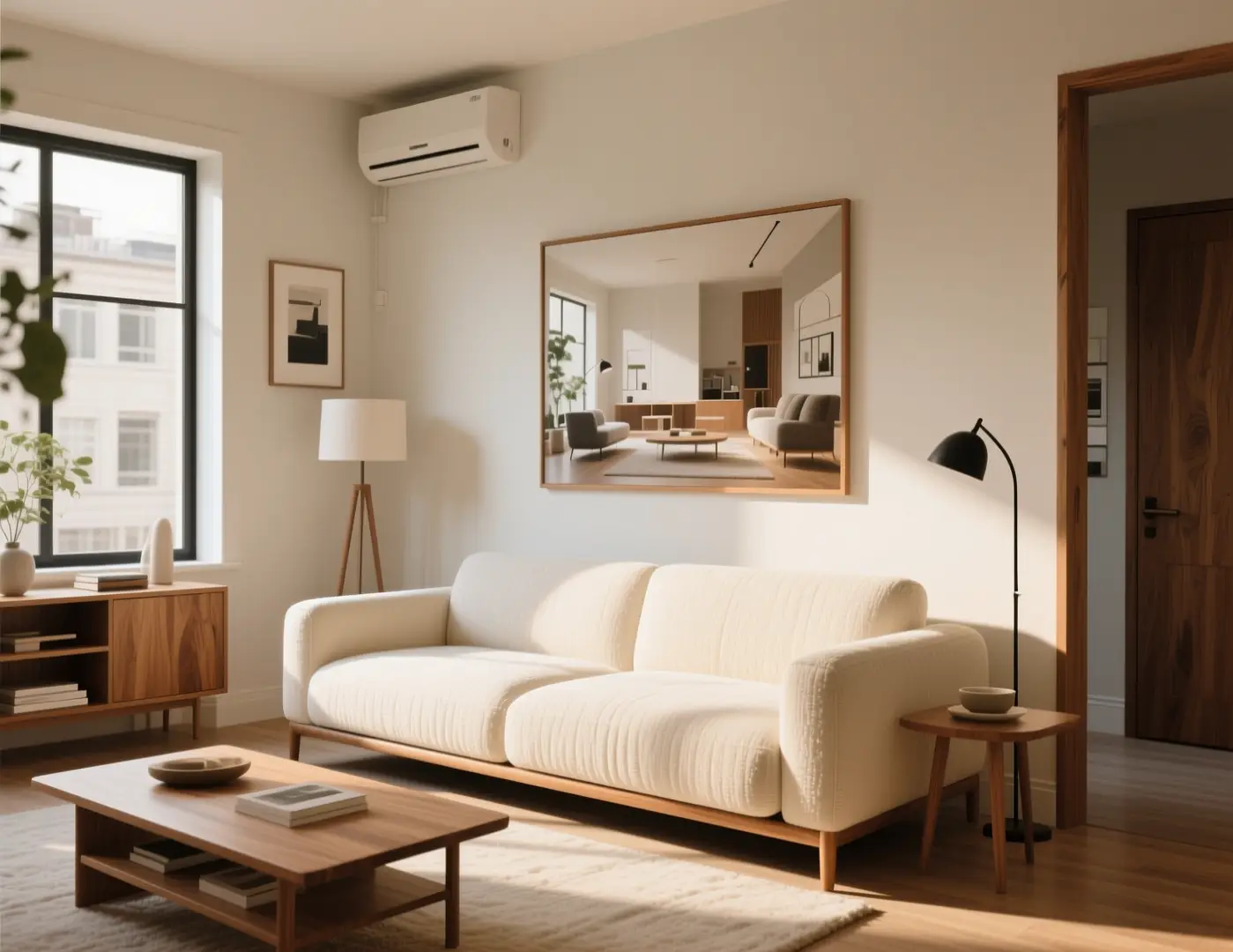
An NSFW photo editor on this route still needs a reference photo. You decide which parts of the person must remain, which clothes, scene, or light notes may move, and how far the new still can drift. The pictures below are illustrative image-to-image template stills, not before-and-after proof of an adult portrait edit, and not verified wardrobe or lighting pairs.
01
Choose a reference that already holds pose and camera height
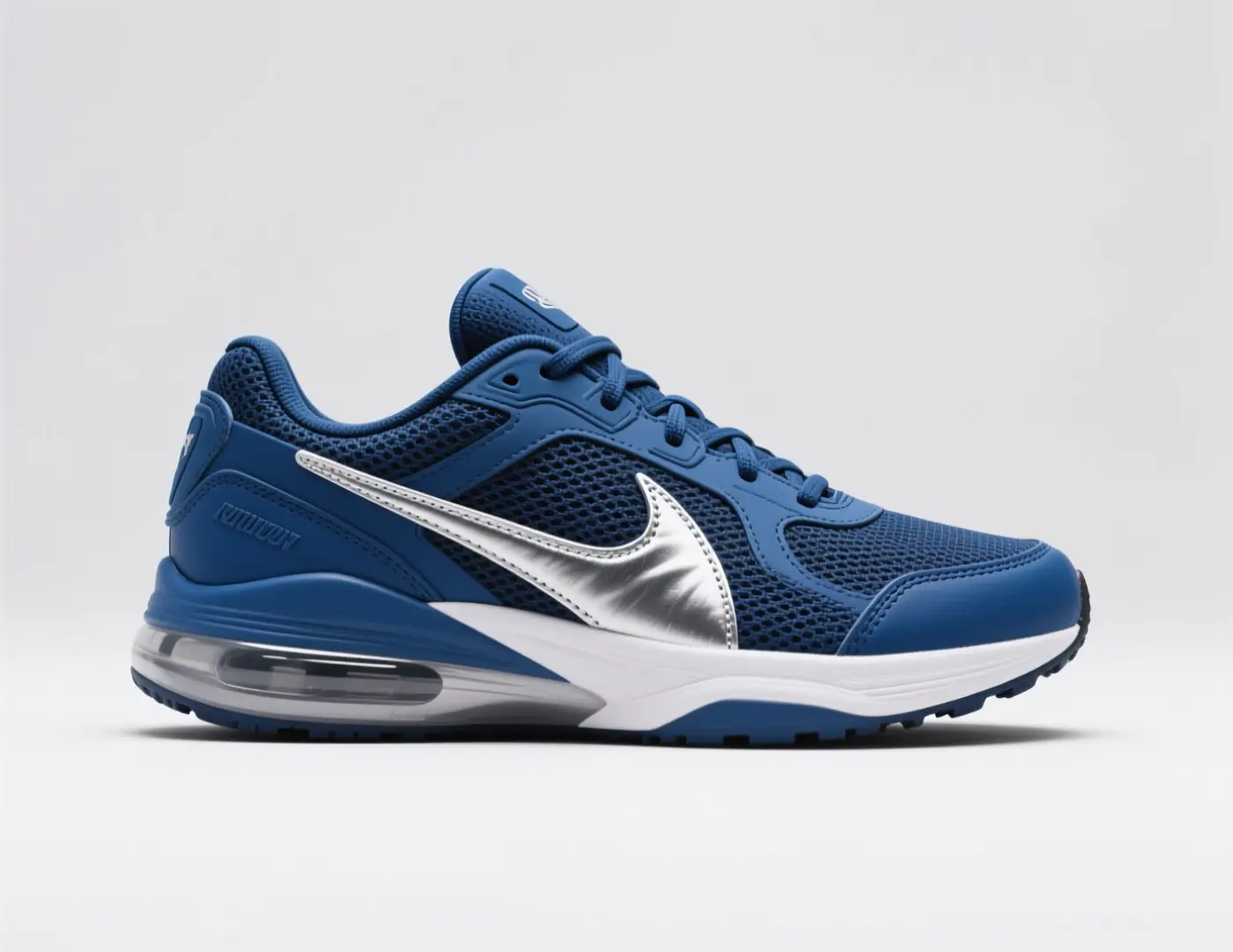
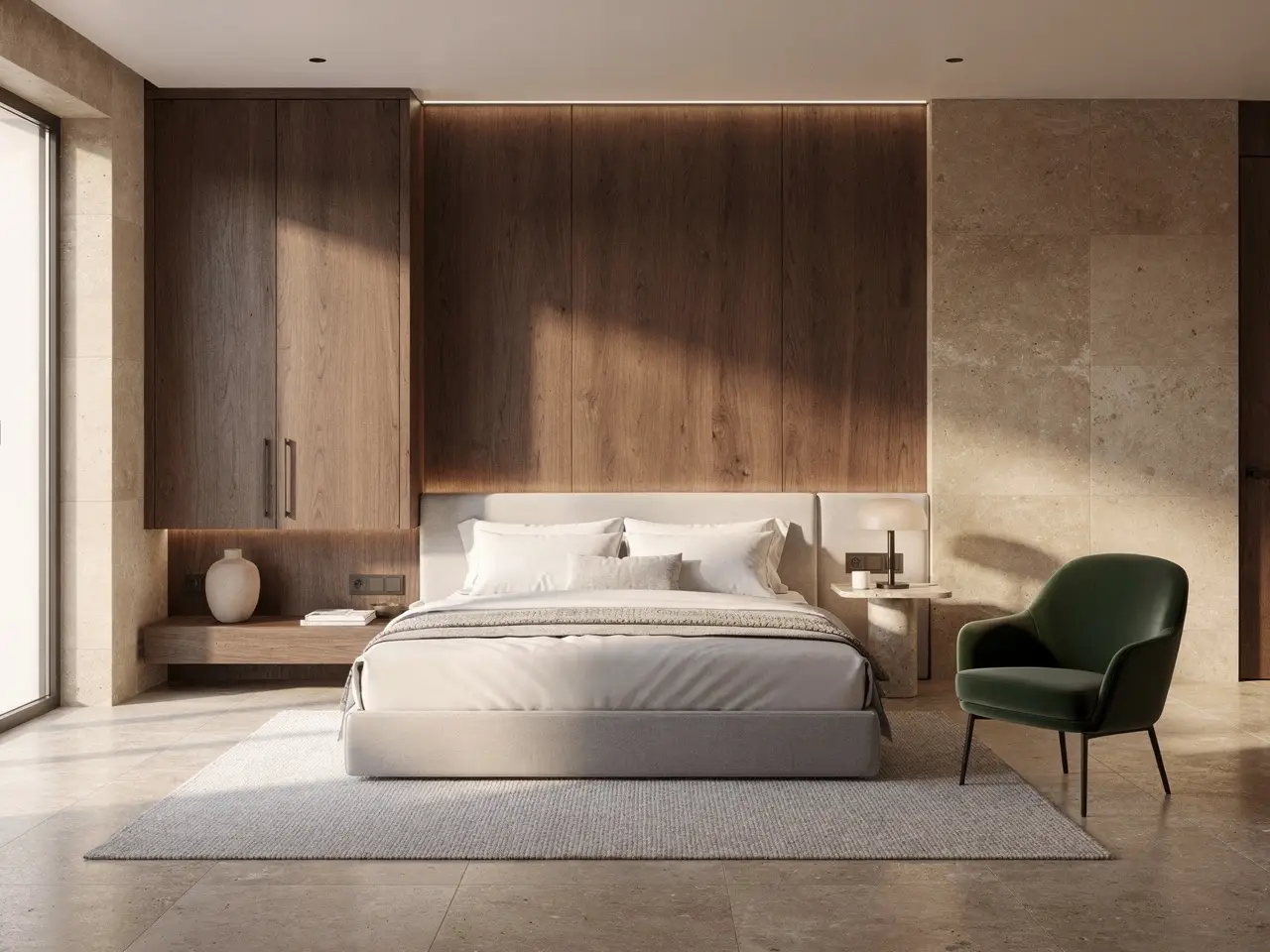
Pick a still where the stance, camera height, and main masses of the adult subject are already right. A sharp three-quarter photo with a readable face works better than a busy collage or a tiny crop. If the source pose is wrong, recrop or reshoot it first. Prompt notes cannot invent a stance the upload never held. The room still here is an illustrative template frame for keep-and-change discipline, not a wardrobe-edit pair.
Keep the adult subject's face, pose, and camera height from the uploaded photo. Change only the scene: a quieter bedroom wall, same lighting direction, same garment, no extra people, no new furniture in front of the subject.
02
State what must stay on the person and what may change in clothes or light
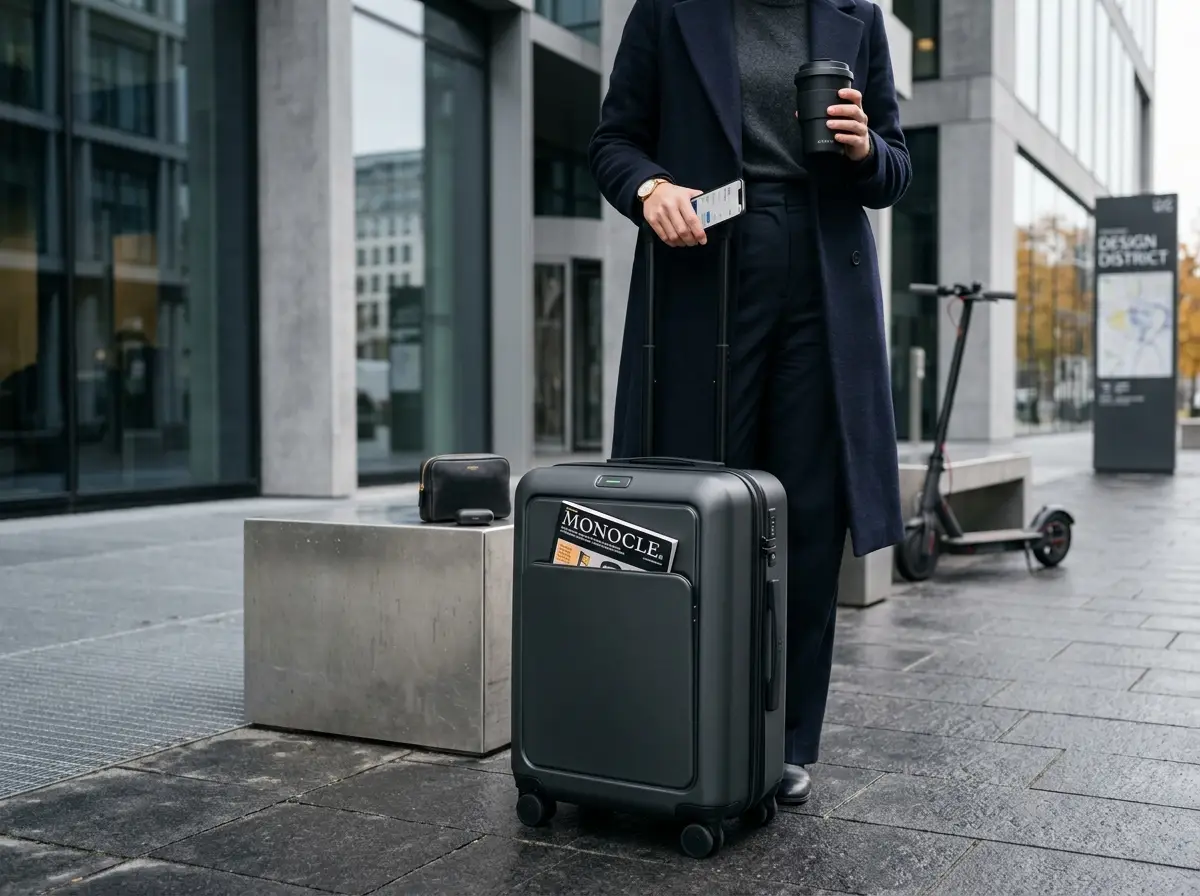
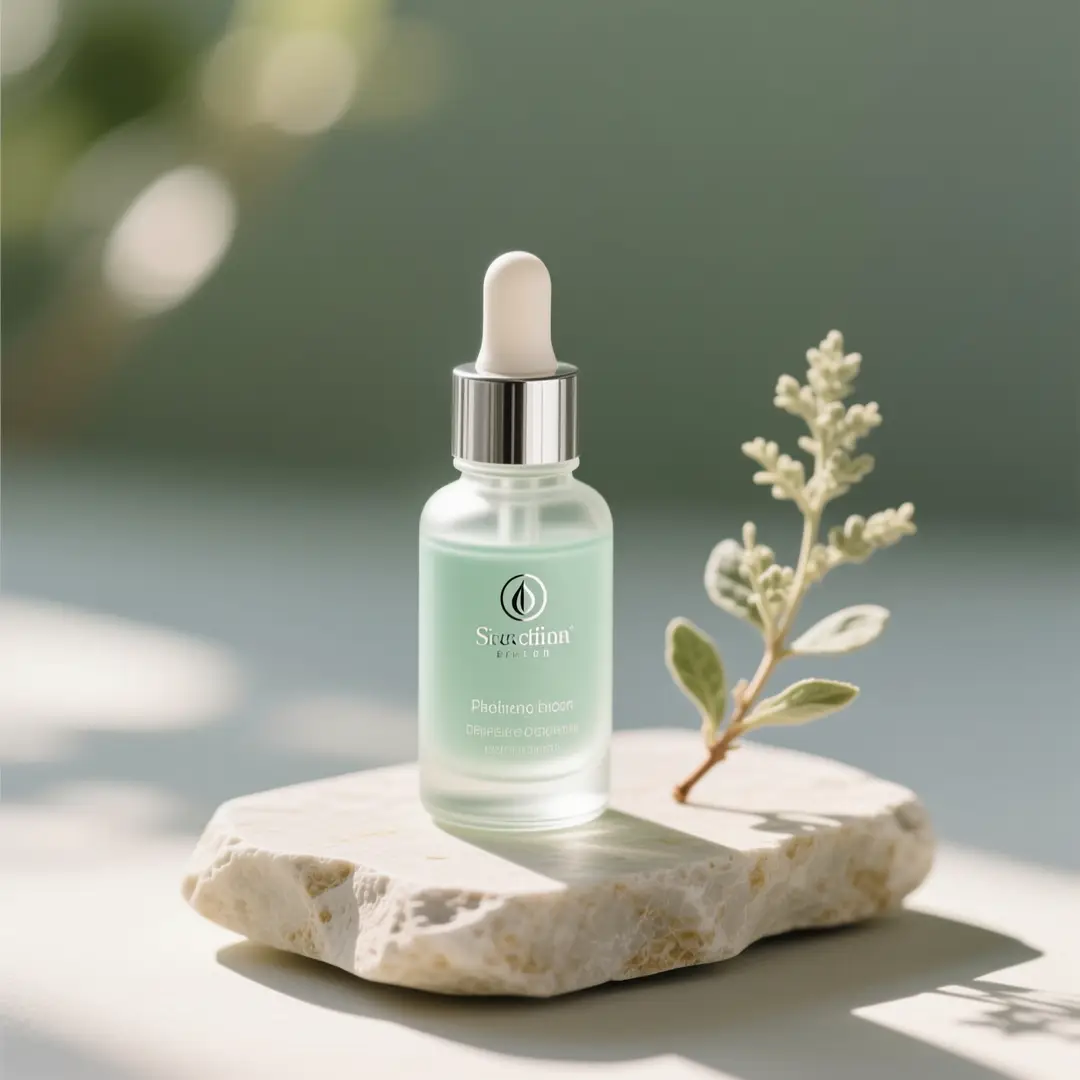
Write two short lists. Keep: face, pose, crop, or camera height. Change: garment color, backdrop, or lighting direction. Mixing those into one mood sentence hides why a result drifted. After each run, check the keep list first. If a keep item moved, try a simpler change list instead of adding more adjectives. The sneaker still is an illustrative template source for a one-fact change list.
From the uploaded photo, retain the adult face, pose, and three-quarter crop. Request a clothing color change only: a deeper burgundy garment, same lighting, no extra accessories, no new logos.
03
Rewrite a neighboring still instead of starting from a blank page
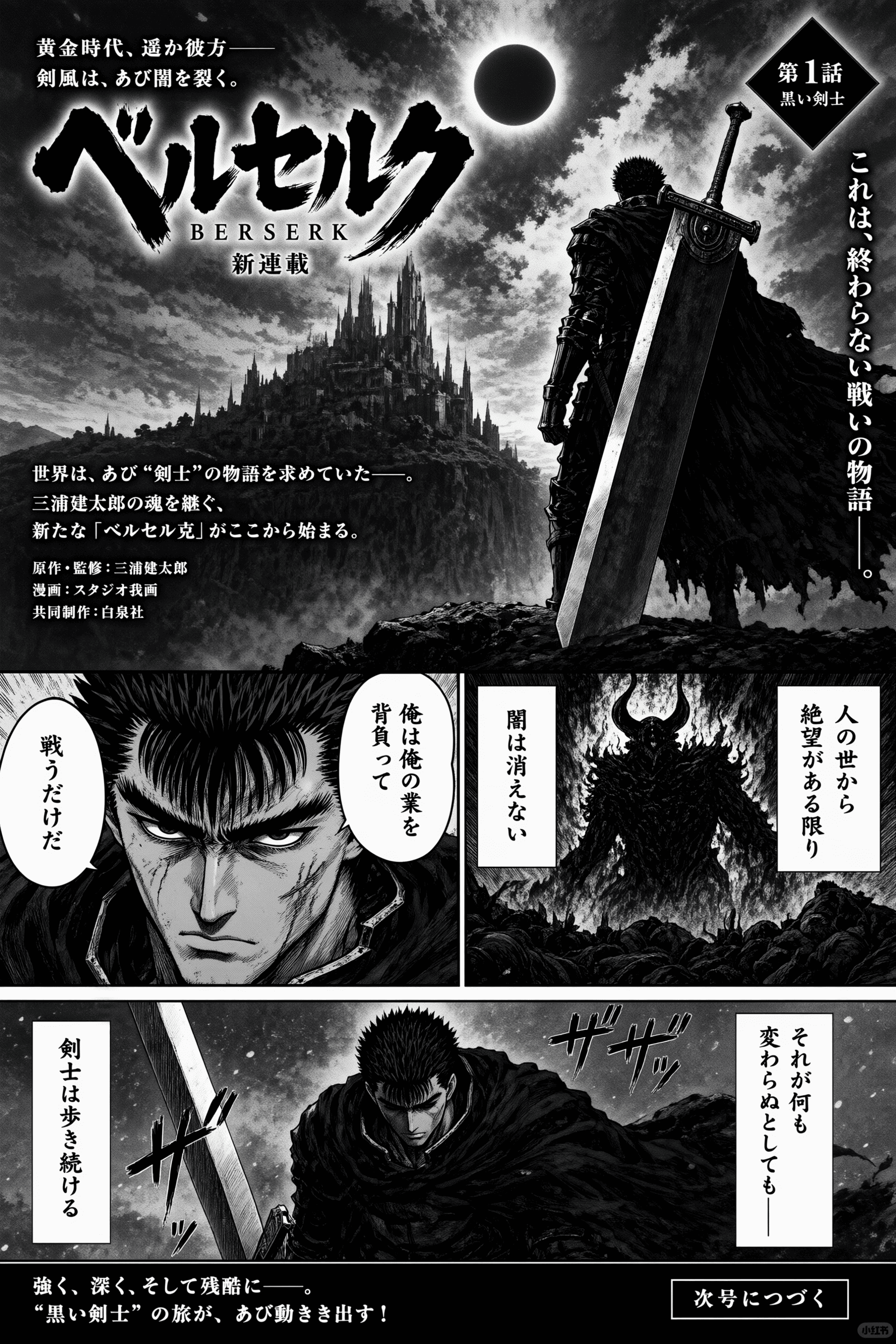
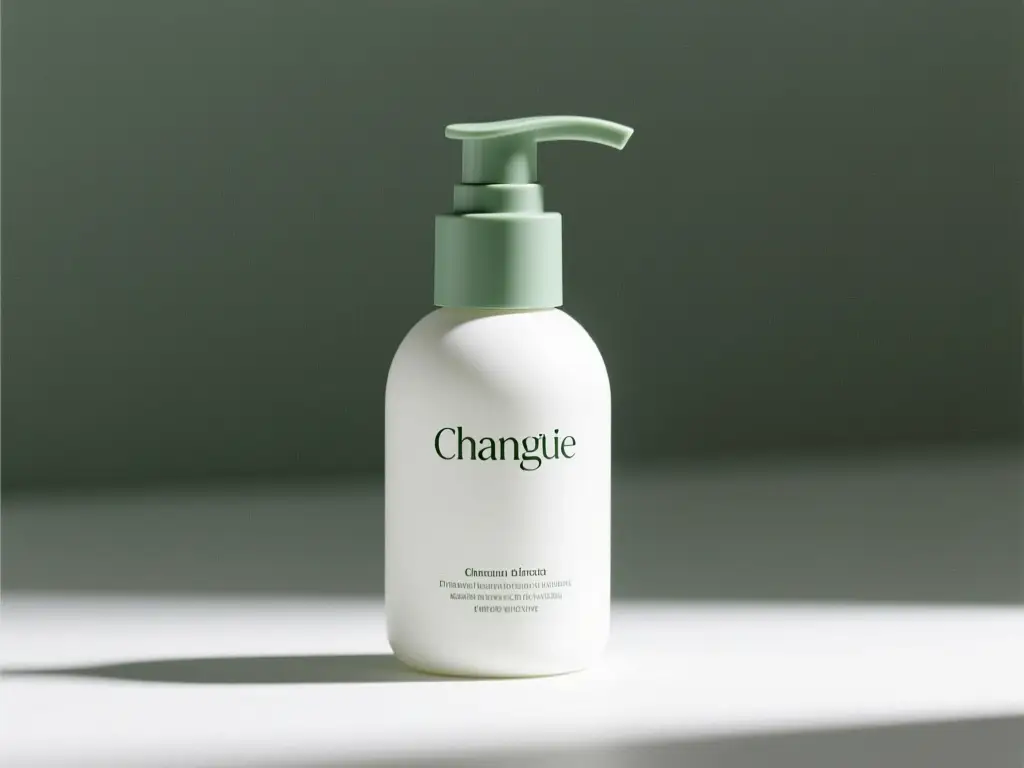
Use this path when the adult already exists in the photo and you need a neighboring still: different clothes, a quieter room, or a new light direction. You are not inventing the subject from a paragraph. That blank-page job belongs on the text-to-image generator. Compare every output to the file you uploaded. The bottle still is an illustrative template frame, not proof of a portrait rewrite.
Keep the adult face, scale, and front-facing crop from the upload. Do not invent extra people. Change only the light: warmer camera-left wash, same garment, quieter hands.
When does an NSFW photo editor help more than generating a new portrait?
Use this NSFW photo editor when the adult already exists in a photo and you need a neighboring still in different clothes, a different room, or a different light. Select a scenario to see the kind of source this editor is for. A text prompt alone will not open this workbench. The stills are illustrative template frames, not verified adult-edit pairs.
What source types help an NSFW photo editor keep the person while changing clothes, scene, or light?
These frames come from VideoAny's model-page libraries and the shared image-to-image template. Treat them as sample sources you might study before you upload your own authorized adult still to this NSFW photo editor, not as proven before-and-after case studies and not as verified adult-output proof.
Illustrative references. Not verified VideoAny input/output pairs.
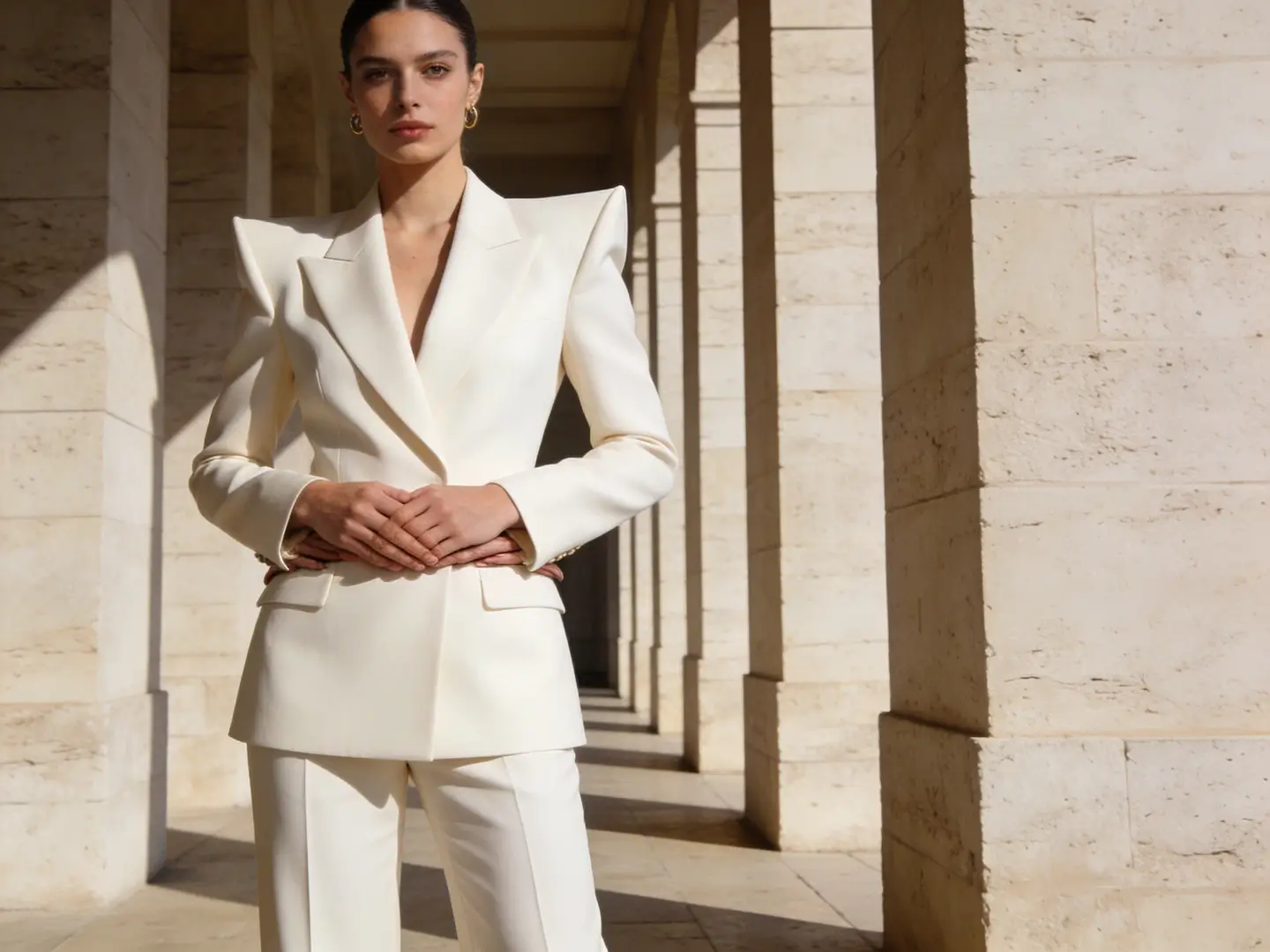
Reference-guided crop
A crop that already shows the adult subject is a better source than a mood collage. Crop to the person before you ask for new clothes, a new room, or a new light. Extra people in the frame will be interpreted. This pack board is an illustrative template still, not a portrait-edit pair.
Illustrative source for a crop-aware rewrite. Not a verified NSFW photo editor pair.
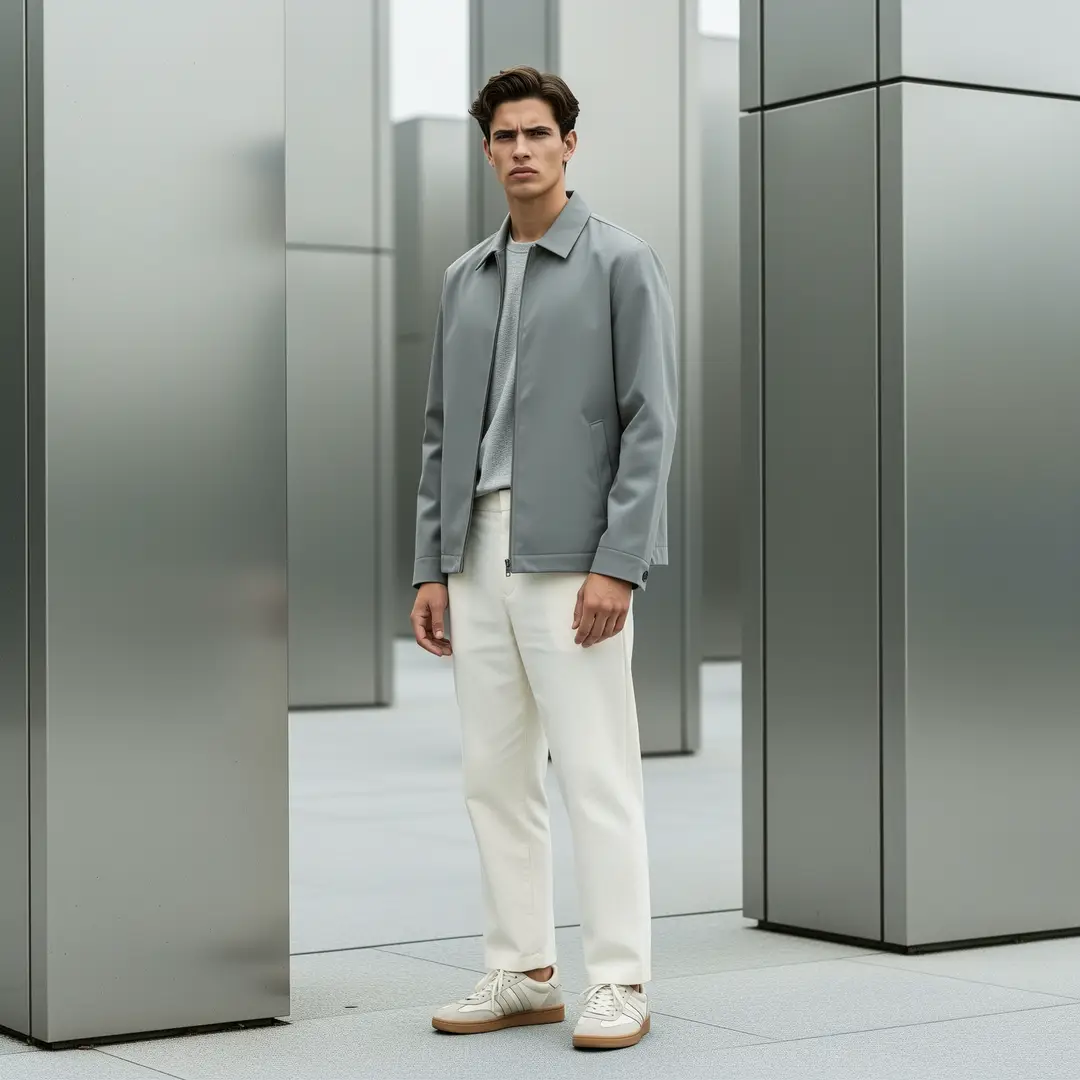
Lookbook frame
A full-length outfit still can take a new garment or a quieter light if you keep face, pose, and crop in the keep list. Broad restyle language is how extra accessories appear. Name the adult subject once, then list the one clothing, scene, or lighting change you actually want.
Illustrative lookbook source for a clothing or lighting change. Not verified adult-edit proof.
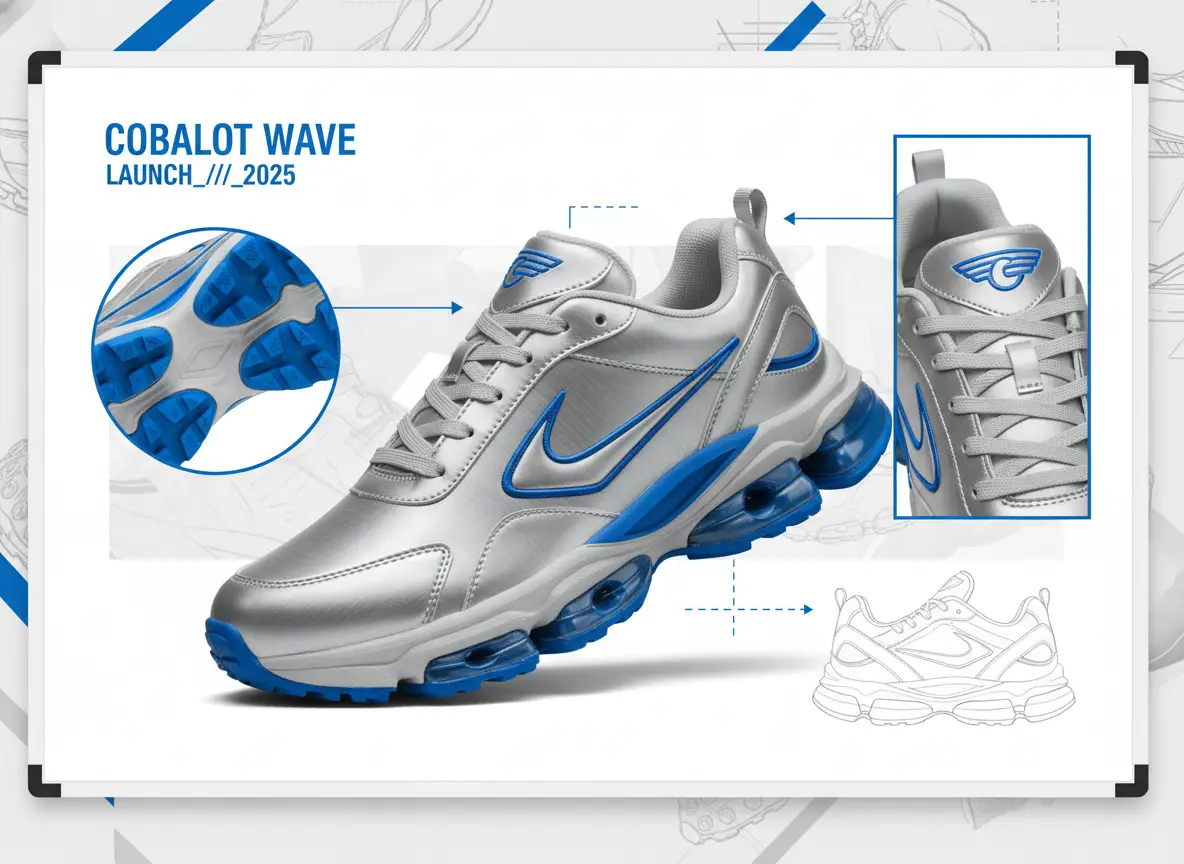
One-fact board
A clean figure on a plain field is easier to restyle than a lifestyle crop with busy reflections. Hold face and pose; change only the garment, scene, or light fact. Inspect hands and floor contact against the upload after the run. The sneaker board is an illustrative template for one-fact tests.
Illustrative board for one-fact tests from one source. Not a verified NSFW photo editor set.
How do you prompt an NSFW photo editor without masks or region brushes?
This NSFW photo editor is steered with notes, model, and crop. Name portrait parts you can count. One clothing, scene, or lighting change is enough for a retry. There is no mask, region brush, inpaint control, or strength slider here.
01
Crop the source to the adult subject before you upload
Desks, browsers, and extra people will be interpreted. A cleaner source is the cheapest control you have. If you are adapting a full-length still, keep the face and stance you care about inside the frame you send. Upload only a still you are authorized to edit.
02
Keep the keep list shorter than the change list is tempting to write
A long change paragraph is how extra limbs, accessories, and people appear. Write the keep list in objects. Write the change list as one clothing, scene, or lighting fact. If the first result drifts, shorten the change list rather than narrating the entire portrait.
03
Inspect the source and the result together
Walk face, garment, joint count, and camera height. A handsome restyle that invents a second person has failed the keep list. Decide in advance which errors you will accept before you spend another run. Prompt-led editing is iterative; it is not a local retouch desk.
Creator workflow notes
Working habits for a referenced adult-still rewrite, not user reviews
These notes describe common ways to run a keep-and-change pass on an authorized adult still. They are not user reviews, ratings, or promises about a specific result.
Wardrobe rewrite
Clothes workflow
“Keep face, pose, and camera height. Change only the garment color or cut. If a new accessory appears, the change list was too broad.”
Scene rewrite
Background workflow
“Keep face, garment, and crop. Change only the wall or venue behind the person. Inspect floor contact against the upload.”
Light rewrite
Lighting workflow
“Keep pose and staging. Name the new light direction in one clause. Check eyes, fabric sheen, and shadows before you accept the plate.”
What an NSFW photo editor run can and cannot do
An NSFW photo editor search should still expect a credit line. New VideoAny accounts receive starter credits; each rewrite shows the cost for the selected model and options before you generate. Cover the adult still you upload, how far the portrait may drift, and what this page will not do.
What to upload and what to write beside it
The input is an authorized adult still plus notes. A single clear portrait beats a montage. Write keep-and-change in plain language. Do not expect a mask, a region brush, or a numeric strength control; those are not how this page is set up. Fix a blurry source before you generate.
What kind of file works as a reference?
+−
Use one still where the adult subject is large and readable. Full-length or three-quarter photos work better than collages or tiny thumbnails. Upload only material you are authorized to edit. This workbench will not start from an empty prompt, and it will not generate video.
Do I have to describe the whole picture again?
+−
No. Name what must remain and what should change in clothes, scene, or light. If the first result drifts, shorten the change list rather than narrating the entire portrait. For a dedicated wardrobe pass, swap garments on the photo or change the look of the clothes.
How to judge whether the result is close enough
Open the source and the new still side by side. Check face, garment, joint count, and camera height. A handsome restyle that invents a second person or a new limb has failed the keep list. Decide in advance which errors you will accept.
Why did the new still invent objects that were not in the photo?
+−
Broad change language or a ratio that does not match the source can invite extra objects or limbs. Narrow the change list, match the crop, and try again.
Can I lock one region and freely restyle the rest?
+−
This workflow does not provide precise edit masks, inpaint brushes, or strength sliders. You steer with notes, model, ratio, and resolution. Use a dedicated local editor if you need a region retouch. This page does not invent a new person from text.
Credits, limits, and sensible next steps
The model and resolution on supporting models affect the credit cost shown before you generate. Limits vary with that selection. Review the line every time you change an option. After a still that holds the source, you can move it into motion on a video route. This page does not waive those limits or invent an open-ended run budget.
Is the cost the same as generating without a reference?
+−
Not necessarily. The workbench shows the cost for the model and options selected on this path. Read that value rather than reusing a number from another tool.
What if I need a new idea that the reference should not constrain?
+−
Open the uncensored image generator and write a text-to-image brief instead. A source file will keep pulling the still toward the upload. For a garment-only pass you can run a strip edit. For motion from the rewrite, continue on the NSFW image-to-video route. This NSFW photo editor stays on stills.
How does this NSFW photo editor differ from prompt-only stills and from NSFW image-to-video?
Compare input and output only. This route rewrites an uploaded still. The uncensored image generator writes a new still from text. NSFW image-to-video animates a still. The rows do not rank models or quote prices.
01
This NSFW photo editor
Input is an authorized adult still plus keep-and-change notes. Output is a still. A source file is required. This page is not a mask editor and does not generate video.
02
Uncensored image generator
Input is a written prompt only. No source file. Output is an adult still. Use that path when the next frame should not inherit this upload.
make the picture from text03
NSFW image-to-video
Input is a still used as a first frame or reference, plus a motion prompt. Output is a clip. This NSFW photo editor does not animate.
Open NSFW image to videoHow do you load a photo into this NSFW photo editor?
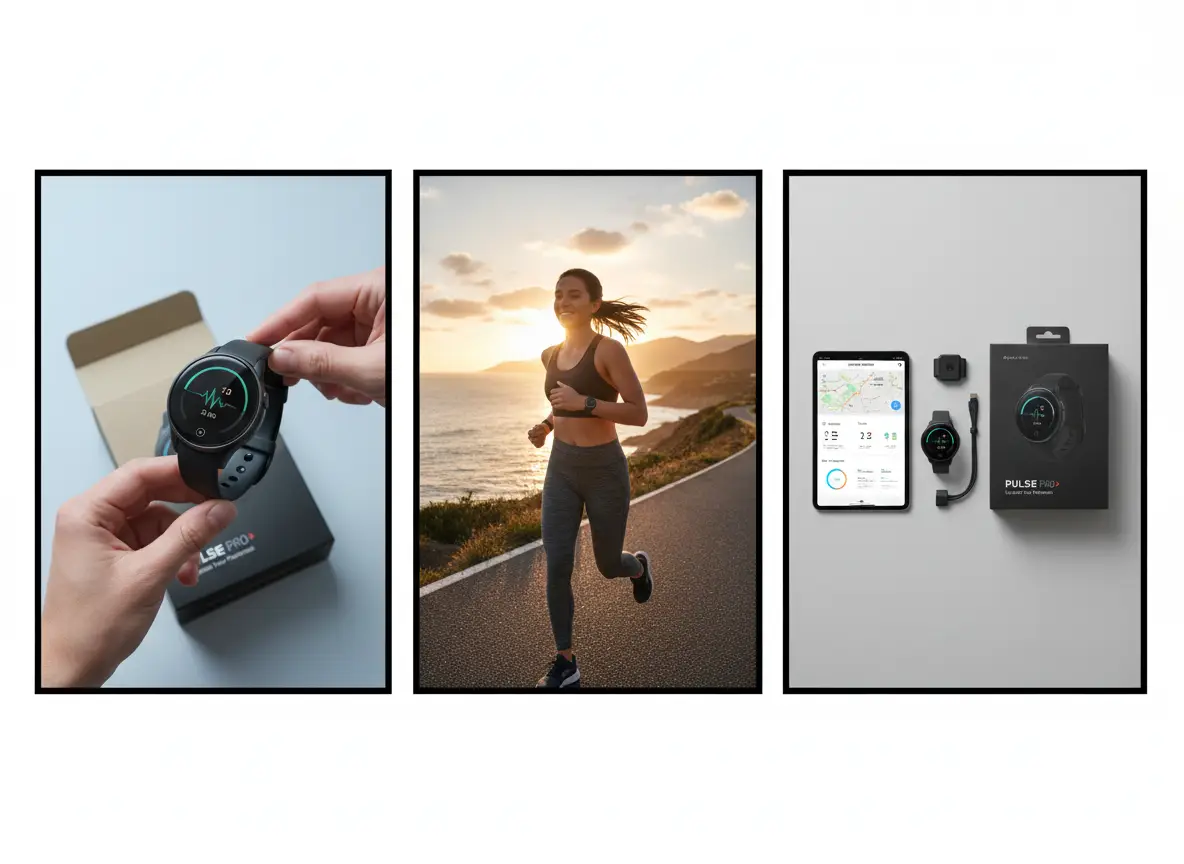
Work in this order: file, notes, selections, then inspection. These steps match the upload area, prompt field, and toolbar on this NSFW photo editor. The picture is an illustrative board, not a screenshot of the live form.
Step 1: Upload one clear authorized adult still and crop it to the person
Open the workbench and add a single still. Crop out desks, browsers, and extra people that you do not want interpreted. Confirm the adult subject fills the frame. Keep the face and stance you care about inside the crop. A cleaner source is the cheapest control you have. This editor will not start from an empty prompt.
Step 2: Write keep-and-change notes, then set model, ratio, and resolution
Type the keep list first and the change list second. Leave Seedream 5.0 selected unless you have a reason to switch to another model in the live selector, such as Z-Image. Do not expect Qwen Image 2 on this default picker. Match aspect ratio to the upload unless the destination truly differs. Read the displayed credit cost and any limit for that combination, then generate.
Step 3: Inspect fidelity, then adjust only the clause that failed
Place the result next to the upload. Walk face, garment, joint count, and camera height. If the clothes are wrong but the face held, change only the wardrobe clause. If structure broke, simplify the change list or recrop the source.
What brief, budget, and quality checks should you finish before another NSFW photo editor run?
Write the keep list, cap the retries, and define how close is close enough. Then load the authorized adult still into this NSFW photo editor and generate with those constraints in view.
Freeze the brief as keep-and-change, not as a mood
Write the keep list in objects you can count: face, pose, crop. Write the change list in one clothing, scene, or lighting fact. If either list is a pile of adjectives, edit it before you upload. Put both lists next to the source file. Every later note should still point at those lines.
Cap the budget for retries on this file
Decide how many attempts this still is worth before you recrop or reshoot. Read the displayed credit cost for the model, ratio, and resolution you selected. When the retry budget is gone, accept the closest keep-list match or fix the source. Starter credits are a finite retry budget, not an open-ended edit desk.
Set the fidelity bar you will inspect against
State whether a mood match is enough, whether the face must stay readable, or whether joint count must match the source. That bar tells you when to stop and when to leave for a retoucher. Open the workbench after those three decisions are written.
VideoAny AI
Edit an authorized adult still
Write the keep list, cap the retries, and define how close is close enough. Then load the authorized adult still into this NSFW photo editor and generate with those constraints in view.