
Makemovie Alternative for Movie-Like Clips
Write a scene and generate a movie-like clip on text to video with this Makemovie alternative on VideoAny. Choose Wan for the text-led video take. If you want to settle the character, props, or setting visually first, prepare a still with Seedream or explore a composition with Grok Imagine, then switch to image to video. This workflow produces short clips rather than a feature-length master.
Create a scene from textWrite one scene, then generate the clip
- Open text to video and name a subject, a setting, and a single visible action.
- Specify how the action ends and add one camera move. Include the time of day and the light in the same brief.
- Select Wan for the text-led take, choose an offered duration and aspect ratio, and check the displayed credits before Create.
- Watch for a readable action and a coherent ending. Download the take you prefer, or revise one part of the brief for another attempt.
Try a scene brief recipe
Give the model something visible to complete. A character's small decision, a signal, or an object reveal makes a useful first scene. Use these SFW briefs as starting points, then change one detail per attempt.
| Scene idea | Example brief | What to assess |
|---|---|---|
| Bookshop closing | A bookseller lowers the shop's wooden shutter; warm interior light narrows to a line; locked medium shot. | The action reaches a clear ending, and the change in light follows the shutter. |
| Rooftop signal | A radio operator raises a small antenna on a rooftop at dusk; distant city lights glow; slow upward camera tilt. | The operator and antenna remain readable as the camera tilts. |
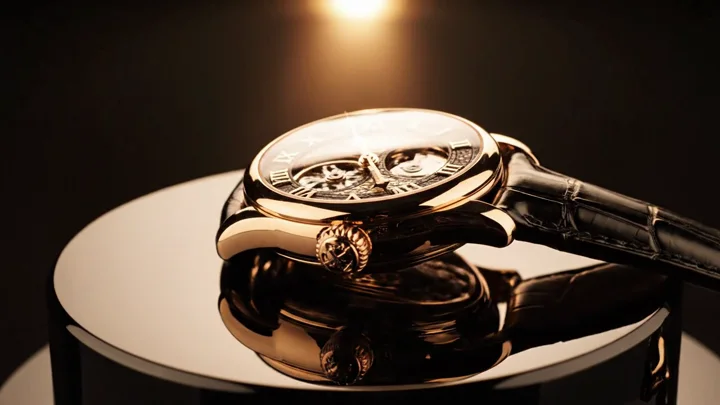
| Workshop discovery | A watchmaker lifts a cloth from a brass clock; morning window light reveals its face; gentle push-in. | The reveal reads as one continuous action, with the clock in the same place. |
Refine shot size, camera movement, and lighting with cinematic video prompts. For a broader scene-planning workflow, use the Openfilm alternative. Keep the action simple enough to judge in a single take.
Match the model to the scene input
Choose Wan to generate the moving scene directly from text. Hold the subject and action steady while testing a camera change. The Wan and Seedance comparison also helps you choose between a fresh generation and continuing a clip.
Use Seedream on text to image to establish a scene image, or on image to image to revise an authorized reference. This is useful when wardrobe, props, or composition need a visual decision before motion. Bring the approved still to image to video; the image-to-video walkthrough covers that switch.
Try Grok Imagine on text to image for another starting composition or palette. Choose the still that communicates the scene most clearly, then describe its movement using image-to-video prompt patterns.
Budget a draft and choose the next attempt
Use video extend when the action and ending already work and you need the next moment. Regenerate from text when the subject, camera, or main action misses the brief. If repeated attempts miss the same visual detail, settle it in a still before returning to video.
- Use starter credits, if your account is eligible, to check whether the scene reads in a short draft.
- A model, duration, or resolution change can change the credit estimate; review it before Create.
- Memberships begin at $19 on pricing for continued scene experiments.
Keep scene recipes, reference images, and resulting clips SFW. For a story built around a planned opening, ending, and continuation, follow the Lemo Opuscar cinematic-short workflow.
Frequently asked questions
Which path should I use for a text-to-movie clip?
Start on text to video with Wan when the scene is ready to describe in words. If you need to decide its look first, create a Seedream or Grok Imagine still on text to image, then animate the chosen image on image to video.
How much of a story belongs in one prompt?
Start with one visible event: a bookseller lowers a shutter, for example. Add the setting, the light, and a single camera instruction. Watch whether that action finishes clearly. A readable event gives you a useful basis for deciding the next shot or continuation.
When should I switch from text to a still?
Switch when an exact prop, outfit, or composition matters more than exploring new scene layouts. Prepare an authorized image, then use image to video with a brief focused on movement. Follow how to turn an image into video for the upload and generation steps.
Should I extend the clip or regenerate it?
Choose video extend when the take already tells the intended beat and its ending can lead into another action. Regenerate when the subject or camera is wrong, changing the relevant part of the prompt. Approve the source take before spending credits on its continuation.
Are free generations unlimited?
No. Starter credits are limited to eligible accounts. Check credits before Create for every attempt; memberships begin at $19 on pricing.