
VideoAny AI
image to image generator realistic nsfw: VideoAny Workspace
An image to image generator realistic nsfw workspace transforms an uploaded adult photograph into a fresh composition while preserving the subject’s core identity. On VideoAny, the image-to-image workbench pairs your reference with a text prompt so you can guide clothing, lighting, and scene details without starting from a blank canvas. The current image model configuration includes NSFW image generation, and the credit cost is shown before you generate, so every run stays deliberate.





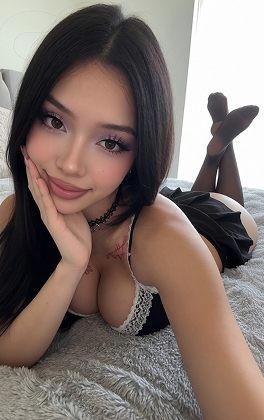
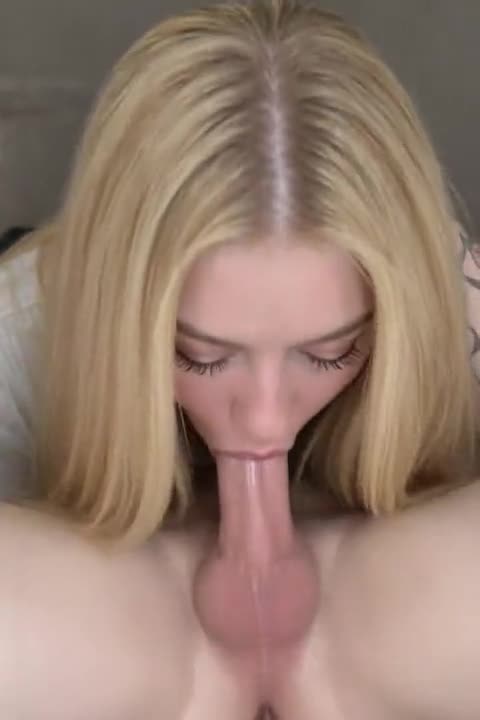
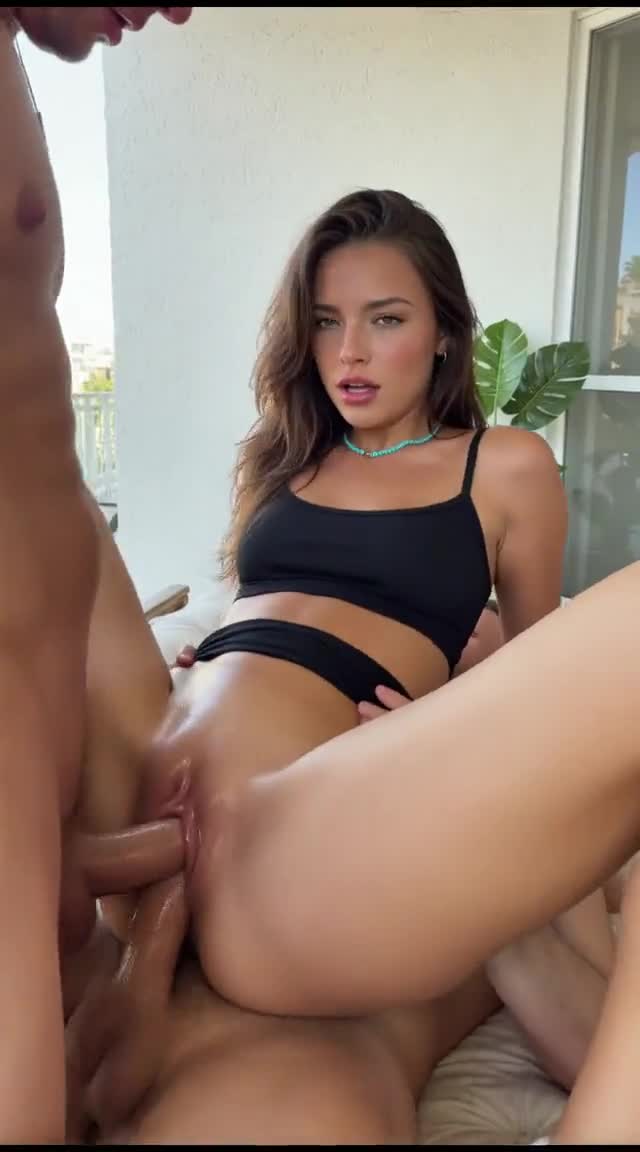
image to image generator realistic nsfw: Choose a Model That Reads Your Reference
The model you select determines how faithfully the output follows the uploaded adult still. VideoAny’s image-to-image workbench gives you direct control over that relationship.
01
Keep Seedream 5 Pro as the Preferred Model for an Adult Still Rewrite
Seedream 5 Pro is an image model configured in VideoAny that reads reference photographs with strong attention to pose and facial structure. When you need a realistic NSFW result that stays close to the original person, this configuration preserves the subject’s proportions while applying the changes you describe in the text prompt.
02
Match Aspect Ratio to the Uploaded Portrait, Not to a Later Crop
Set the output ratio to mirror the reference image’s native dimensions before you generate. If the uploaded adult still is a vertical portrait, choosing a matching vertical ratio prevents the model from guessing what lies outside the frame and keeps the composition tight around the person.
03
Review the Result and Adjust the Input
After the first generation, compare the output against the reference. If the pose drifted or a detail softened, refine the prompt clause that controls that element and run image to image generator realistic nsfw again. The credit cost is shown before you generate, so each adjustment is a measured step.
Image controls and input options
VideoAny’s image-to-image workbench accepts a text prompt alongside your uploaded reference image. That combination lets you rewrite specific visual layers while the underlying person remains recognizable.
01
Choose a Reference That Already Holds Pose and Camera Height
image to image generator realistic nsfw reads the reference image input to anchor body position and viewing angle. Select an adult photographic reference where the subject’s stance and the camera’s elevation already match your vision. The model will carry those spatial cues into the generated still.
Use the existing adult reference to explore lighting and framing.
02
State What Must Stay on the Person and What May Change in Clothes or Light
Write a prompt that separates keep instructions from change instructions. For example, lock hair color and skin tone while directing the model to alter outfit texture or the direction of key light. image to image generator realistic nsfw uses the reference image to ground the constants and the text prompt to drive the variables.
Use the existing adult reference to explore lighting and framing.
03
Rewrite a Neighboring Still Instead of Starting from a Blank Page
When you already have an adult photograph that is close to the desired frame, use image to image generator realistic nsfw to produce a variant. This approach keeps the person’s likeness intact and saves the time you would spend rebuilding pose and expression from a text-only description.
Use the existing adult reference to explore lighting and framing.
Practical Scenes for an Image-to-Image Run
An image workspace workspace excels when the goal is to evolve an existing adult still rather than invent a new subject. These scenarios show where image to image generator realistic nsfw adds the most value.
Reference Types That Strengthen the Output
The reference gallery contains existing adult photographic images that illustrate how different source types influence image to image generator realistic nsfw result. These examples are illustrative references, not outputs from this page.
Illustrative references. Not verified VideoAny input/output pairs.
Reference-Guided Crop
A tightly framed adult portrait gives the model a clear read on facial features and shoulder line. When you upload a reference that already isolates the subject, image to image generator realistic nsfw can devote more attention to the details you ask it to change.
Existing visual reference for composition and lighting; not a verified output from this page.
Lookbook Frame
A full-body adult reference with visible clothing and stance provides image to image generator realistic nsfw with enough information to rewrite outfit and environment together. Use this source type when the prompt needs to address both the person and the surrounding scene.
Existing visual reference for composition and lighting; not a verified output from this page.
One-Fact Board
A reference that focuses on a single attribute, such as a specific hairstyle or a lighting pattern, helps the model isolate that trait during generation. Pair it with a prompt that names the one element you want to carry forward while everything else is open to change.
Existing visual reference for composition and lighting; not a verified output from this page.
image to image generator realistic nsfw: Prompting an Image-to-Image Workspace Without Masks
image to image generator realistic nsfw does not require region brushes or manual masks. You guide the output by choosing the right reference and writing a prompt that separates what to keep from what to change.
01
Crop the Source to the Adult Subject Before You Upload
Remove background clutter from the reference image before it enters image to image generator realistic nsfw. A clean crop around the adult subject helps the model focus on the person and reduces the chance that irrelevant objects influence the generated scene.
02
Keep the Keep List Shorter Than the Change List
List only the essential traits that must survive the generation, such as face shape or a specific tattoo. The longer the keep list, the more the model treats the reference as a rigid template. A short keep list gives the workbench room to interpret the change instructions freely.
03
Inspect the Source and the Result Together
Place the uploaded reference and the generated still side by side. Check whether the kept traits held and whether the changed elements moved in the direction you described. This direct comparison makes it easier to write a precise adjustment for the next run.
Creator workflow notes
Working habits for a referenced adult-still rewrite, not user reviews
These notes describe common ways to run a keep-and-change pass on an authorized adult still. They are not user reviews, ratings, or promises about a specific result.
Wardrobe rewrite
Clothes workflow
“Keep face, pose, and camera height. Change only the garment color or cut. If a new accessory appears, the change list was too broad.”
Scene rewrite
Background workflow
“Keep face, garment, and crop. Change only the wall or venue behind the person. Inspect floor contact against the upload.”
Light rewrite
Lighting workflow
“Keep pose and staging. Name the new light direction in one clause. Check eyes, fabric sheen, and shadows before you accept the plate.”
Questions about inputs and results
Understanding the boundaries of the image-to-image workbench helps you set realistic expectations before you spend credits. These answers address the most common questions about the workspace.
What to Upload and What to Write Beside It
Upload one adult photographic reference that clearly shows the subject you want to keep. In the text prompt, describe the changes you want the model to apply. The image-to-image workbench with reference image input uses both signals together, so a strong reference and a focused prompt produce the most controlled result.
What kind of file works as a reference?
+−
Use one still where the adult subject is large and readable. Full-length or three-quarter photos work better than collages or tiny thumbnails. Upload only material you are authorized to edit. This workbench will not start from an empty prompt, and it will not generate video.
Do I have to describe the whole picture again?
+−
No. Name what must remain and what should change in clothes, scene, or light. If the first result drifts, shorten the change list rather than narrating the entire portrait.
How to Judge Whether the Result Is Close Enough
Compare the output against the reference on three points: subject identity, pose accuracy, and the specific change you requested. If two of the three are solid and the third is close, a small prompt edit is usually enough. If the subject identity drifts, consider whether the reference crop or the keep list needs adjustment.
Why did the new still invent objects that were not in the photo?
+−
Broad change language or a ratio that does not match the source can invite extra objects or limbs. Narrow the change list, match the crop, and try again.
Can I lock one region and freely restyle the rest?
+−
This workflow does not provide precise edit masks, inpaint brushes, or strength sliders. You steer with notes, model, ratio, and resolution. Use a dedicated local editor if you need a region retouch. This page does not invent a new person from text.
Credits, Limits, and Sensible Next Steps
The credit cost is shown before you generate, so you can decide whether a run fits your plan. The current image model configuration includes NSFW image generation, and the workbench is designed for adult subjects. After a successful still, you can stay in the image-to-image workspace for variants or move to another VideoAny route for a different output type.
Is the cost the same as generating without a reference?
+−
Not necessarily. The workbench shows the cost for the model and options selected on this path. Read that value rather than reusing a number from another tool.
What if I need a new idea that the reference should not constrain?
+−
Write a text-to-image brief instead. A source file will keep pulling the still toward the upload. For motion from the rewrite, continue in image-to-video. This image workspace stays on stills.
Start with your input and review the result
A structured upload and prompt routine turns the image-to-image workbench into a repeatable tool. Follow these steps to move from a raw adult photograph to a controlled NSFW result.
Step 1: Upload One Clear Authorized Adult Still and Crop It to the Person
Open the image-to-image workbench and select your reference image. Crop the frame tightly around the adult subject so the model reads the person, not the background. This step sets the foundation for every generation that follows.
Step 2: Write Keep-and-Change Notes, Then Set Model, Ratio, and Resolution
Draft a prompt that names what stays and what transforms. Choose Seedream 5 Pro as the model, match the aspect ratio to the uploaded portrait, and confirm the resolution. The credit cost is shown before you generate, so review the setup and then start the run.
Step 3: Inspect Fidelity, Then Adjust Only the Clause That Failed
When the result appears, check the subject’s likeness and the specific change you requested. If the outfit updated but the lighting stayed flat, edit only the lighting clause in the prompt and generate again. Isolating the fix keeps the other elements stable across runs.
Prepare Your Brief Before the Next Run
A clear brief, a defined budget, and a quality checkpoint turn the image-to-image workbench into a reliable production tool. Lock these three elements before you generate again.
Freeze the Brief as Keep-and-Change, Not as a Mood
Write the brief in concrete terms: name the traits that must persist and the exact elements that should differ. A mood-based brief leaves too much room for interpretation, while a keep-and-change list gives the model a precise target.
Cap the Budget for Retries on This File
Decide how many credits you will spend refining a single reference image. The credit cost is shown before you generate, so set a limit that matches the importance of the shot. When you reach the cap, evaluate whether the best result meets the brief or whether a new reference is needed.
Set the Fidelity Bar You Will Inspect Against
Define what counts as an acceptable match before you look at the output. For an image workspace run, the bar might be subject recognition plus one successful change. Having that standard ready keeps the review fast and the next action clear.
VideoAny AI
Open the workbench and upload your reference.
A clear brief, a defined budget, and a quality checkpoint turn the image-to-image workbench into a reliable production tool. Lock these three elements before you generate again.