
Image creation & editing
Seedream 5 Pro
- Start with
- A text prompt or reference images
- Output resolutions
- 1K / 2K / 4K
Choose Seedream, Wan or Grok Imagine. Start from a template, reuse its prompt and settings, and turn your ideas into images and videos in one workspace.
Multiple models
Seedream · Wan · Grok Imagine
Templates you can reuse
Keep the look, prompt and settings
Images + videos together
Create, edit and animate in one workspace
Cute Coquetry
Stairwell Casual Shot
Bubble Machine
Trending Dance
Sugar On My Tongue
Tennis Fashion
VideoAny AI connects your instructions, visual references and model choices in one workspace. These four decisions explain how to guide a generation.
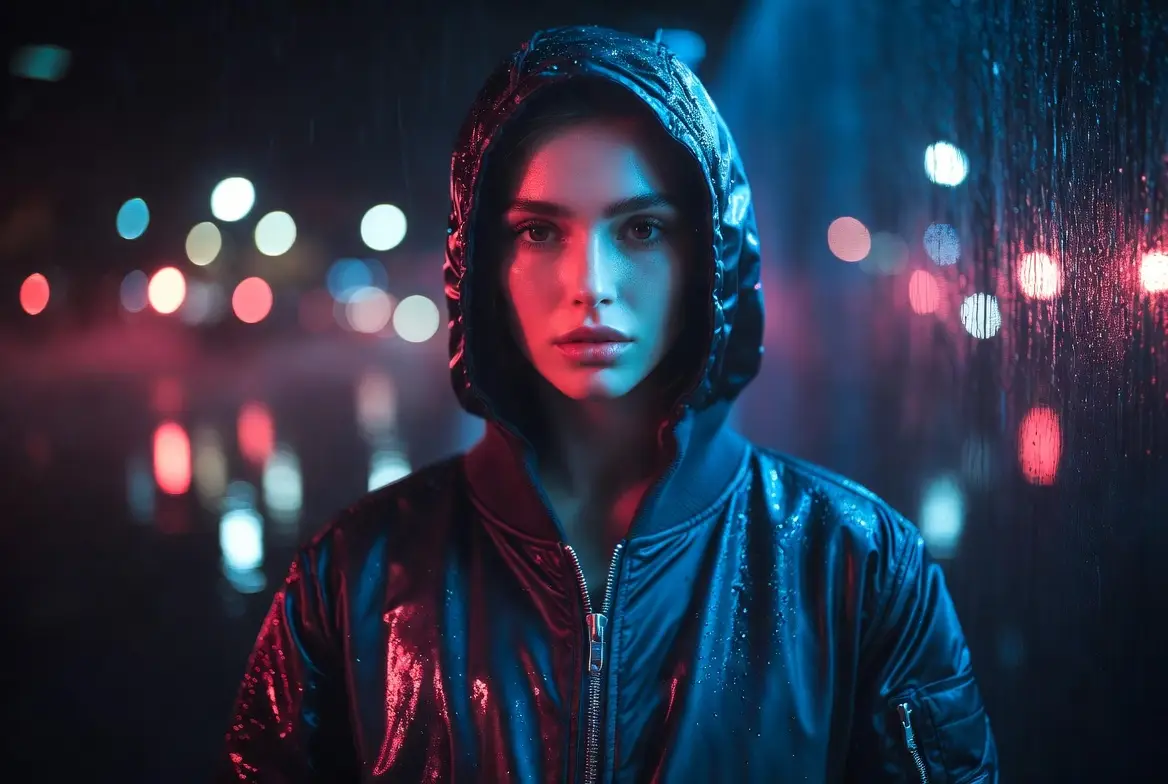
A prompt describes the subject, setting and action. Use a written still when you start from words. The selected model uses those instructions to produce an image or a video.
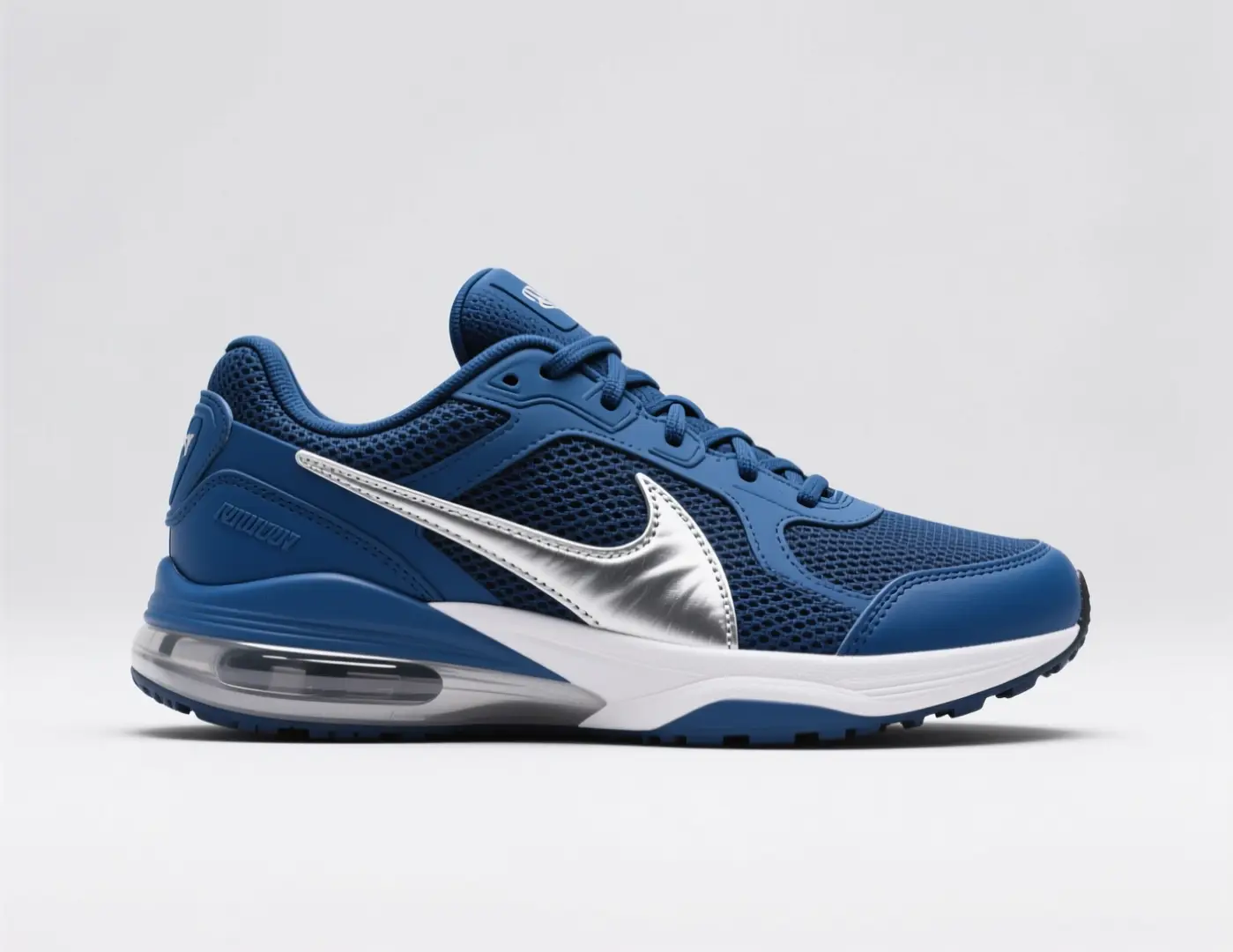
Supported workflows accept photos or reference frames alongside your prompt. Use an ai photo edit to restyle an uploaded photo rather than describe every detail again.
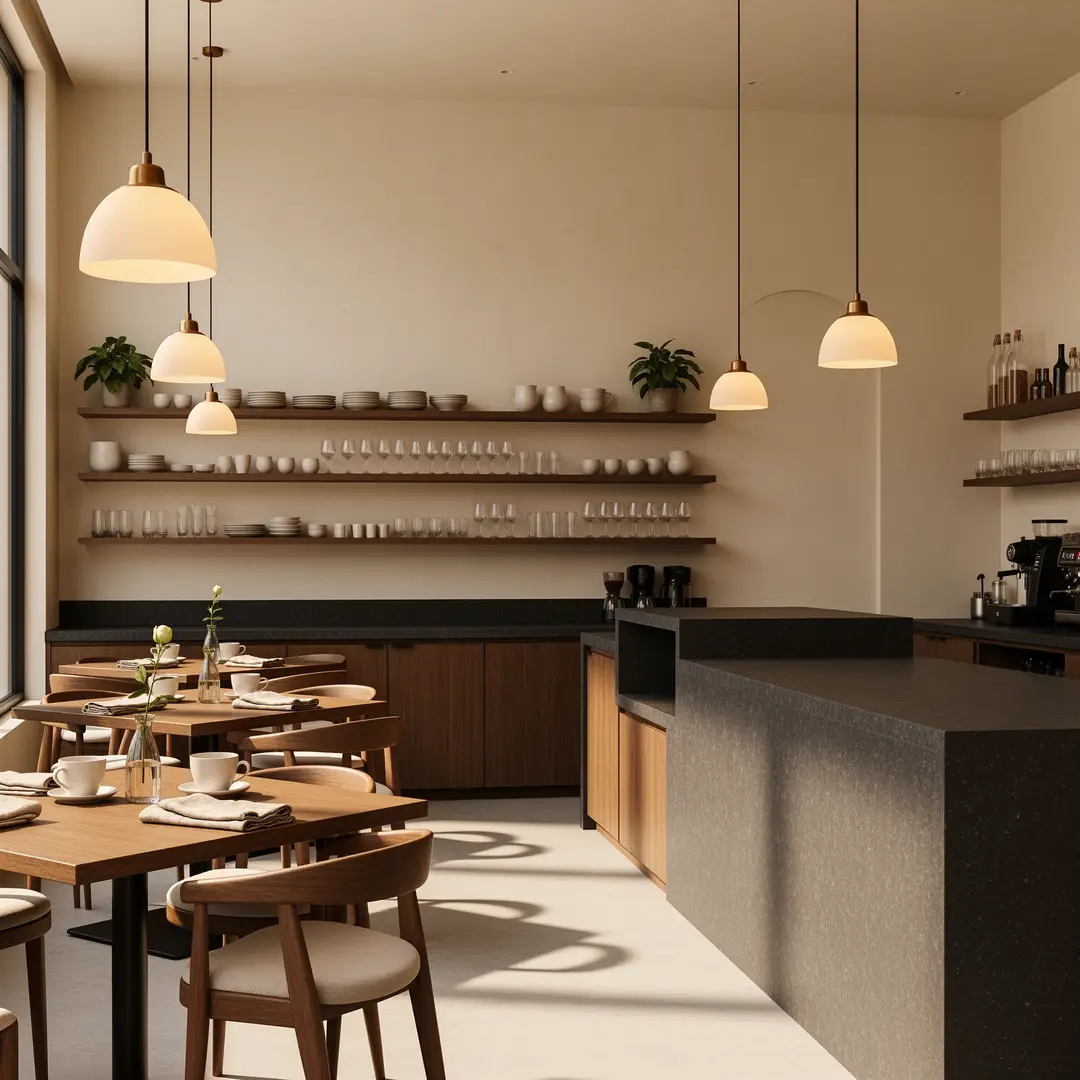
Choose the model for the task you have in mind. Image inputs, video inputs and editing modes vary by model; the workspace shows the available choices.
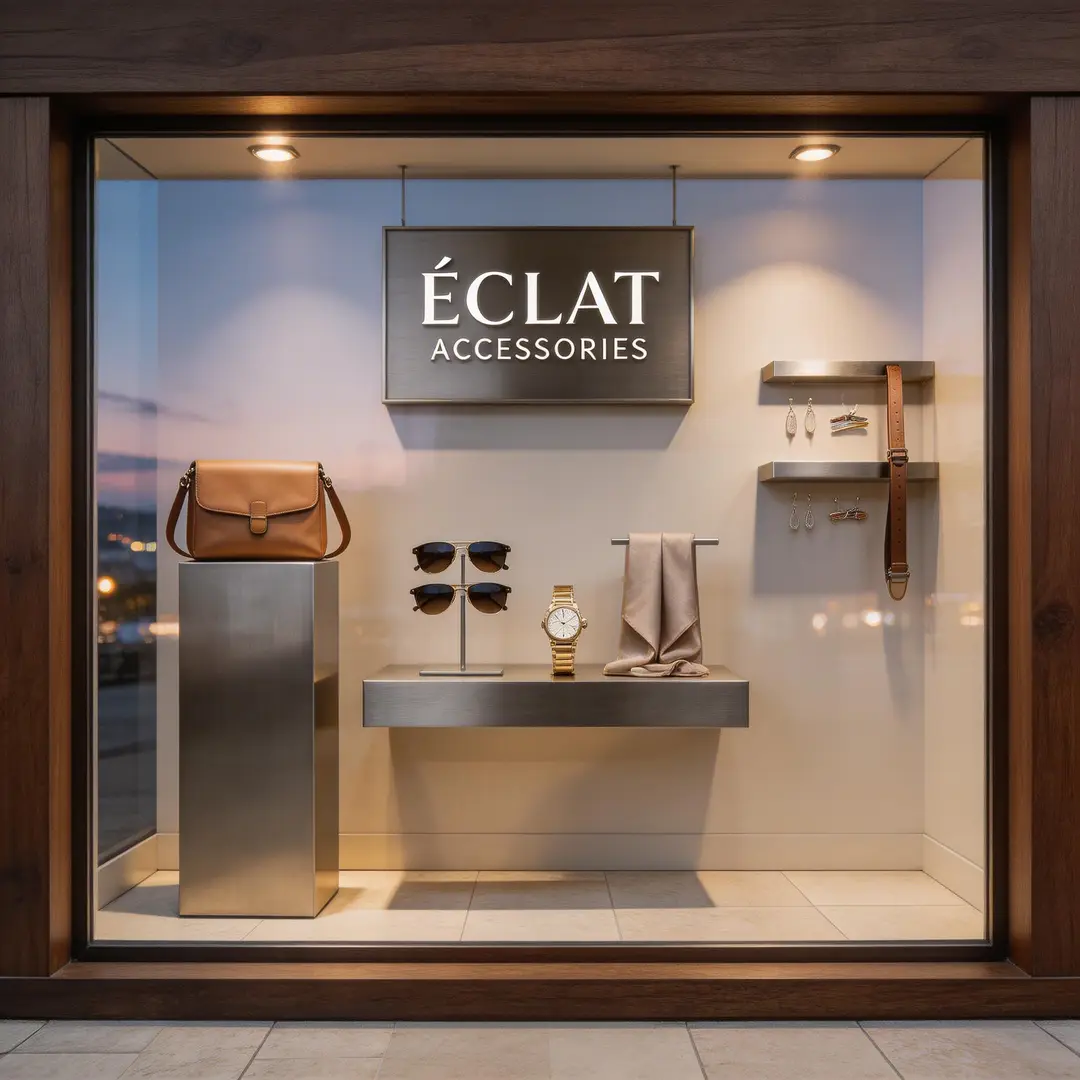
Aspect ratio and resolution set the output format. For video, the supported duration also matters. Review the selected settings and credit estimate before creating.
Choose a video or image workflow, then compare the available models.
Choose a workflow, then explore related tools, scenes, and model information.
Published tool pages
597 published pages
VideoAny AI brings image and video models into one workspace. Start with the input you have, compare the output settings, and choose a model for that part of your project.
Image creation & editing
Image creation & editing
Video creation
Video creation
Membership required
Start with a creative direction and a reusable setup. Inspect the prompt and settings, then adapt the subject, scene or motion to your own idea.
Browse motion, social clips, visual styles and character collections. Open a template to see what it is designed to create.
Review the model and recorded parameters alongside the preview. Carry the recipe into the editor instead of writing every detail from scratch.
Edit the prompt or add your own reference where the workflow supports it. Review the selected model, quality and credit estimate before creating.
Inspect the first output against your idea before spending credits on more variations. Keep a useful direction, then change the prompt or reference for your next attempt.
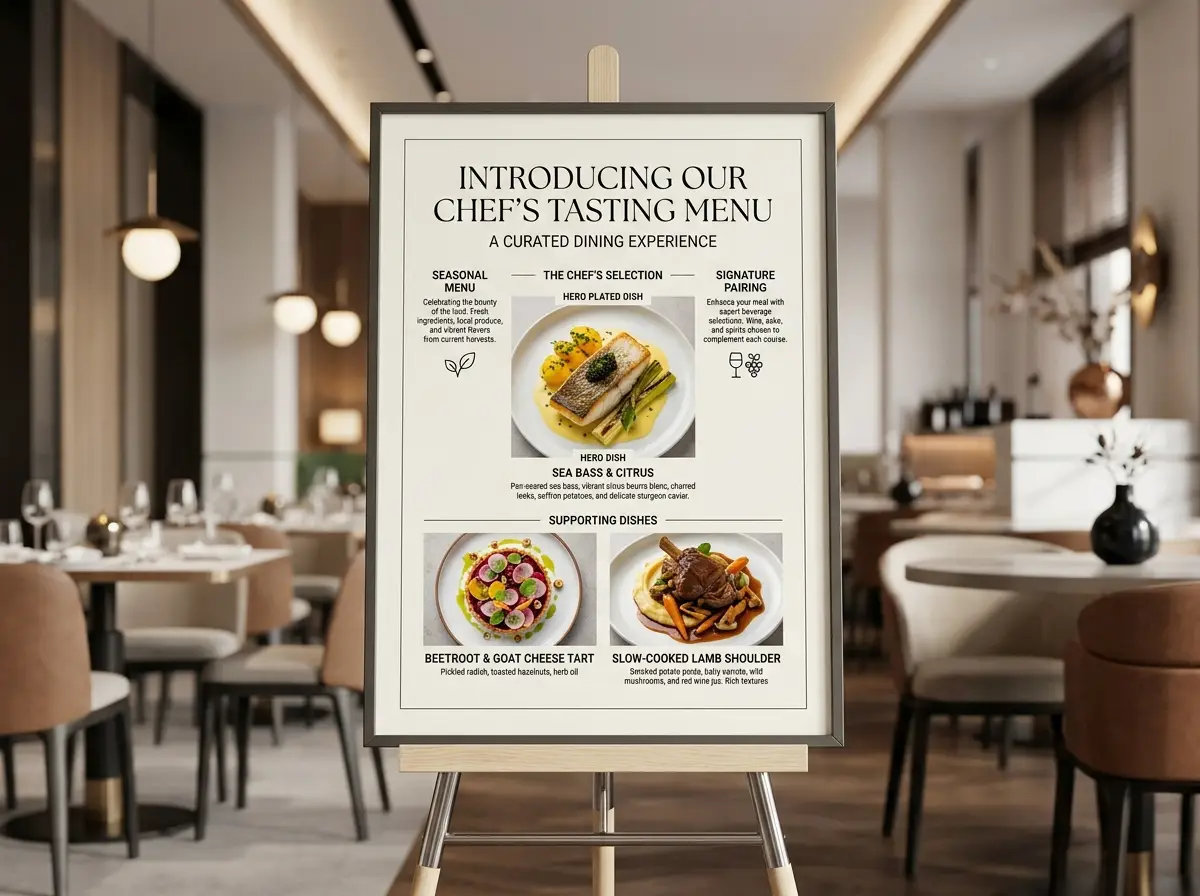
A prompt you can inspect
Restaurant explainer board
Nano Banana 2 · 4:3 · 2K
Create a modern restaurant explainer board for a chef’s exclusive tasting menu launch. Highlight one hero plated dish, two concise supporting dish close-ups, and short section labels for “Seasonal Menu”, “Chef’s Selection”, and “Signature Pairing”. Embrace a current upscale dining tone, with a refined editorial layout, understated typography, and authentic, realistic hospitality styling.
This is a recorded example setup. The available model, input and settings determine your new result.
Build the visual, shape the motion, and review the result in VideoAny AI. Start with a written still or restyle a photo with a photo restyle, then take the still into video in the same workspace.
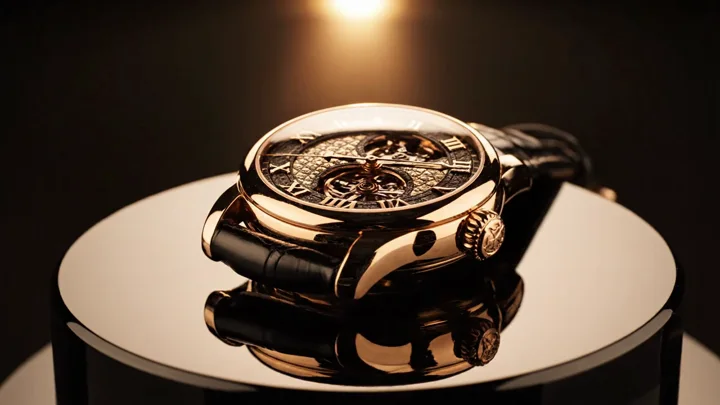
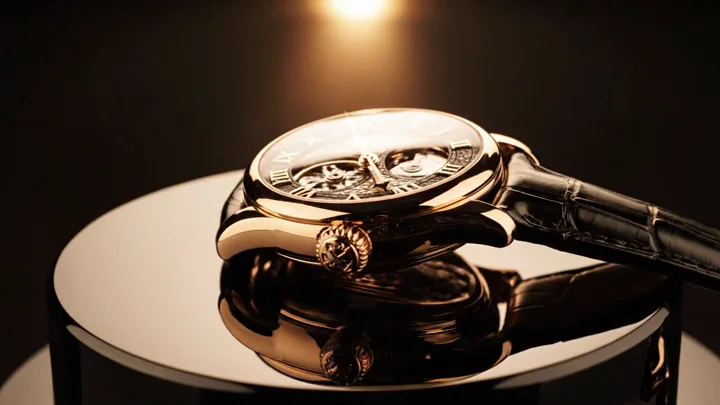
Write the subject, composition and lighting with a text prompt still, or edit a reference image. Choose an aspect ratio that suits where the final piece will be used.
Download the image you want to use, open image-to-video, and add it as a reference. Check that the selected video model supports your input.
Use your image as a video reference. Describe the subject action and camera movement, then choose the duration and resolution supported by the model.
Inspect the output in your result workspace. Adjust the prompt, try another available model, or continue with the image and video editing tools.
Turn a specific idea into a useful starting workflow. Explore a template when you need direction, or begin with a prompt when you already know what you want.
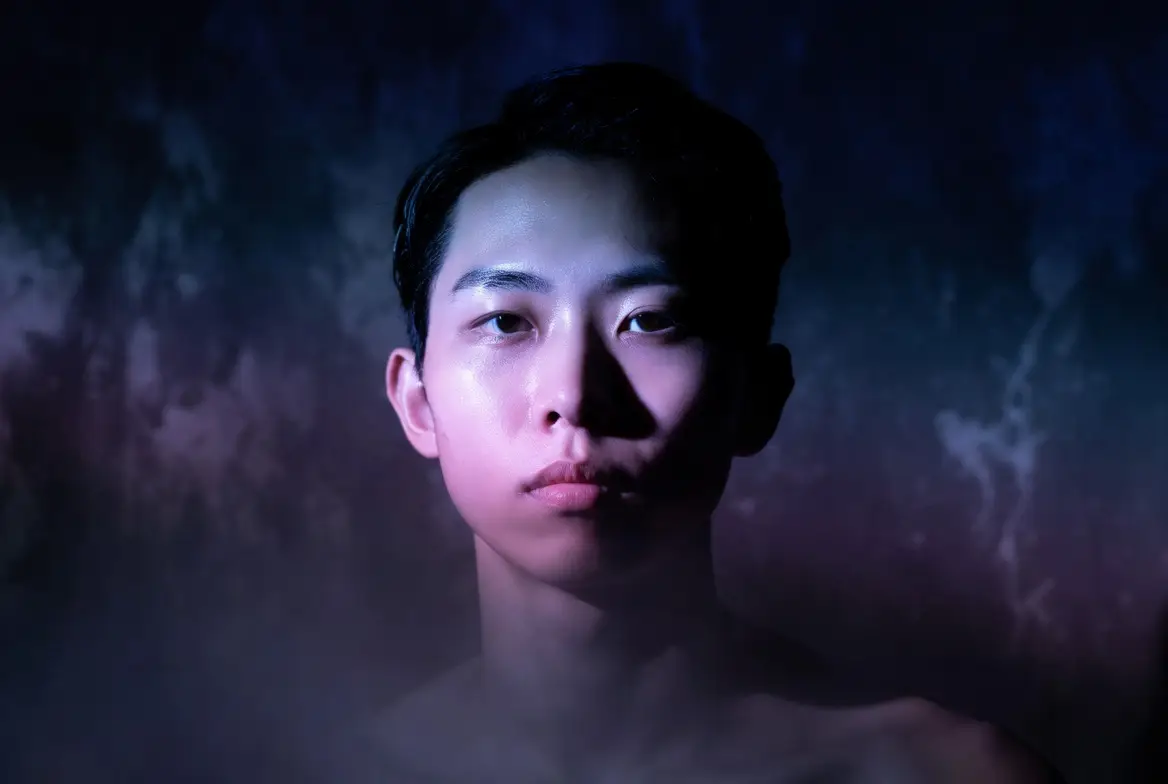
Start with a visual hook, a vertical scene or a reusable motion template. Adapt the subject and framing to fit your next post.
Make It Pop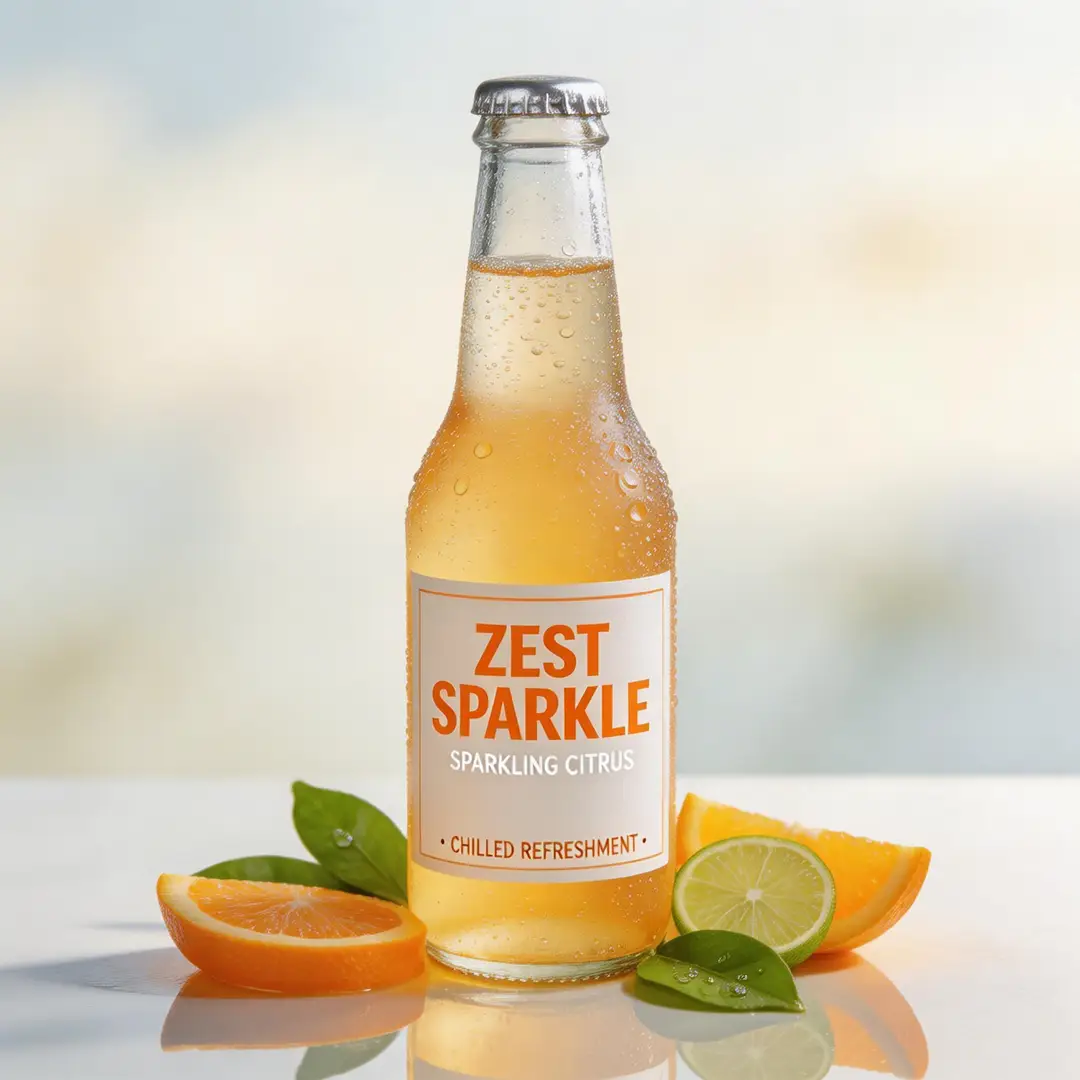
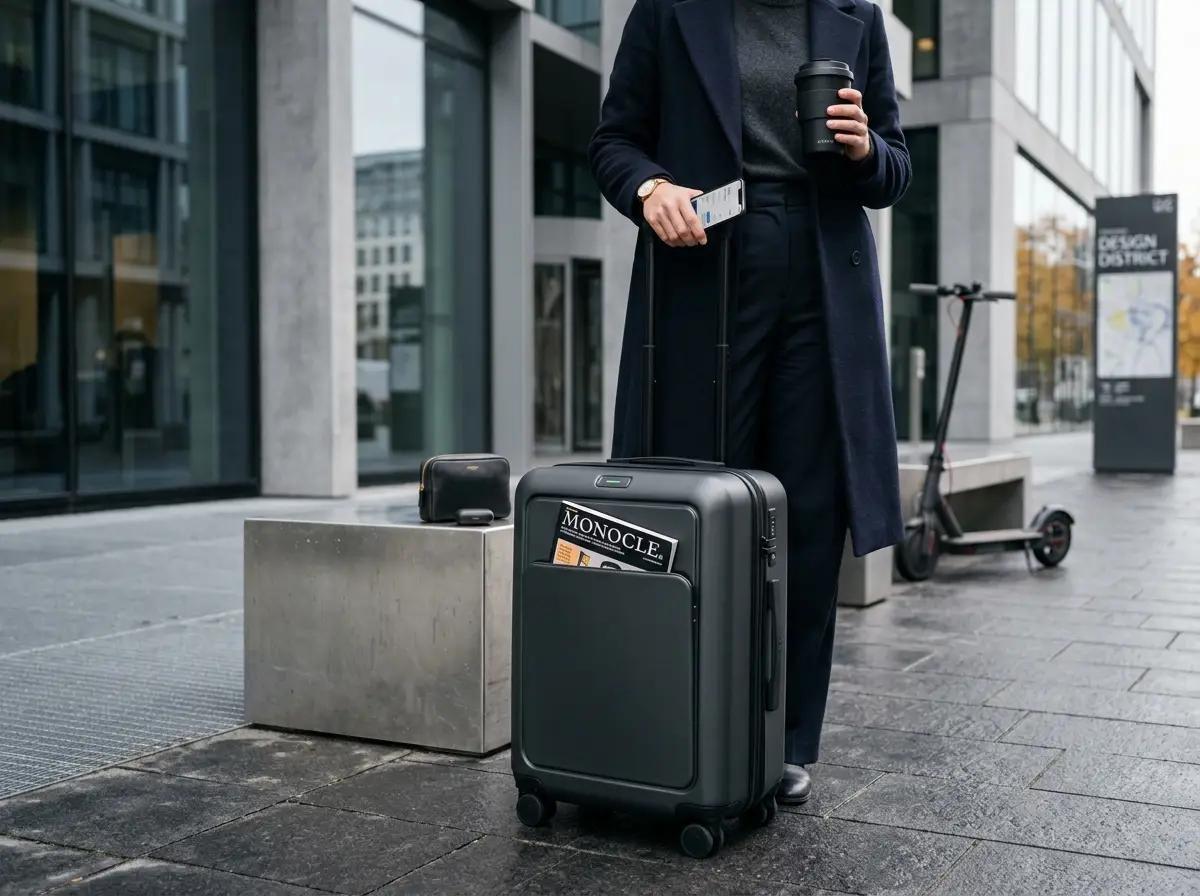
Use reference images to guide a product scene, test backgrounds and compositions, and create image variations before developing a video idea.
Create My Visuals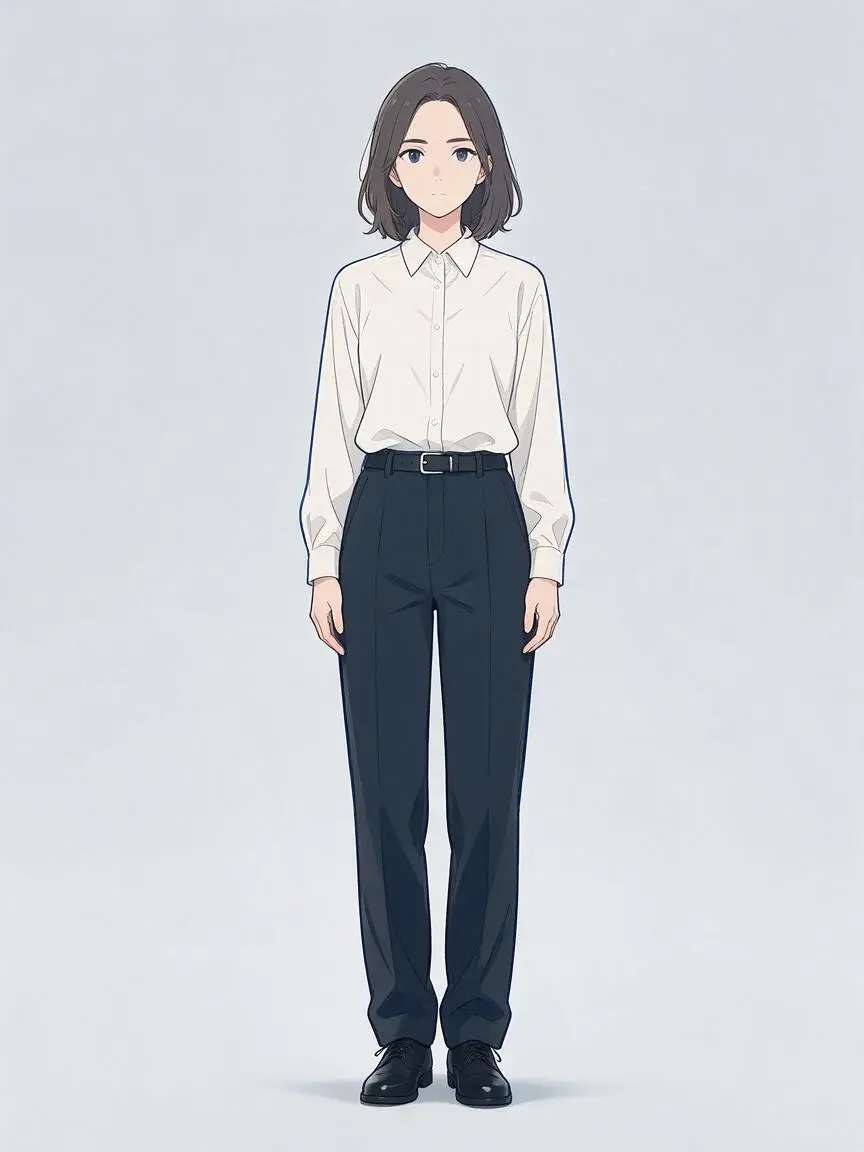
Explore character and genre collections for a starting look. Refine the prompt, then choose a still image or a motion workflow.
Create My Anime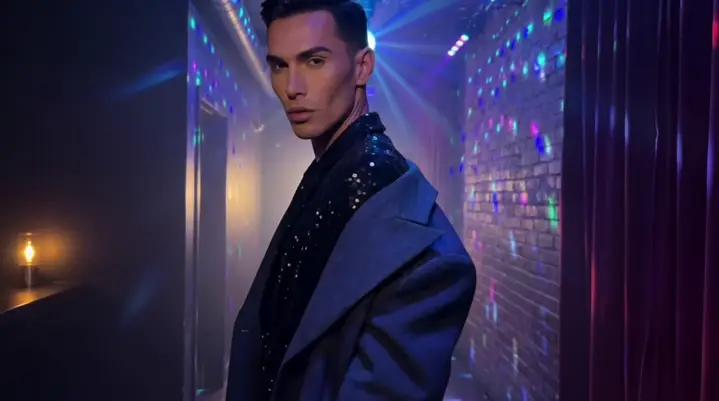
Describe the setting, mood and action for a short scene. Use image references when the look matters, and plan the camera movement before generating.
Tell My StoryUse a task-specific workflow when your idea needs photo editing, a kiss scene, an outfit change or a video extension. Each entry opens the relevant tool.
From car rides to balconies, or even elevators. VideoAny AI brings your romantic kiss moments to life.
AI Kiss GeneratorFrom car rides to balconies, or even elevators. VideoAny AI brings your romantic kiss moments to life.
AI Kiss GeneratorFrom streetwear to gala gowns, or even historical armor. VideoAny brings your ultimate fashion fantasies to life.
AI Outfit GeneratorFrom streetwear to gala gowns, or even historical armor. VideoAny brings your ultimate fashion fantasies to life.
AI Outfit GeneratorStart from an image you already have, describe the changes, and use an ai photo edit to explore a new background, subject detail or visual style.
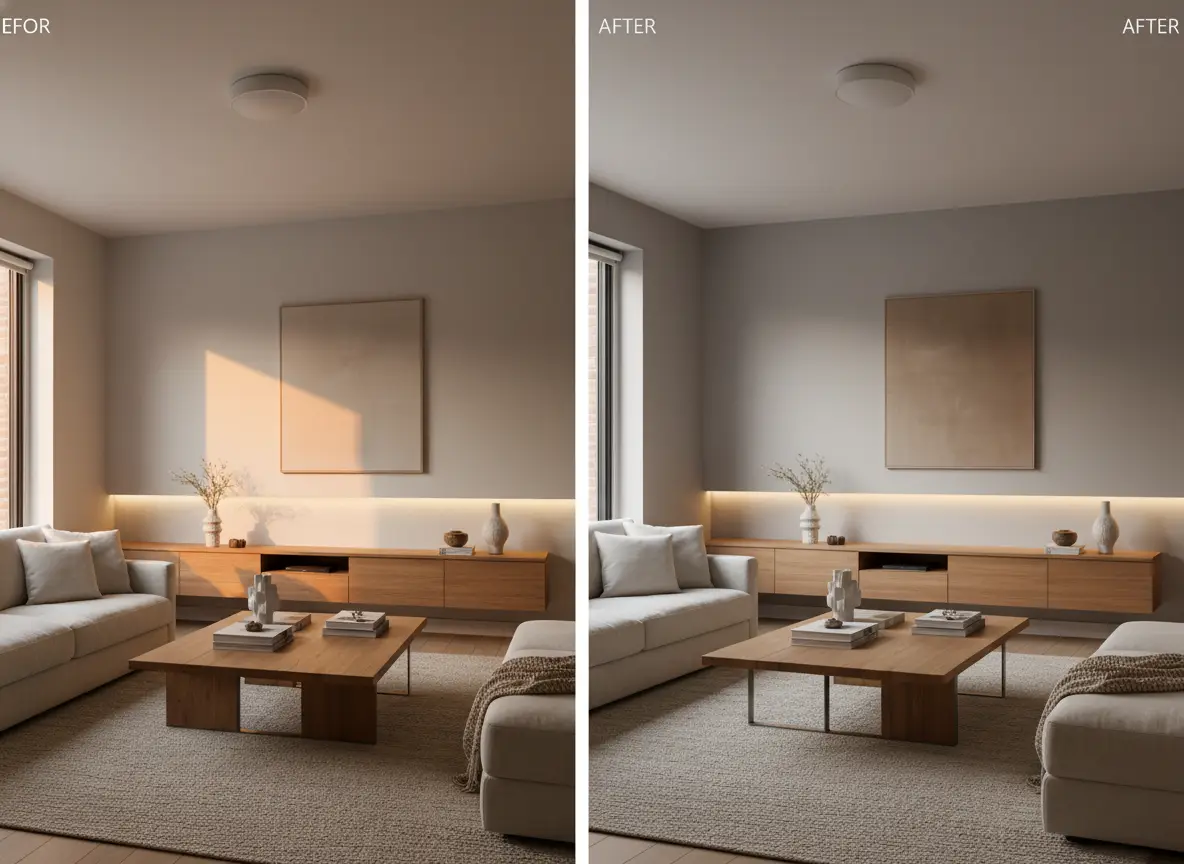
You can browse examples and explore the workspace before committing to a generation. Review account access, membership and the credit estimate when you are ready to create.
Eligible new accounts receive starter credits. Sign in to generate and keep your creation history attached to the same account.
Membership unlocks member template previews and recipes. Creating a new image or video still uses credits, including when you start from a template.
The estimate depends on the model, resolution, duration and number of outputs. Check the total beside Create, then compare plans or credit top-ups as needed.
Compare monthly membership and credit top-ups with the volume you expect to create. Check template access and model eligibility as well as the credit balance.
Monthly memberships from $19.00
PricingVideoAny AI is an AI video and image generation platform that turns text prompts or reference photos into cinematic videos and striking images — perfect for social media content, ads, animations, and visual art.
VideoAny integrates leading AI video and image models in one workspace, so you can pick the best model for your style, quality, and budget — and switch anytime without learning a new tool.
Choose an image or video workflow, then review the model, aspect ratio, resolution, and credit cost before generating. Available settings depend on the selected model.
VideoAny runs entirely in your web browser, optimized for both desktop and mobile — nothing to install, and your projects stay synced to your account.
Yes. New users receive free credits upon signup, and you can upgrade to a premium plan for faster rendering, higher resolutions, and priority model access.
Absolutely. Your premium plan, credits, and creation history automatically sync across all devices as long as you log in with the same account.
We secure your data using industry-standard encryption and never sell your personal information. Your generated content stays private unless you choose to share it.
Contact support anytime at support@videoany.ai. We usually reply within one business day and are happy to help with billing, creation, or account questions.
Bring your next idea into VideoAny AI.
Choose a template to build on, or start with your own prompt. Your image and video tools are ready in one workspace.