Existing adult photographic reference
 VideoAny
VideoAny AI
The image to image ai generator in VideoAny lets you describe an adult still in words and watch Seedream 5 Pro produce a matching photographic result. You supply a text prompt and a reference image, and the workbench renders a new composition that follows your written brief. This image to image ai generator is built for creators who want precise control over pose, lighting, and scene without starting from a blank canvas.
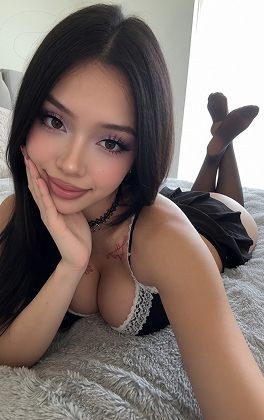
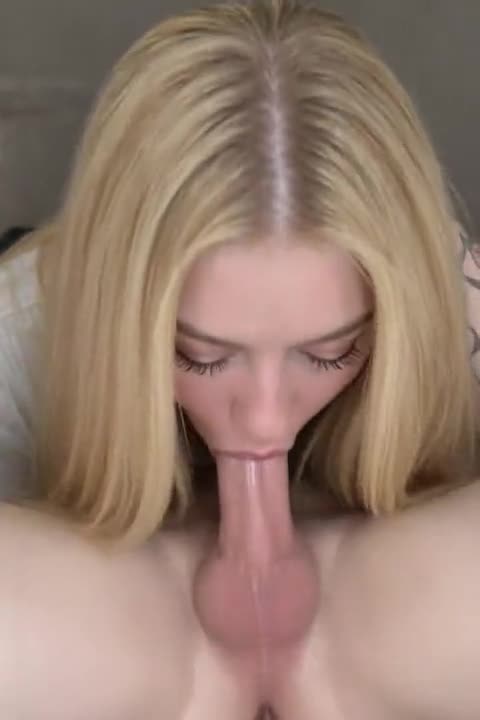
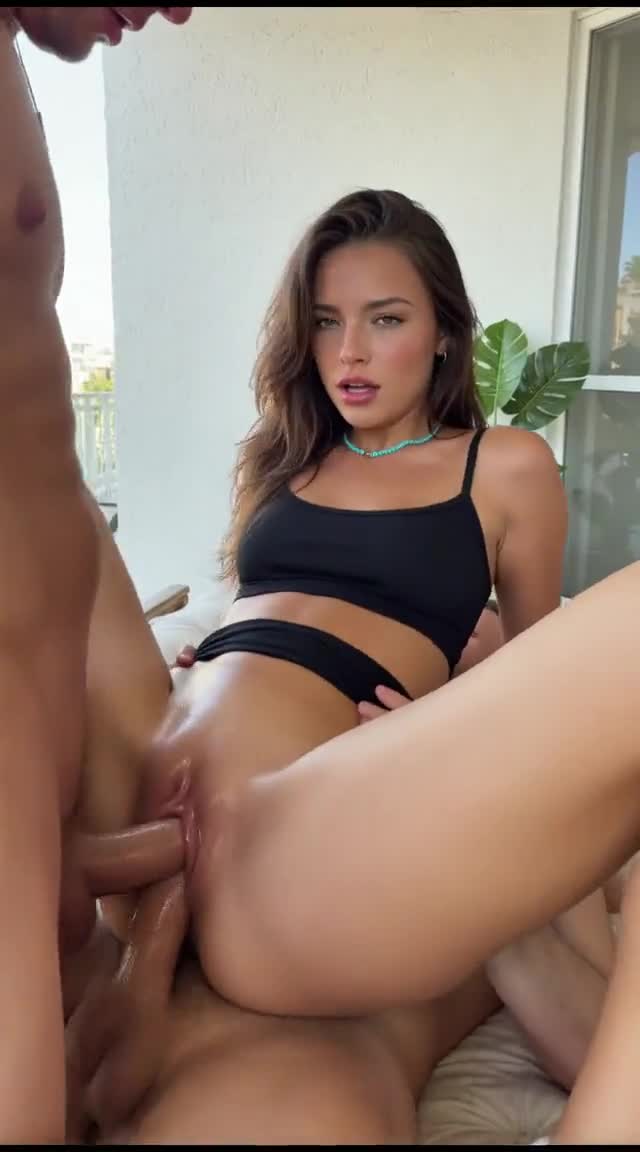
The workbench starts with model selection and input controls that shape every result. Seedream 5 Pro is the preferred model for adult stills, and the reference image you provide sets the composition baseline. Understanding these controls before you type a prompt keeps your session efficient.
01
Seedream 5 Pro is the image model configured in VideoAny for this task, and it stays selected when you open the image-to-image workbench. The image to image ai generator accepts a reference image that defines the framing, camera height, and subject placement you want to preserve. Write a text prompt that describes the adult subject, clothing, and mood, and the model renders a new still that follows both inputs. This image to image ai generator reads your reference as a structural guide, not a source of pixels to copy, so every result is a fresh composition.
02
Set the aspect ratio to match the still you are describing, not a later crop you might apply. The image to image ai generator uses the ratio you choose to frame the subject, and changing it after the fact can cut important detail. If your brief describes a full-body pose against a wide interior, pick a landscape ratio that holds the whole scene. The credit cost is shown before you generate, so you can compare ratio options and decide which one fits your brief without surprise spend.
03
After the image to image ai generator produces a still, inspect it against the written brief you supplied. If the pose reads correctly but the light feels flat, adjust only the lighting clause in your prompt and run the task again. Seedream 5 Pro responds to precise language, so small edits to your text often fix a result faster than rewriting the whole brief. The workbench keeps your reference image and model selection intact between runs, letting you iterate quickly on the same composition.
The image-to-image workbench gives you a text prompt field, a reference image upload, and model settings that work together. Each control influences the final still, and knowing which one to adjust saves credits and keeps your session moving.
01
When you write a prompt for the image to image ai generator, describe a room or venue that already has a camera height in the brief. Saying "shot from a low angle across a velvet lounge" gives Seedream 5 Pro a clear spatial instruction that the reference image reinforces. The image to image ai generator uses your reference to anchor the perspective, so the venue description and the uploaded still should agree on where the viewer stands. A mismatch between written venue and reference angle can pull the result in two directions.
Use the existing adult reference to explore lighting and framing.Open the image workbench and write your first adult still.
02
Pick one clothing, light, or palette fact and state it plainly in your prompt. The image to image ai generator works best when you give it a single strong visual anchor rather than a long list of adjectives. Write "red silk robe" or "warm tungsten key light" and let Seedream 5 Pro build the rest of the scene around that fact. The reference image supplies the composition, and your one-fact prompt tells the image to image ai generator what new element to introduce.
Use the existing adult reference to explore lighting and framing.Open the image workbench and write your first adult still.
03
You can use the image to image ai generator to invent a neighboring still that shares the same subject but changes the pose or setting, all from words. Instead of uploading a second reference, keep the original reference in place and write a new prompt that moves the adult subject to a different spot in the room. The image to image ai generator reads the reference for structure and your text for the new instruction, producing a still that feels like the next frame in a sequence.
Use the existing adult reference to explore lighting and framing.Open the image workbench and write your first adult still.
The image-to-image workbench supports a range of adult still scenarios, from catalog frames to drawn finishes. Each scenario asks for a different balance between reference fidelity and prompt freedom.
The reference gallery contains existing adult photographic images that illustrate the kinds of composition and lighting choices you can make. These are illustrative references, not outputs from this page, and they show how a strong reference guides the result.
Illustrative image-to-image template references. Not verified VideoAny text-to-image outputs from this page.
A reference-guided crop starts with an existing adult photographic image that already has the framing you want. The image to image ai generator reads that crop and applies your prompt to change the subject's expression or gaze while keeping the tight portrait composition intact. Seedream 5 Pro renders the new still using the reference as a structural template, so the result feels like a variation on the same photographic study. The image to image ai generator does not copy pixels; it rebuilds the scene from your words and the reference layout.
Existing visual reference for composition and lighting; not a verified output from this page.
A lookbook frame uses the image to image ai generator to produce a series of stills where the adult subject and framing stay consistent while the styling changes. Upload one reference that sets the model's pose and camera distance, then write a prompt for each look you want to see. The image to image ai generator keeps the structural elements from the reference and lets Seedream 5 Pro vary the clothing, light, or backdrop according to your text.
Existing visual reference for composition and lighting; not a verified output from this page.
A one-fact board is a reference still paired with a prompt that states exactly one new visual fact. The image to image ai generator takes that fact and weaves it into the composition the reference provides, producing a result that changes only what you asked to change. If your reference shows an adult subject in a chair and your prompt says "add a floor lamp behind her left shoulder," the model adds the lamp and leaves everything else alone.
Existing visual reference for composition and lighting; not a verified output from this page.
The way you write your prompt determines how closely the result matches your intent. These tips help you structure a brief that Seedream 5 Pro can follow with fewer retries.
01
Start every prompt by naming the adult subject and their key physical traits before you describe the room or the mood. The image to image ai generator prioritizes the first clause in your prompt, so putting the subject first tells Seedream 5 Pro what matters most. Once the subject is clear, add the setting and atmosphere. The image to image ai generator reads the prompt in order, and a subject-first structure produces more reliable results than a mood-first opening.
02
It is tempting to pile adjectives onto every surface, but the image to image ai generator produces stronger results when you keep the look list short. Pick one fabric, one color, and one light source, and let Seedream 5 Pro fill the rest from the reference image. A prompt that lists eight clothing details often produces a cluttered still, while a prompt that names two clear facts gives the image to image ai generator room to render a coherent scene.
03
After the image to image ai generator returns a still, inspect it against the written brief you supplied, not against a template still or an ideal you did not put into words. If your prompt asked for a seated pose and warm light, check those two facts first. Seedream 5 Pro follows what you wrote, so a result that misses your intent usually means the brief needs a sharper clause, not that the image to image ai generator failed.
Creator workflow notes
Working habits for a prompt-only adult still, not user reviews
These notes describe common ways to run a text-to-image pass on this this image workspace desk. They are not user reviews, ratings, or promises about a specific result. The pictures around them are image-to-image template stills, not this page's generation proof.
Subject rewrite
Prompt workflow
Name one clearly adult subject, pose, and crop. If a second person appears, the brief was too broad.
Look rewrite
Clothes and light workflow
Keep the subject list short. Change only the garment color, room, or light direction. Inspect hands and floor contact against the brief.
Finish rewrite
Illustration workflow
Keep pose and staging in the written list. Name the finish in one clause. Check hands, eyes, and lettering before you accept the plate.
These answers cover the most common questions about input requirements, model behavior, and credit use in the image-to-image workbench.
The image to image ai generator needs a text prompt and a reference image, but the reference should supply composition, not content you want the model to copy exactly. Write a prompt that describes the adult subject, pose, and one visual fact, and let Seedream 5 Pro interpret the reference as a structural guide. You do not need to upload multiple reference images for a single still; one strong reference and a clear prompt produce the most predictable results in this image to image ai generator.
Yes, the image-to-image workbench requires a reference image. The reference sets the composition, camera height, and subject placement, while your text prompt tells Seedream 5 Pro what to render within that frame.
Seedream 5 Pro is the image model configured in VideoAny for this task, and it starts selected when you open the image-to-image workbench.
Judge the result from the image to image ai generator against the specific clauses in your written brief, not against an unstated expectation. If your prompt asked for a standing subject in a doorway with side light, check those three facts. The image to image ai generator follows what you wrote, and a result that hits your stated facts is a successful generation. Adjust only the clause that failed, and run the task again with the same reference image.
The current image model configuration includes NSFW image generation, and the workbench accepts a text prompt that describes adult subjects. The credit cost is shown before you generate, so you can review the spend before committing.
The image-to-image workbench uses your reference as a structural guide and builds a new still from your text prompt. Rewriting an uploaded photo changes an existing image directly, while this tool produces a fresh composition that follows the reference layout.
The credit cost for the image to image ai generator is shown before you generate, so you always know the spend before committing. Plan a short series of stills with a fixed reference and varied prompts to get the most from your session. If a result is close but not perfect, adjust one clause in your prompt rather than starting over, and the image to image ai generator will produce a revised still that keeps the parts that worked.
The credit cost is shown before you generate and may vary based on the model, resolution, and settings you choose. Check the displayed cost before each run to confirm it fits your plan.
Upload that photo as your reference image and write a prompt that describes the change you want. The image-to-image workbench preserves the composition from your reference while Seedream 5 Pro applies your text edit to the adult subject or scene.
Follow these steps to move from a blank workbench to a finished adult still. Each step uses the existing controls in the VideoAny image-to-image interface.
Open the image to image ai generator and write a prompt that names one clearly adult subject first. Follow the subject with their pose, the crop you want, and the scene around them. For example, "a woman in her thirties, seated cross-legged on a velvet ottoman, shot from eye level in a dim lounge." The image to image ai generator reads this structure and builds the still in that order, so the subject anchors everything that follows.
Confirm that Seedream 5 Pro is selected as your model, then set the aspect ratio to match the still you described. Choose a resolution that suits your output goal, and read the credit cost that appears before you generate. The image to image ai generator displays the cost clearly, so you can adjust ratio or resolution if the spend is higher than you planned.
When the image to image ai generator returns a still, inspect it against each clause in your written brief. If the pose is correct but the light is wrong, edit only the lighting words in your prompt and generate again. Seedream 5 Pro keeps the parts of the result that matched your brief, so a small edit usually fixes the issue without changing the whole still.
Before you close the workbench, take a moment to freeze your brief, cap your retry budget, and set the fidelity bar you will inspect against. These steps make your next session faster.
Before you leave the image to image ai generator, freeze your brief as a concrete subject-and-look statement, not as a mood. Write down the exact subject description, clothing fact, and light source that worked in your last result. The image to image ai generator responds to specific language, and a frozen brief lets you pick up the same task later without recalibrating your prompt.
Decide how many credits you will spend on retries for the current brief before you generate again. The image to image ai generator shows the cost before each run, so you can set a hard cap and stop when you reach it. A capped budget keeps a single still from consuming credits you planned to use on other frames in your sequence.
Define the fidelity bar you will use to judge the next result from the image to image ai generator. Pick two or three must-have facts from your brief, and accept a still that hits those facts even if other details differ from your mental image. Seedream 5 Pro follows what you write, and a clear fidelity bar prevents endless retries over details you did not put into the prompt.
VideoAny AI
Open the image workbench and write your first adult still.
Before you close the workbench, take a moment to freeze your brief, cap your retry budget, and set the fidelity bar you will inspect against. These steps make your next session faster.
This website is an independent third-party platform. We are not affiliated with, endorsed by, or officially representing any AI model providers referenced on this site. All trademarks and brand names belong to their respective owners.
© 2026 VideoAny. All rights reserved. ACKERMAN TECH SOLUTIONS LLC