Existing adult photographic reference
 VideoAny
VideoAny AI
An ai model generator turns a written brief into a controlled adult still. This page uses the text-to-image workbench with Seedream 5 Pro, so you describe the subject, pose, and scene directly in the prompt. The ai model generator reads your words and produces a frame that matches the composition you requested, without requiring a reference upload.
The workbench starts with Seedream 5 Pro selected for adult stills. Confirm the model, set the aspect ratio to match the frame you are describing, and review the credit cost before you generate.
01
Seedream 5 Pro is the image model configured in VideoAny for this task, and it stays selected when you open the text-to-image workbench. An ai model generator works from your prompt alone, so you do not need to upload a reference photo. Write one clearly adult subject, then add the pose, crop, and scene details. The ai model generator interprets that written brief and produces a still that follows the composition you described.
02
Set the aspect ratio to fit the still you are describing, not a later crop you might apply. If your brief calls for a full-body pose against a venue wall, choose a vertical ratio that holds the figure and the room. An ai model generator respects the ratio you select, so the output already frames the subject the way you wrote it. Check the live preview outline before you commit credits.
03
Inspect the generated still against your written brief, not against a template image. If the light or the clothing detail missed the mark, adjust only the clause that failed and run the ai model generator again. The credit cost is shown before you generate, so you can plan a short retry budget. Small, targeted prompt edits keep the rest of the composition stable while the ai model generator fixes the one element you revised.
The text-to-image workbench accepts a prompt and produces a still from your description. Use the existing adult photographic references in the gallery as style guides, not as source uploads.
01
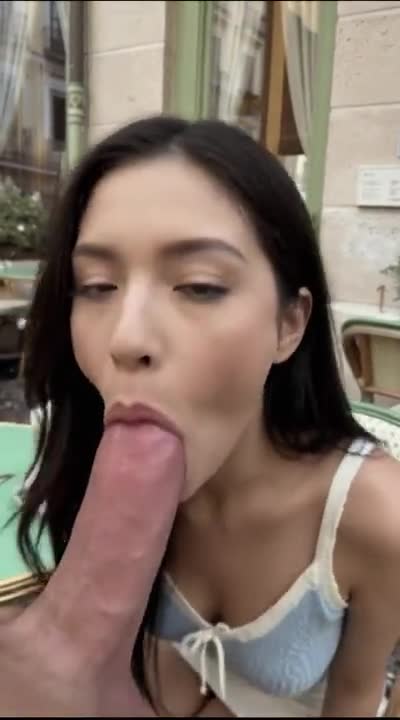
Existing adult photographic references in the gallery show how a venue reads when the camera height is already implied in the brief. When you use an ai model generator, write the room the way the reference suggests: state the wall, the light source, and the distance from the subject. The ai model generator does not need a measured floor plan; it needs a consistent scene clause that matches the reference’s point of view.
Use the existing adult reference to explore lighting and framing.Open the text-to-image workbench and write your first brief.
02
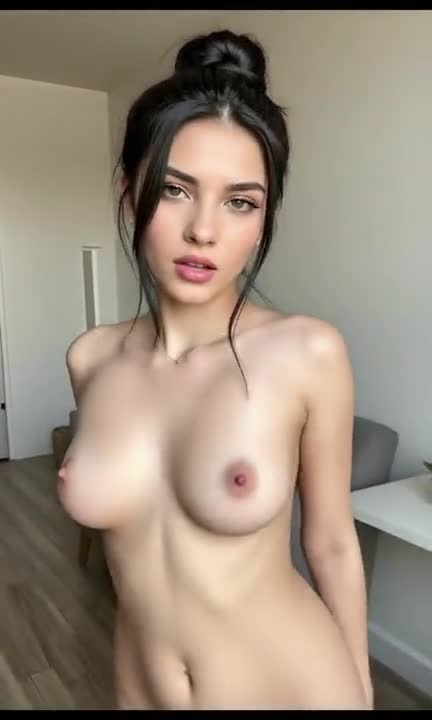
Pick a single clothing, light, or palette fact the new still must show and write it plainly. Existing adult photographic references illustrate how one strong detail anchors the frame. An ai model generator follows that detail when you keep the prompt focused. If the reference shows a warm key light and a dark backdrop, tell the ai model generator exactly that, and let the model fill the rest without over-describing.
Use the existing adult reference to explore lighting and framing.Open the text-to-image workbench and write your first brief.
03
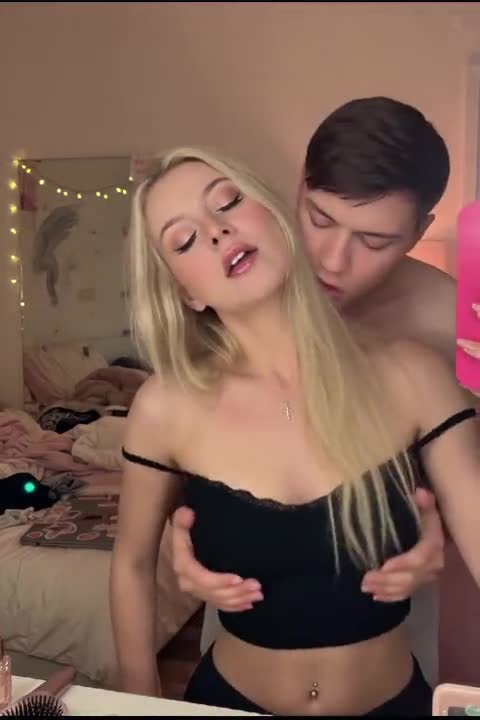
You can invent a neighboring still entirely from words, without pulling a source file. Look at an existing adult photographic reference for the mood, then write a new subject and a slightly shifted angle. An ai model generator builds that frame from your prompt, so the new still feels like it belongs in the same set. The ai model generator keeps the light logic consistent when your scene clause matches the reference’s direction.
Use the existing adult reference to explore lighting and framing.Open the text-to-image workbench and write your first brief.
From catalog frames to drawn finishes, the workbench supports the visual goals you describe. Each scenario starts with a written brief and the Seedream 5 Pro configuration.
The reference gallery contains existing adult photographic images. Use them to guide your crop, lookbook frame, or one-fact board before you write the prompt.
Illustrative image-to-image template references. Not verified VideoAny text-to-image outputs from this page.
Pick an existing adult photographic reference and note how the crop cuts the figure. Write that same crop into your prompt as a short clause, such as mid-thigh or shoulders-up. An ai model generator reads the crop word and applies it to your subject, so the output matches the reference’s framing. The ai model generator keeps the subject intact when the crop clause is clear and the ratio supports it.
Existing visual reference for composition and lighting; not a verified output from this page.
A lookbook frame uses the reference to set the pose and the clothing read, not the identity of the subject. Study an existing adult photographic reference for the stance and the garment fall, then write a new subject with those same cues. An ai model generator produces a fresh still that shares the reference’s structure. The ai model generator treats the pose and clothing words as instructions, not as a copy of the reference file.
Existing visual reference for composition and lighting; not a verified output from this page.
Build a one-fact board by pulling a single visual fact from an existing adult photographic reference: the light color, the fabric weight, or the wall tone. Write that fact into your prompt and let the ai model generator build the rest of the frame around it. The ai model generator does not need the full reference uploaded; it needs the one fact stated plainly. This keeps the output tied to your intention without over-constraining the model.
Existing visual reference for composition and lighting; not a verified output from this page.
Strong prompts put the adult subject first and keep the look list short. Inspect the result against the written brief, not against a template still.
01
Start every prompt with the adult subject: age, build, hair, and pose. Add the room and the mood only after the figure is clear. An ai model generator weights the first words most heavily, so leading with the subject keeps the output focused on the person. The ai model generator will still render the venue and the light, but it will not let them overpower the figure you described.
02
It is tempting to stack adjectives, but an ai model generator reads a long look list as competing instructions. Pick one clothing item, one light direction, and one palette word. The ai model generator renders those three facts cleanly and fills the rest with coherent defaults. A shorter prompt gives the ai model generator a clearer target and makes the retry loop faster.
03
Do not compare the output to a template still or a reference file you did not upload. Open your written brief and check each clause: subject, pose, crop, light, clothing. An ai model generator follows the words you provided, so the brief is the only standard that matters. If one clause failed, adjust only that clause and run the ai model generator again.
Creator workflow notes
Working habits for a prompt-only adult still, not user reviews
These notes describe common ways to run a text-to-image pass on this this image workspace desk. They are not user reviews, ratings, or promises about a specific result. The pictures around them are image-to-image template stills, not this page's generation proof.
Subject rewrite
Prompt workflow
Name one clearly adult subject, pose, and crop. If a second person appears, the brief was too broad.
Look rewrite
Clothes and light workflow
Keep the subject list short. Change only the garment color, room, or light direction. Inspect hands and floor contact against the brief.
Finish rewrite
Illustration workflow
Keep pose and staging in the written list. Name the finish in one clause. Check hands, eyes, and lettering before you accept the plate.
Find answers about input, model selection, credit cost, and result evaluation for the text-to-image workbench.
The text-to-image workbench accepts a prompt and does not require a reference upload. Write the adult subject, pose, and scene directly. The credit cost is shown before you generate, so you can review the spend before committing.
No. This page uses the text-to-image workbench, which accepts a text prompt. You describe the subject, pose, and scene in words, and Seedream 5 Pro generates the still from that description.
Seedream 5 Pro is the image model configured in VideoAny for this task. It is selected when you open the workbench, so you can start writing your prompt immediately.
Compare the output to your written brief, not to an external reference. If a specific clause missed, adjust only that clause and regenerate. The workbench supports NSFW image generation within the current configuration.
The current image model configuration includes NSFW image generation, so adult prompts are supported. Write your subject and scene clearly, and the model will attempt to render the described content.
This page uses the text-to-image workbench, which builds a still from a written prompt alone. The image-to-image workbench accepts a reference image upload and rewrites it. Choose the tool that matches the input you have.
The credit cost appears before generation. If you already have a photo that should constrain the next still, switch to the image-to-image workbench. Plan a short retry budget for each brief.
The credit cost is shown before you generate, and it may differ between the text-to-image and image-to-image workbenches. Check the displayed cost on each workspace before you commit.
VideoAny has an image-to-image workbench with reference image input. Upload your photo there and write the changes you want. The text-to-image ai model generator on this page works from words alone, so it does not use an uploaded reference.
Follow these steps to write a prompt, set the controls, and inspect the result on the text-to-image workbench with Seedream 5 Pro.
Open the text-to-image workbench and type your prompt. Start with the adult subject: age, build, hair, and pose. Add the crop and the scene after the figure is clear. An ai model generator reads the prompt in order, so leading with the subject keeps the output focused. The ai model generator does not need a reference photo; it builds the still from your description alone.
Confirm Seedream 5 Pro is selected as the image model. Set the aspect ratio to match the frame you described, and choose the resolution. The credit cost is shown before you generate, so review it now. An ai model generator uses these settings to shape the output canvas, and the cost reflects the configuration you chose.
After generation, open your written brief and check each clause. If the light or the clothing missed, adjust only that clause and leave the rest intact. Run the ai model generator again with the revised prompt. The ai model generator keeps the unchanged clauses stable, so the retry fixes the one element without altering the whole composition.
Freeze the brief, cap the retry budget, and set the fidelity bar before you close the workspace. These steps make the next session faster.
Before you leave the ai model generator, save your prompt as a subject-and-look pair: one sentence for the figure, one for the clothing and light. Avoid saving a mood paragraph that mixes adjectives and venue words. An ai model generator reproduces the still more reliably when the brief is structured this way. The ai model generator reads a clean subject-and-look pair as a clear instruction set.
Decide how many credits you will spend refining this still. The credit cost is shown before you generate, so multiply that by your retry cap and note the total. An ai model generator session stays efficient when you set a hard stop. If the still is not close after the cap, save the best output and start a fresh brief.
Write down the three clauses that must be correct: subject identity, pose, and one light or clothing fact. An ai model generator output passes when those three clauses match the brief. Do not add a fourth bar during inspection. The ai model generator works best when the success criteria are fixed before you look at the result, so you judge the still against the brief, not against a moving target.
VideoAny AI
Open the text-to-image workbench and write your first brief.
Freeze the brief, cap the retry budget, and set the fidelity bar before you close the workspace. These steps make the next session faster.
This website is an independent third-party platform. We are not affiliated with, endorsed by, or officially representing any AI model providers referenced on this site. All trademarks and brand names belong to their respective owners.
© 2026 VideoAny. All rights reserved. ACKERMAN TECH SOLUTIONS LLC